
Override Checker
Override Checker answers a question Joomla itself can't: when your template's override files drift away from Joomla core, does it matter? It opens your site's override data to an AI assistant of your choosing, which reads every flagged override, classifies it as alert, review or info, explains the result in plain English, and — for the findings you confirm — applies the patch in place, with an automatic backup so anything can be rolled back.
New to Override Checker? This page is the reference manual. For an overview of what Override Checker does, with screenshots and the download, see its page on cybersalt.com.
Bring your own AI. The extension is not tied to any one assistant. Everything it exposes is a plain REST API secured by a standard Joomla API token, so any AI that can make an HTTPS request — or any script you write yourself — can drive it. The dashboard hands you a ready-made prompt that works in ChatGPT, Claude, Gemini, Copilot, Cursor, a local model, or whatever you already pay for. See Choosing how to run a review.
Release history. This page documents the current release. For what changed in each version, see the changelog.
Requirements. Joomla 5.0+ or Joomla 6.0+ (native to both), PHP 8.3 or newer. Licensed GPL v2 or later. Free, with no paid tier — there is no Pro version and nothing is held back. The interface ships in 15 languages and follows your admin user's language setting automatically.
The problem this solves
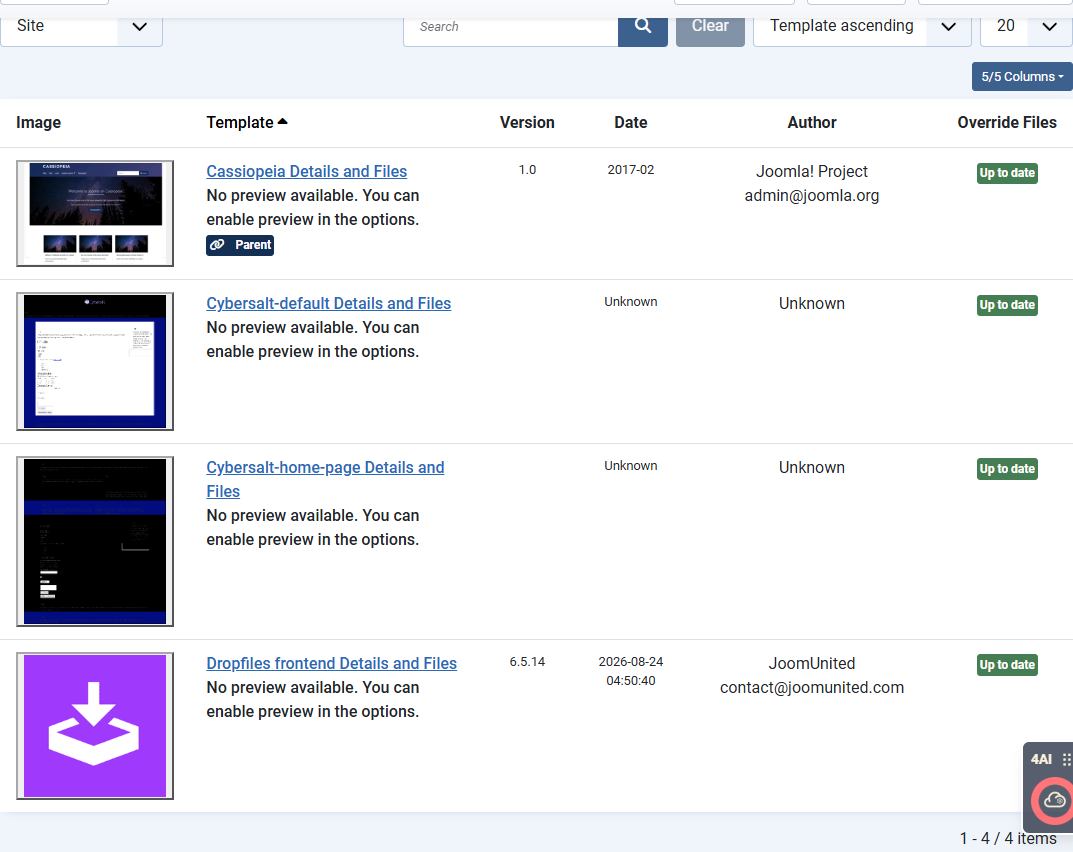
A template override is a copy of one of Joomla's own layout files, kept inside your template, that your designer changed to make the site look the way you want. Joomla keeps a list of these in its Template Manager, and after a core update it will tell you how many of them no longer match the file they were copied from.
 ⤢ Click to enlarge
That count is the whole of Joomla's built-in feature. It tells you something changed. It does not tell you whether the change is a copyright year, a designer's styling tweak, or a missing security filter that lets a hostile article title run scripts in your visitors' browsers. After a Joomla point release every template with overrides lights up at once, so the signal-to-noise ratio is close to zero at exactly the moment a site owner actually needs to know whether something is wrong.
The Override Checker reads that same native tracker and puts a template-literate reviewer behind it.
Installing
- Download
pkg_csoverridechecker_v*.zipfrom cybersalt.com. - In your Joomla admin go to System → Install → Extensions and upload the zip.
- The package installer enables the Web Services plugin for you — there is no separate step.
- Open Components → Override Checker.
The package registers a Joomla update server, so from then on new versions appear under System → Update → Extensions like any first-party extension. The updater verifies a SHA-256 checksum on every download.
The dashboard
 ⤢ Click to enlarge
| Button | What it does |
|---|---|
| Action log | Read-only audit trail of every change the extension made. |
| File backups | Pre-change snapshots of any file that was patched, with a Restore button. |
| Open Site Templates Management | Opens Joomla's own Template Manager in a new tab. |
| Sessions | Every review report produced for this site, whichever AI ran it. |
| Reset overrides for review | Rebuilds the override tracker for the templates you pick. |
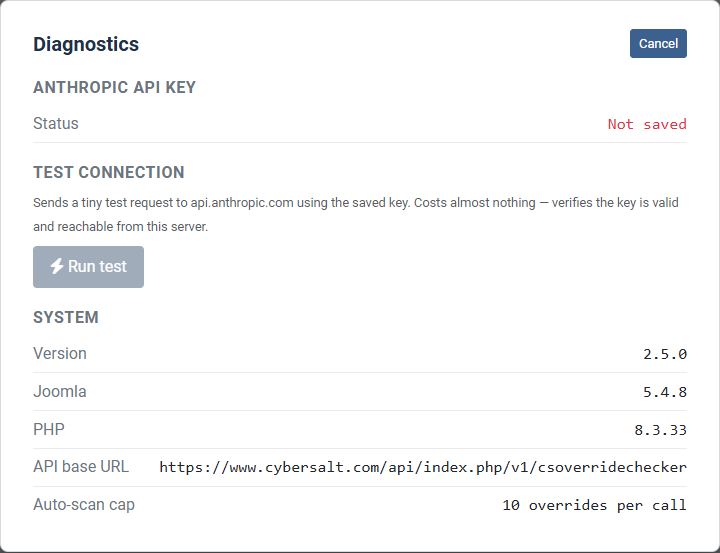
| Diagnostics | Version, PHP, API key status, and a connection test. |
| Setup guide | Answers "which AI can I use?" without leaving the admin. See The Setup guide. |
| Get help | Where to report a problem, what to include, and a copyable diagnostics block. See Getting help. |
Before your first scan: the Joomla API token
Your AI reads your override files through Joomla's Web Services API, so it needs a Joomla API token. You can generate one the long way — System → Manage → Users, open your own user, switch to the Joomla API Token tab, reveal and copy — or you can let the extension do it.
The one-click way
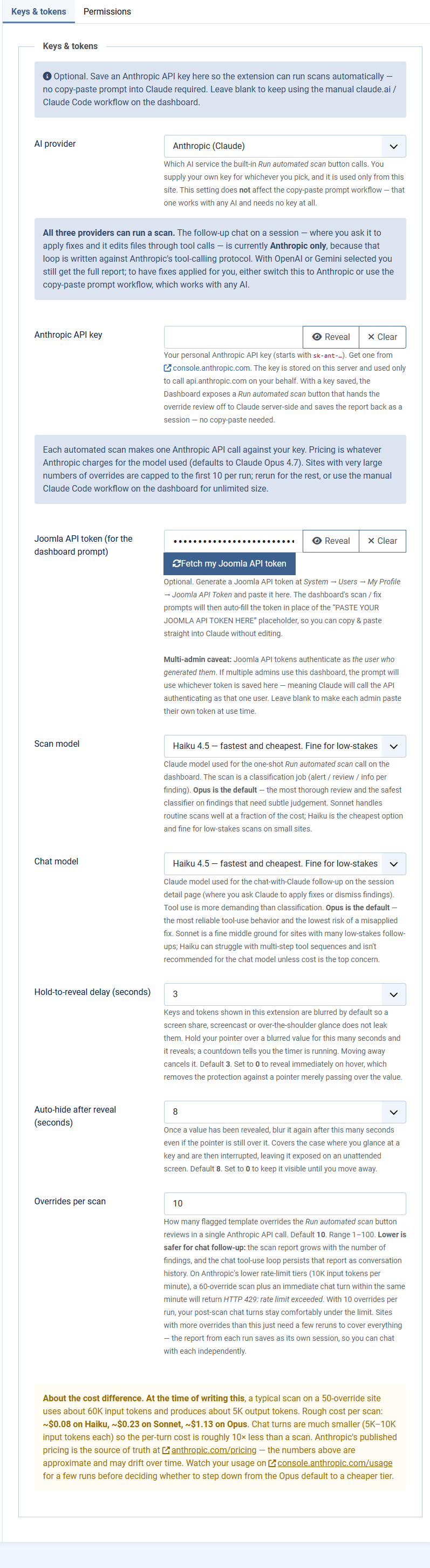
Open Options → Keys & tokens. Under the Joomla API token field there is a Fetch my Joomla API token button. Click it and the extension derives the token for the account you are logged in as and fills the field in place. If your account has never had one, it creates the seed record first. Save, and every prompt the dashboard generates from then on arrives with the token already substituted.
It also fixes the thing nobody can diagnose. A working Joomla API token depends on two plugins, and they fail differently:
plg_user_token— User – Joomla API Token. Mints the token. With this disabled you simply cannot get one.plg_api-authentication_token— API Authentication – Joomla API Token. Checks the token on incoming requests. With this disabled you get a perfectly well-formed token that returns401on every single call, with nothing anywhere to tell you why.
If either is off, the Fetch button says so and offers to enable it for you. Enabling a plugin is a site-wide change, so that button needs Joomla's own plugin-management permission as well as write access to this component — if you are not a Super User you may be told to ask one.
Keys don't sit on screen in plain text
Every key and token the extension displays is blurred by default. Hold
your pointer over one and a countdown runs; after the delay it reveals, and it re-blurs
by itself a few seconds later. Moving away cancels it. This exists so that a screen share,
a training video or someone walking past your desk doesn't collect your credentials.
Both timings are settings — Hold-to-reveal delay (3 seconds by default) and
Auto-hide after reveal (8 seconds) — and setting either to 0 turns
that half of the behaviour off.
 ⤢ Click to enlarge
Multi-admin caveat. A Joomla API token authenticates as the person who generated it. If several administrators share this dashboard, the saved token means your AI acts as that one user for everybody. Leave the field blank if you'd rather each admin pasted their own token at the time of use.
Regenerating a token kills the old one instantly. If you ever reset
your Joomla API token, remember to update the copy saved here — otherwise the dashboard
keeps handing out a token that returns 401 Forbidden.
Choosing how to run a review
There are three ways to drive the extension. They differ only in who sends the requests — the data, the reports and the safety rails are identical.
| Method | What you need | Best for |
|---|---|---|
| 1. Copy-paste prompt start here |
Any AI assistant that can make web requests. No API key, no extra cost. | Almost everyone. Works with whatever AI you already use. |
| 2. Built-in automated scan | An API key for Anthropic, OpenAI or Google Gemini (pay-per-token). | People who want the review to run server-side with no copy-paste. |
| 3. Your own code or agent | The REST API and a Joomla API token. | Agencies, multi-site dashboards, custom automations. |
Methods 1 and 3 are completely assistant-agnostic — the extension neither knows nor cares which AI is on the other end of the connection. Method 2 is the only one that calls an AI service itself, and it lets you pick which: Anthropic, OpenAI or Google. There is one real limit, covered in full under Method 2: all three providers run scans, but the follow-up chat that applies fixes for you is Anthropic-only.
The Setup guide
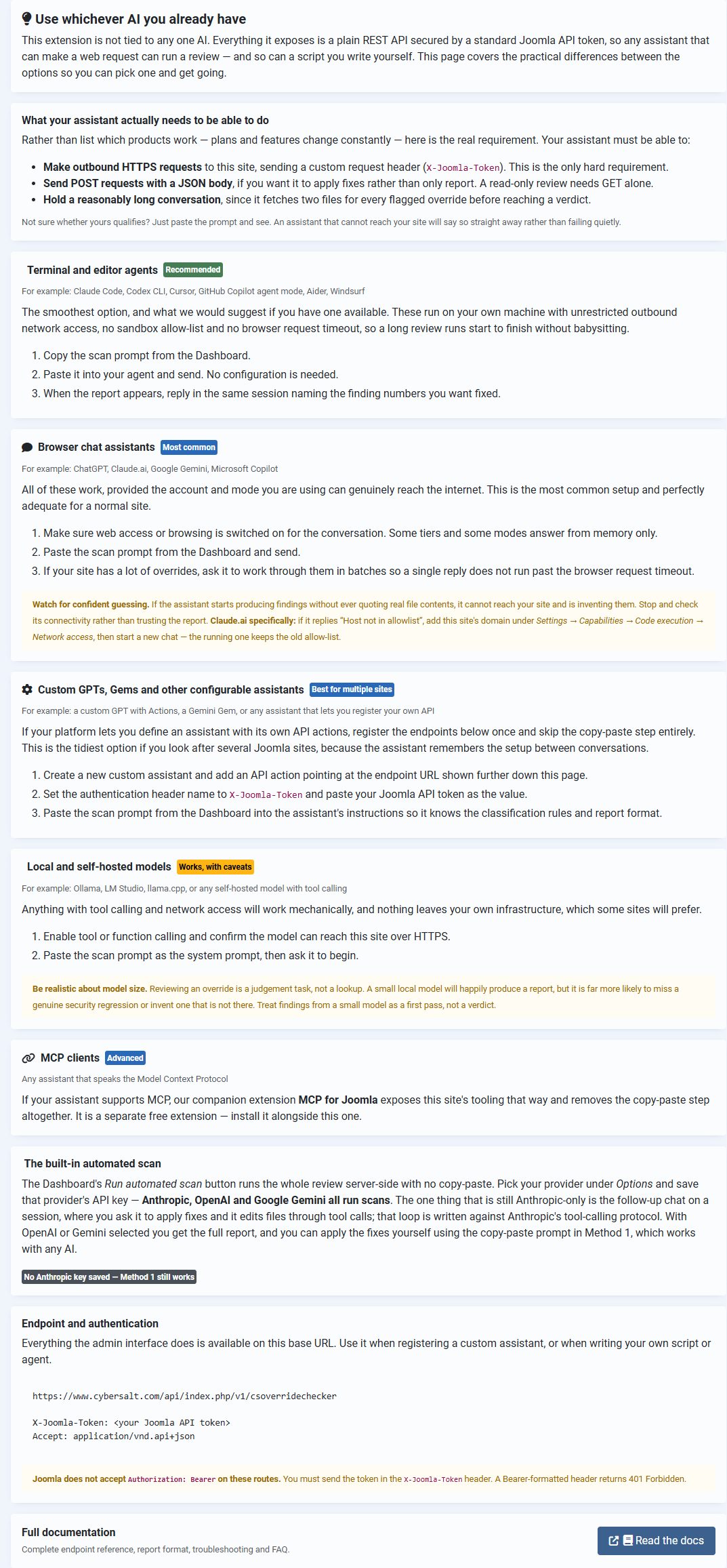
"Which AI can I use?" is the question everybody asks first, so the answer is built into the admin as well as written here. Components → Override Checker → Setup guide is a single page you can read while you're deciding, without a second browser tab.
 ⤢ Click to enlarge
It deliberately leads with the capability your assistant needs rather than a
list of approved products — a list like that is out of date within months. Underneath
that come per-family notes with a badge each: terminal and editor agents
(Recommended), browser chat assistants (Most common), custom GPTs and
Gems (Best for multiple sites), local and self-hosted models (Works, with
caveats) and MCP clients (Advanced). The page finishes with this site's own
endpoint URL and the X-Joomla-Token warning, ready to copy.
If no Joomla API token is saved yet, the page says so at the top and links straight to Options. The same material, in more depth, is in Notes for specific assistants below.
Method 1 — the copy-paste prompt (any AI)
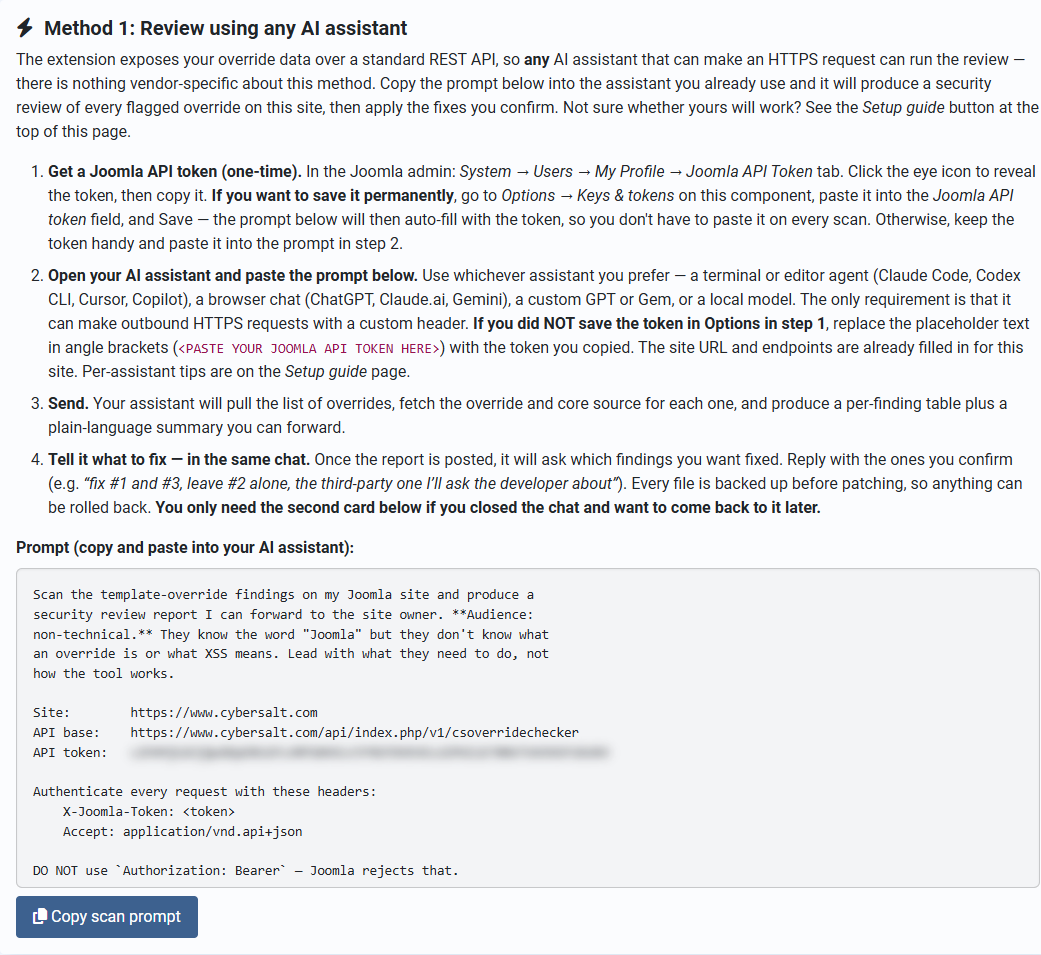
This is the simplest method and the one to start with. It needs no API key and no spend beyond whatever AI subscription you already have. The dashboard writes a complete, ready-to-send prompt with your site's URLs and token already filled in. You copy it, paste it into your assistant, and it does the rest by calling back to your site.
What your AI needs to be able to do
Rather than list which products work — plans and features change constantly — here is the actual requirement. Your assistant must be able to:
- Make outbound HTTPS requests to your site, with a custom
request header (
X-Joomla-Token). This is the only hard requirement. - Send POST requests with a JSON body, if you want it to apply fixes rather than just report. Read-only reviews need GET alone.
- Hold a reasonably long conversation, since it fetches two files per flagged override before reaching a verdict.
Anything that satisfies the first point can produce a report. Anything that satisfies the first two can also apply fixes. If you're not sure whether your assistant qualifies, just paste the prompt and see — a tool that can't reach your site will say so immediately.
 ⤢ Click to enlarge
What happens next, whichever assistant you used:
- It fetches the list of flagged overrides from your site.
- For each one it fetches both the override file and the stock Joomla file it shadows.
- It classifies each pair and writes a report — a plain-English summary first, a per-finding table second, and collapsible technical detail for a developer.
- It saves that report back to your site as a session.
- It asks which findings you want fixed. You answer in the same chat.
Notes for specific assistants
All of these work. The differences are in setup friction, not capability. A condensed version of this section is on the admin's Setup guide page, so you don't have to come back here mid-job.
Terminal and editor agents — Claude Code, Codex CLI, Cursor, Copilot agent mode, Aider
The smoothest option, and what we'd recommend if you have one available. They run on your own machine with unrestricted outbound network access, no sandbox allowlist, and no request timeout, so a long review runs start-to-finish without babysitting. Paste the prompt and go.
Browser chat assistants — ChatGPT, Claude.ai, Gemini, Copilot
All work, provided the account and mode you're using can actually reach the internet. Two things to know:
- Web access must be genuinely on. Some tiers and some modes answer from memory alone. If the assistant starts inventing findings without ever quoting real file contents, that's the symptom — it can't reach your site and is guessing. Stop and check its connectivity rather than trusting the report.
- Long reviews can hit a browser request timeout on a site with many overrides, and the chat appears to stall. Ask it to work through the overrides in smaller batches, or switch to a terminal agent.
Claude.ai specifically: if it replies "Host not in allowlist", its code-execution sandbox is blocking your domain. Open Settings → Capabilities → Code execution → Network access, add your site, then start a new chat — the running one keeps the old allowlist.
Custom GPTs, Gems and similar
If your platform lets you define an assistant with its own API actions, you can
register the endpoints from the API reference once and skip the
prompt entirely. Set the auth header to X-Joomla-Token. This is the tidiest
option if you look after several Joomla sites — the assistant remembers the setup.
Local and self-hosted models
Anything with tool-calling and network access will work. Be aware that this review is a judgement task, not a lookup: a small model will produce a report, but it is far more likely to miss a genuine security regression or invent one that isn't there. Treat findings from a small local model as a first pass, not a verdict.
MCP clients
If your assistant speaks the Model Context Protocol, install MCP for J and its free MCP for Override Checker add-on. Your assistant then reviews and fixes overrides through its own tools, with no copy-paste step. It's also the better route for browser chats that support MCP connectors, because it avoids the browser request timeout.
Coming back to a review later
Directly below the prompt card is a second, similar card headed Continue a previous review in a new chat. Most people never need it. Use it only if the original chat is gone — you closed it overnight, you're handing the work to a colleague, or you ran the scan in one assistant and want to apply the fixes from another. It gives a fresh chat the context from the saved session so it can pick up where you left off.
Method 2 — the built-in automated scan
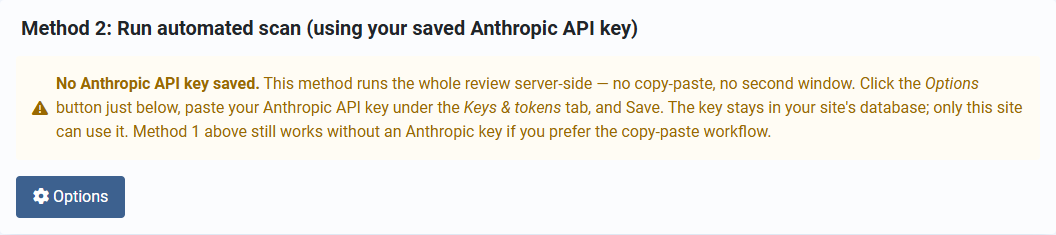
Save an API key in Options and the dashboard gains a Run automated scan button. The whole review then runs server-side: no copy-paste, no second window. The report is saved as a session exactly as it would be in Method 1.
Pick your provider
Options → Keys & tokens has an AI provider selector at the top. Choosing one reveals that provider's key field and its model list and hides the others, so the tab only ever shows you the settings that apply.
| Provider | Key from | Models offered |
|---|---|---|
| Anthropic (Claude) default |
console.anthropic.com | Haiku 4.5, Sonnet 5, Opus 4.8 (default) |
| OpenAI (GPT) | platform.openai.com | GPT-5 mini, GPT-5 (default) |
| Google (Gemini) | aistudio.google.com | Gemini 2.5 Flash, Gemini 2.5 Pro (default) |
All three run scans. Only Anthropic can apply the fixes for you. Whichever provider you pick, you get the full report saved as a session. What is Anthropic-only is the follow-up chat on the session page — the one where you name finding numbers and it edits the files. That loop is written against Anthropic's tool-calling protocol, so it isn't offered for the other two.
This is not a dead end. With OpenAI or Gemini selected you read the report in the admin and then apply the fixes with Method 1's copy-paste prompt, which works with any AI at all. Or switch the provider to Anthropic and use the chat box. Either way nothing is stuck.
 ⤢ Click to enlarge
This is pay-per-token. The key is yours, it is stored in your own site's database, and it is used only to call that provider on your behalf. Each scan is one API call. The Overrides per scan setting caps how many findings go into a single call — keeping it low also keeps your follow-up chat turns under the provider's rate limits. Sites with more overrides than the cap just need a few runs; each run saves as its own session.
Saved settings survive a provider change. Your Anthropic key stays where it is if you switch to Gemini for a while — the field is just hidden, not cleared — so switching back costs nothing. Likewise a model you picked in an earlier version keeps working after an upgrade rather than silently reverting to the new default.
Method 3 — your own code or agent
Nothing about the extension assumes a human is watching. Every capability in the admin interface is a REST endpoint secured by a standard Joomla API token, so you can drive the whole thing from a script, a scheduled job, a CI pipeline, or an agent you built yourself.
Things people do with this:
- Multi-site monitoring. Poll
/overridesacross every site you look after and raise a ticket only when the count changes. - Pre-upgrade gate. Run a review before a Joomla update and block the deploy if anything comes back as an alert.
- Your own choice of model. Fetch the override and core files yourself, send them to whichever model you prefer with your own prompt, then POST the result back as a session so it appears in the admin like any other review.
- Reporting. Pull the session history for a client report without logging into the site.
The full endpoint list is in the API reference below. The prompt on the dashboard is worth reading even if you never paste it — it documents the exact response shapes and the classification rules, and it makes a solid starting point for your own system prompt.
Reading a report
Every review, however it was run, lands in Sessions.
 ⤢ Click to enlarge
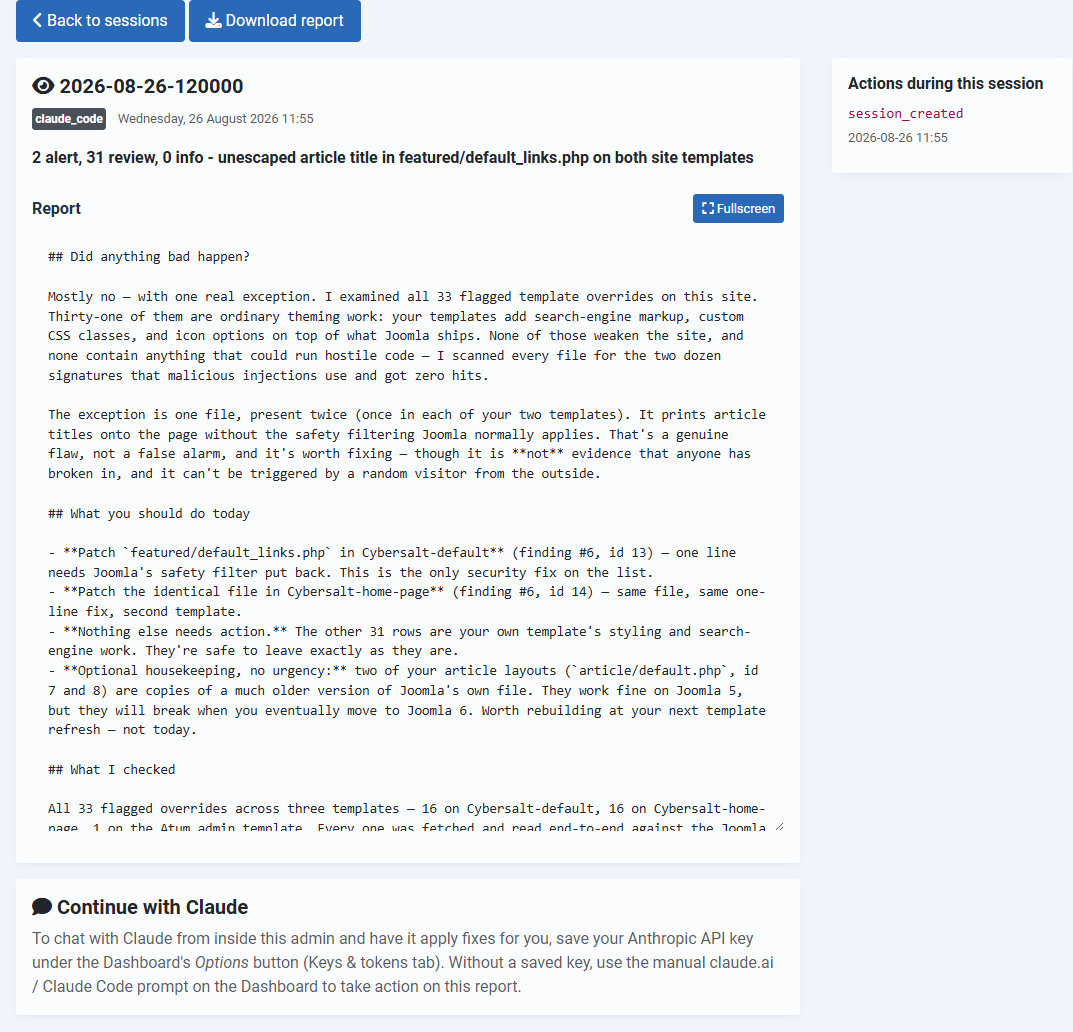
Click a row for the full report.
 ⤢ Click to enlarge
Reports are written for the site owner, not the developer, and always in the same order:
| Section | What's in it |
|---|---|
| Headline answer | One paragraph answering "did anything bad happen?" before any detail. |
| What you should do today | Concrete actions in plain English, one file per bullet. |
| What I checked | How many overrides on which templates — and, explicitly, any that were not examined. |
| Findings table | One row per flagged override. Every id appears, including ones that weren't reached. |
| Technical detail | Collapsed by default. Diffs, the code-execution scan result, upgrade hazards. |
| Suggested next-turn prompts | Copy-paste-able instructions with the real finding numbers already filled in. |
What the three severities mean
| Severity | Meaning | What to do |
|---|---|---|
| 🔴 Alert | The override is less safe than the Joomla file it replaces — a missing output filter, a removed security token, a dropped permission check, or code that could execute input. | Fix it. The report states whether an anonymous visitor can trigger it or whether it needs someone with an account. |
| 🟡 Review | Genuine design work that has drifted from current core but doesn't reduce safety — markup, CSS classes, search-engine microdata, framework-generated overrides. | Safe to keep. Worth refreshing at your next template overhaul. |
| ⚪ Info | Cosmetic only: copyright year, whitespace, reindentation. | Nothing. |
Severity is judged relative to core, not in the abstract. Joomla deliberately renders some values unescaped — article body text, plugin output, pagination markup. An override that does the same thing core does is not a finding. Only a file that is worse than the original earns an alert. That distinction is the whole point of the extension.
Applying fixes — and undoing them
You confirm fixes by naming specific finding numbers, either in your own AI chat (Method 1) or in the session's chat box (Method 2, Anthropic key required — see Method 2). The prompt instructs the assistant to refuse vague instructions on purpose: if you say "fix those" without numbers, it should stop and ask which ones you mean, because acting on a misread pronoun could patch the wrong file.
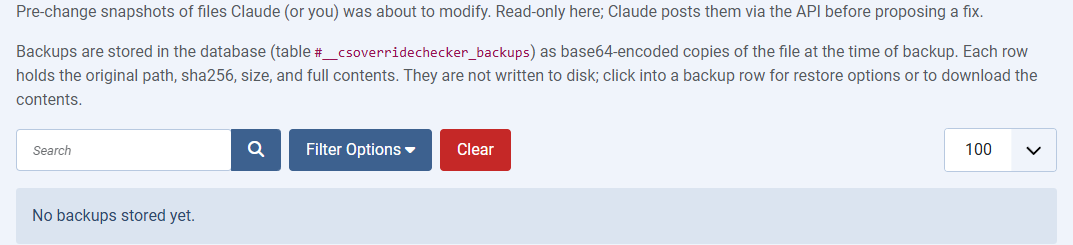
Every patch is snapshotted before it is written.
 ⤢ Click to enlarge
Restoring is a single click from the backup's detail page, and it rewrites the original bytes exactly. Nothing the extension does to a file is one-way.
What a fix can't add
Your AI reads files from your site, and a hacked file can contain text written to trick
it. So Override Checker compares every fix with the file it replaces, and refuses one that
adds eval, shell commands, decoding functions such as
base64_decode, reading or writing files, outbound connections, a new or changed
include or require, variable function calls, or superglobals such
as $_GET. Code the file already has can stay, so an override that already
contains one of these can still be fixed.
A refused fix writes nothing. The REST API answers 422 CONTENTS_REFUSED, and
the Action log records fix_refused. If the change really is what you want, read
it and make it in the file yourself: no AI, API call or setting can turn this off.
Fixing an infected override stores the backdoor as that fix's backup, so restoring follows
the same rule for AI and API callers, logged as restore_refused. You can still
restore any backup yourself from the File backups screen.
The check reads PHP only, and enough indirection can get past any list. It's a safety net, so keep reading what your AI proposes.
Snapshots accumulate. The bundled scheduled-task plugin adds a cs-override-checker: Purge old file backups routine under System → Scheduled Tasks. Give it a daily or weekly schedule and it trims backups past your retention window (30 days by default) while always keeping the 5 most recent, no matter how old. There's a dry-run switch so you can see what a new setting would delete before it deletes anything.
The audit trail
 ⤢ Click to enlarge
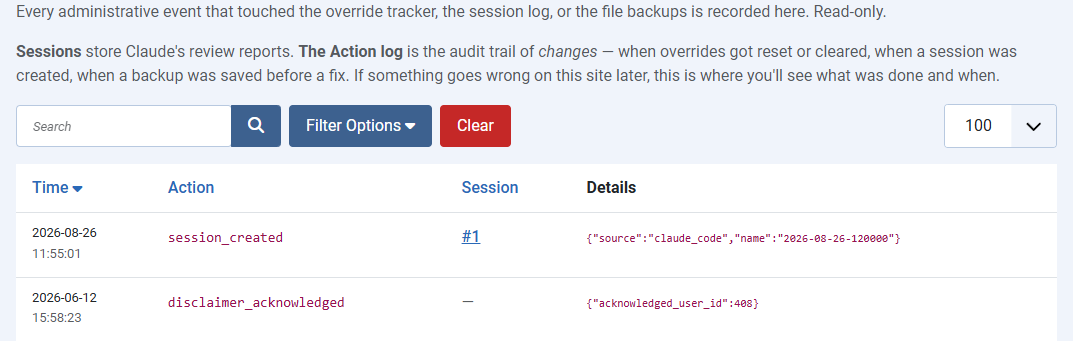
Sessions record what the review found. The Action log records what was done. If something looks wrong on the site later, this is where you find out what changed and when.
Resetting the tracker
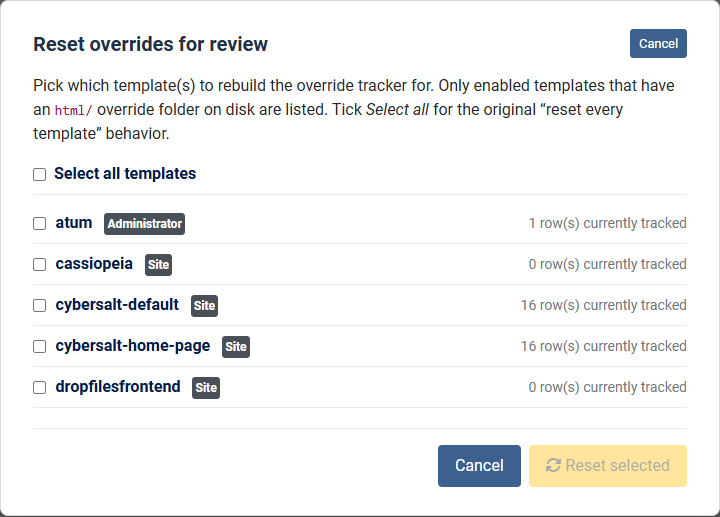 ⤢ Click to enlarge
Use this after adding new override files, or when you want a template re-flagged for a
fresh review. Only enabled templates with an html/ override folder are
listed. Ticking Select all reproduces the original "reset everything" behaviour.
Who can use it
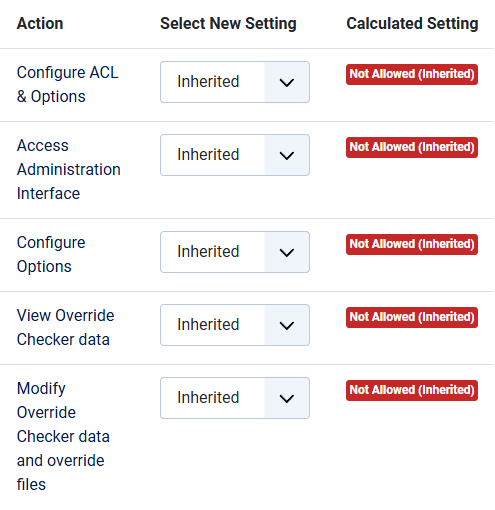 ⤢ Click to enlarge
Out of the box only Super Users can use the extension or its API. Every read endpoint requires the View action and every write endpoint requires Modify, so granting a group read access does not give it the ability to patch files. Set these under Options → Permissions (or globally in System → Global Configuration → Permissions).
The API
Everything the admin interface does is available over Joomla's Web Services API, which is how any AI assistant talks to your site — and how your own code can too.
Authentication gotcha. Joomla does not accept
Authorization: Bearer on these routes. Every request needs:
X-Joomla-Token: <your token>
Accept: application/vnd.api+json
A Bearer-formatted header returns 401 Forbidden.
Read
| Endpoint | Returns |
|---|---|
GET /v1/csoverridechecker/overrides | Every flagged override. |
GET /v1/csoverridechecker/overrides/{id}/override-file | The override file's contents. |
GET /v1/csoverridechecker/overrides/{id}/core-file | The stock Joomla file it shadows. |
GET /v1/csoverridechecker/sessions/{id} | A previously saved report. |
Write
| Endpoint | Effect |
|---|---|
POST …/overrides/{id}/apply-fix | Patches the file in place. Snapshots it first and returns the backup id. |
POST …/overrides/{id}/dismiss | Clears one tracker row — this is "mark as checked". |
POST …/overrides/dismiss-all | Clears every remaining row. |
POST …/sessions | Saves a review report. |
POST …/backups/{id}/restore | Rolls a patch back. |
Your site's exact endpoint URL is shown at the bottom of the dashboard.
 ⤢ Click to enlarge
How the extension protects itself
- Every write must land inside
templates/<template>/html/oradministrator/templates/<template>/html/. This is an allow-list anchored on path separators, not a blocklist of file extensions — nothing outside an override folder can be written, whatever it's called. - Writes are capped at 4 MB.
- Automated scans are rate-limited to 12 per user per hour.
opcache_invalidate()runs after every PHP write, so a patch takes effect on the very next request.- The saved provider key is fingerprinted with a hash — no part of the key itself is exposed in Diagnostics, and the Get help page reports only whether a key is present, never its value.
- Keys and tokens render blurred wherever they appear, and re-blur on a timer after being revealed, so a screen share or screencast doesn't leak them.
- The one-click token fetch derives only the current user's token — it will not accept a user id from the request — and the buttons that enable Joomla's two token plugins require Joomla's own plugin-management permission on top of this extension's write permission, so a delegated "override reviewer" group can't use them to re-open an API surface a Super User closed.
- File contents are treated as untrusted data. Text inside an override file that looks like an instruction is ignored; only the prompt and your chat messages direct the review.
Troubleshooting
 ⤢ Click to enlarge
| Symptom | Cause and fix |
|---|---|
API returns 404 Resource not found |
The Web Services plugin isn't enabled. Check System → Plugins for Web Services - Cybersalt Override Checker. The package enables it automatically, but a manual install of the component alone will not. |
API returns 401 Forbidden |
Three usual causes. You sent Authorization: Bearer instead of
X-Joomla-Token; or the token has been regenerated since it was
saved; or — the nasty one — the API Authentication – Joomla API
Token plugin is disabled, in which case a perfectly valid token is rejected
on every call. Click Fetch my Joomla API token in
Options → Keys & tokens: it checks both plugins and
offers to enable whichever is off. |
| Fetch my Joomla API token can't enable a plugin | Enabling a plugin is a site-wide change, so it needs Joomla's plugin-management permission as well as this extension's write permission. Ask a Super User, or enable the plugin by hand under System → Plugins. |
| Claude.ai says "Host not in allowlist" | claude.ai's sandbox is blocking your domain. Add it under Settings → Capabilities → Code execution → Network access, then start a new chat. |
| The chat stalls before the AI finishes | A browser request timeout. Ask it to work in smaller batches, or use a terminal-based agent, which has no such limit. |
HTTP 429: rate limit exceeded |
Too many tokens in one minute on a lower provider tier. Lower Overrides per scan and re-run. |
| The session's chat box isn't offered | The follow-up chat that applies fixes is Anthropic-only. With OpenAI or Gemini selected you still get the full report — apply the fixes with Method 1's copy-paste prompt, or switch the provider to Anthropic. |
A core-file request 404s |
Expected, not an error. The override is a custom alternative layout with no core counterpart, so it's reviewed on its own merits instead of by comparison. |
| Non-Super-Users can't see the component | Grant the View and Modify actions under Options → Permissions. |
Questions people ask
Will it change my site without asking? No. Reviews are read-only. Nothing is written until you confirm specific numbered findings, and every write is backed up first.
Do I need to pay an AI company? Only for Method 2, and only the one you choose — Anthropic, OpenAI or Google. Method 1 works with whatever AI subscription you already have and needs no API key at all.
Can I use ChatGPT or Gemini for everything? For the review, yes, either through Method 1's prompt or by selecting them as the Method 2 provider. The one thing they can't do yet is the in-admin follow-up chat that applies fixes for you; that loop is written against Anthropic's tool-calling protocol. Applying the fixes through Method 1's prompt works with any assistant.
Does my code get sent anywhere? Your override files are sent to your chosen AI for review — that's what the review is. In Method 1 that happens through your own AI session; in Method 2 through your own API key with the provider you picked. Nothing is ever sent to Cybersalt.
What if I disagree with a finding? Ignore it. Nothing is applied without you naming it. You can also ask your AI to explain its reasoning on any single finding before deciding.
Can it fix a third-party extension's override? It will flag one, but the report will tell you to talk to that extension's developer rather than patch it — patching a file the vendor will overwrite on their next update is not a fix.
Is there a paid version with more features? No. There is no Pro tier, no licence key and no feature held back — what you've just read is the whole extension.
Support and feedback
Override Checker is free, and stays free. There's no paid upgrade, so nothing in this documentation is a trailer for a version you have to buy.
We genuinely want to hear from you. Bug reports, confusing wording, a finding it got wrong, a workflow it doesn't fit, an assistant you tried that behaved unexpectedly — all of it is useful, and the feedback from real sites is what has shaped every release so far.
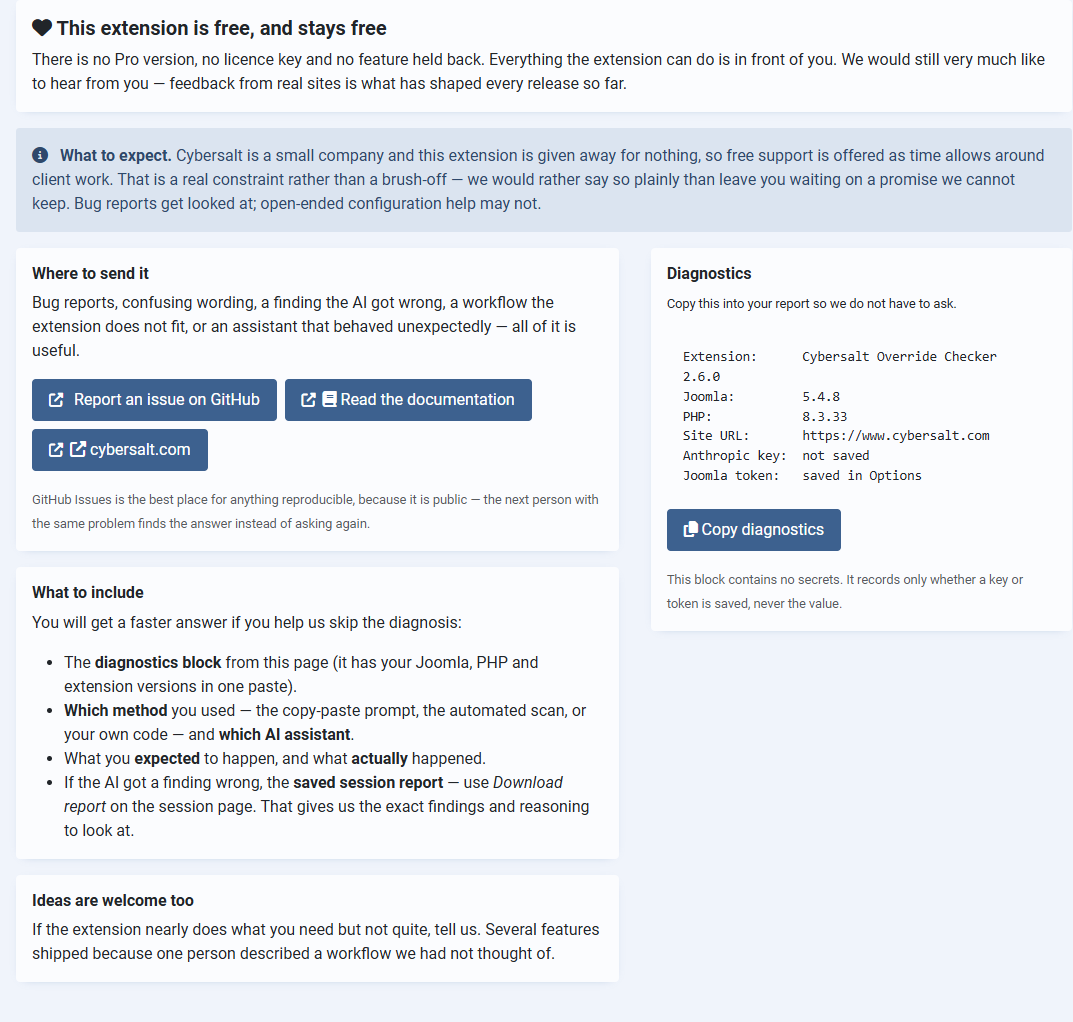
The Get help page
All of this is also in the admin, at Components → Override Checker → Get help, so you can start a bug report from the screen the problem happened on.
 ⤢ Click to enlarge
The Diagnostics panel is worth knowing about. Copy diagnostics gives you a plain-text block with the extension version, your Joomla and PHP versions, the site URL, and whether an AI key and a Joomla API token are saved. That last pair is recorded as presence only — saved or not saved, never the value — so the whole block is safe to paste into a public GitHub issue without reading it line by line first.
Where to send it
| What | Where |
|---|---|
| Bug reports and feature requests | GitHub Issues — the best place, because it's public and other users benefit from the answer |
| General feedback and questions | cybersalt.com |
| Source, releases and changelog | github.com/cybersalt/cs-override-checker |
What to expect
Please be realistic about response times. Cybersalt is a small company and this extension is given away for nothing, so free support is offered as time allows around client work. That's a real constraint, not a brush-off — we would rather say so plainly than leave you waiting on a promise we can't keep.
You'll get the fastest result by helping us skip the diagnosis: tell us your Joomla and PHP versions and the extension version, which method and which AI provider or assistant you were using, and what you expected to happen versus what actually did. The Copy diagnostics button on the Get help page covers the first of those in one paste.
If you're reporting something the AI got wrong, the single most useful thing you can attach is the saved session report — use Download report on the session page. That gives us the exact findings and reasoning to look at.
Override Checker is developed by Cybersalt Consulting Ltd. and released under the GNU General Public License v2 or later. Source, releases and changelog: github.com/cybersalt/cs-override-checker.
Dashboard navigation — click anywhere to closeClose ×
Options → Keys & tokens — click anywhere to closeClose ×
Method 1 — the copy-paste prompt — click anywhere to closeClose ×
Method 2 — automated scan — click anywhere to closeClose ×
Sessions — click anywhere to closeClose ×
A session report — click anywhere to closeClose ×
File backups — click anywhere to closeClose ×
Action log — click anywhere to closeClose ×
Reset overrides for review — click anywhere to closeClose ×
Permissions — click anywhere to closeClose ×
Dashboard footer — click anywhere to closeClose ×
Diagnostics — click anywhere to closeClose ×
The Setup guide — click anywhere to closeClose ×
Get help — click anywhere to closeClose ×
Subcategories
Changelog
Release history for Cybersalt Override Checker.