
Extension Manager
Cybersalt Extension Manager installs, updates and looks after every Cybersalt extension on your Joomla site from one screen. You see what's installed, what has an update and what you don't have yet; install or update one extension or several in one go; read what changed since your version; go back to an earlier release if an update causes trouble; and let a daily check email you when something new is out. It also shows the Joomla templates from Energize Themes and VirtueMart Templates. It's free.
Release history. This page documents the current release. For what changed in each version, see the changelog.
Requirements. Joomla 5 or 6 and PHP 8.1 or newer. Your site has to be able to
reach www.cybersalt.com over https. Extension Manager is free and open source
(GPL-2.0-or-later); the source code is on
GitHub.
 ⤢ Click to enlarge
What's included
| Extension | Job |
|---|---|
com_csextensionmanager |
The Dashboard, Extensions, Templates, Health Check and History screens, and the Options. |
| Installer - Cybersalt Extension Manager | Adds your download ID to Cybersalt downloads and update checks when it's missing, so Pro updates also work from Joomla's own System → Update → Extensions screen. |
| Quick Icon - Cybersalt Extension Manager | Shows the number of Cybersalt updates on the Home Dashboard, next to Joomla's own update checks. |
| Task - Cybersalt Extension Manager | The scheduled task that checks for updates once a day, emails you, and can install updates for you. It's off until you switch it on. |
Installing
- Download the zip from the Extension Manager page on cybersalt.com.
- In your Joomla admin go to System → Install → Extensions and upload the zip. The three plugins are switched on for you.
- Click Open the Extension Manager on the card that appears, or go to Components → Cybersalt Extension Manager.
If you'd like an email when a new release of a Cybersalt extension on your site is out, click Email me about new releases on the same card or on the dashboard. Release emails are off until you ask for them; see Release emails and automatic updates.
Extension Manager updates itself like any Cybersalt extension: from its own Extensions screen, or from System → Update → Extensions.
The dashboard
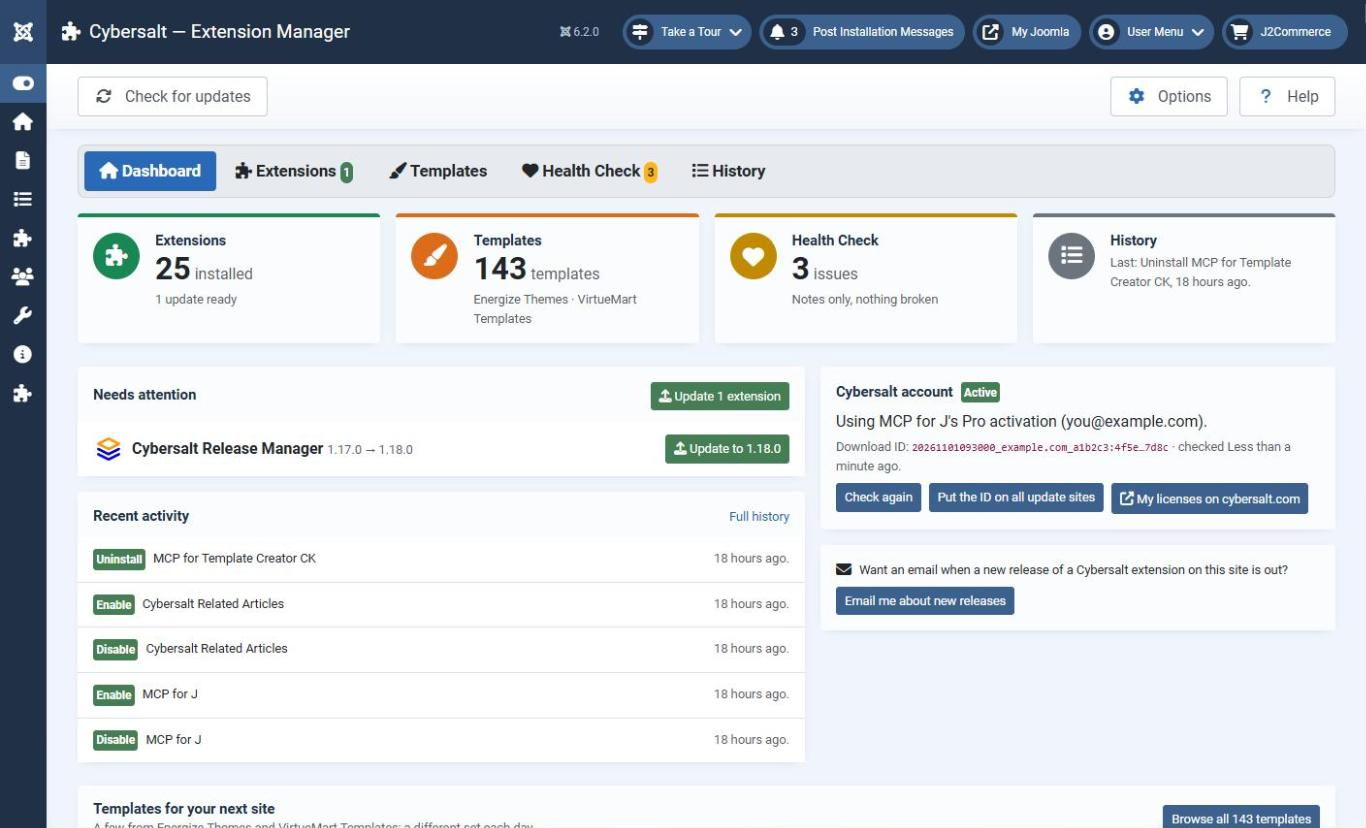
The Extension Manager opens on its dashboard. The section bar along the top of every screen (Dashboard, Extensions, Templates, Health Check, History) takes you anywhere in one click; the same entries are in Joomla's side menu under Components → Cybersalt Extension Manager.
| Part | What it shows |
|---|---|
| Extensions tile | How many Cybersalt extensions are installed, and how many updates are waiting (or how many more you could add). |
| Templates tile | How many templates the two template sites offer. See Templates. |
| Health Check tile | The number of Health Check findings. Green: nothing to look at. Yellow: warnings, or notes only. Red: a real problem, such as a half-installed package. |
| History tile | The last thing that happened. |
| Needs attention | Updates you haven't installed and anything half installed, each with its own button, plus Update all. |
| Recent activity | The last few installs, updates and changes. Full history opens History. |
| Cybersalt account | Whether this site is linked to a Cybersalt account for Pro extensions. See Pro extensions. |
| Templates for your next site | Four templates that change each day. |
Check for updates in the toolbar asks cybersalt.com again straight away. Otherwise what it learned is reused for six hours (change this under Options → Catalog).
The Extensions screen
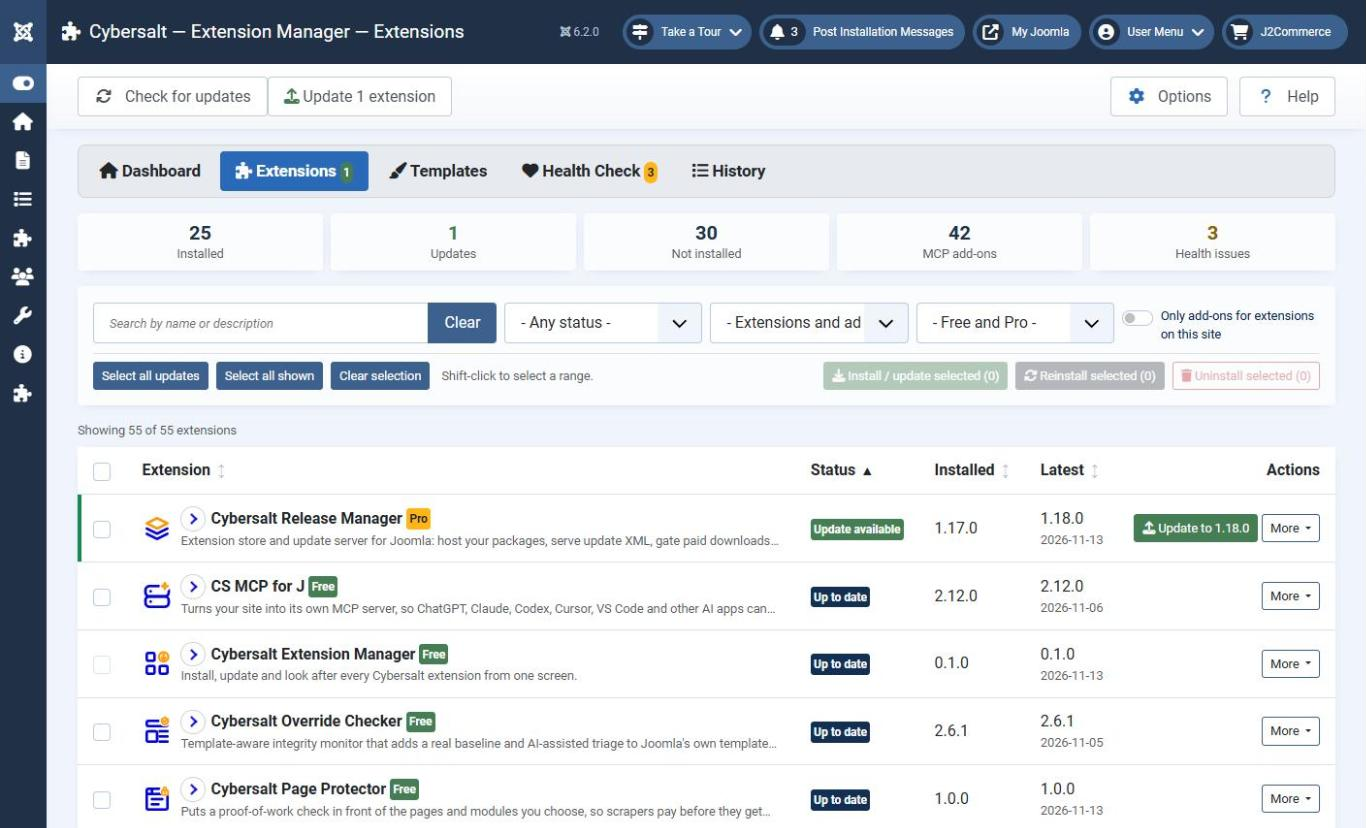
Every Cybersalt extension and MCP for J add-on is listed, one row each: its name and a one-line description, its status, the version installed here and the latest version. Anything that needs attention is listed first.
 ⤢ Click to enlarge
- Sort by clicking a column heading: name, status, installed version or release date. The browser remembers your choice.
- Filter: the numbers along the top are filters (click Updates to see only the extensions with an update). You can also search by name or description, filter by status, kind (extensions or add-ons) and licence (free or Pro), or tick Only add-ons for extensions on this site. A line under the list says how many are showing.
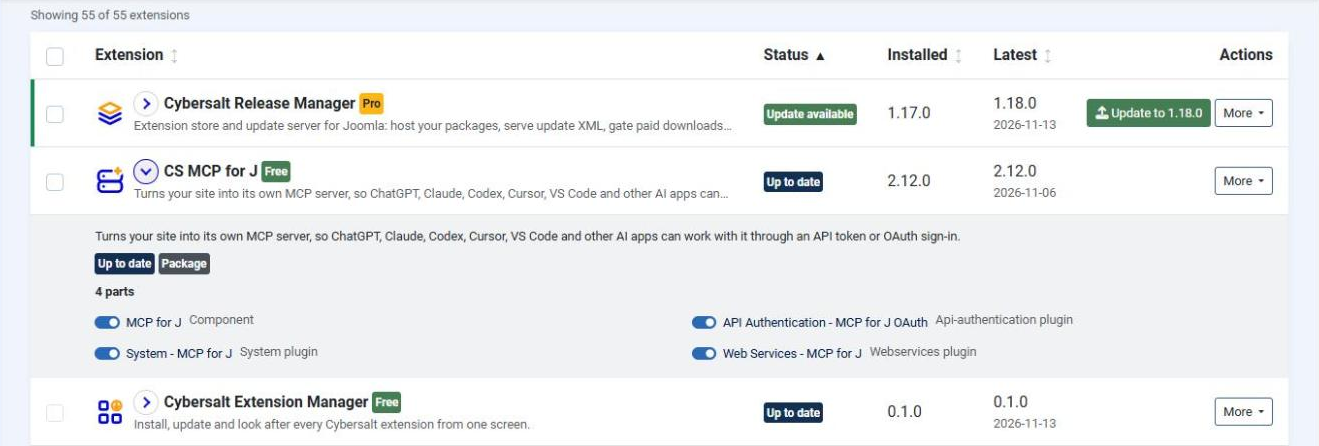
- Details: click anywhere on a row to open it. You get the full description, the release date, anything the latest release needs that this site doesn't have (a newer Joomla or PHP, for example), notes such as which extension an add-on is for, and a package's parts.
 ⤢ Click to enlarge
Installing and updating extensions
- Click the row's main button: Install, Update to x.y.z or Repair. Everything else is under More.
- To do several at once, tick their boxes (the box in the heading ticks every row showing) and click Install / update selected, Reinstall selected or Uninstall selected. Each button counts only the ticked rows it applies to.
- A window lists each one as it goes. Keep it open until it says All done, then click Done, reload the page.
If one fails, the rest still go ahead, and the window says why that one failed. If an MCP add-on needs CS MCP for J and it isn't installed, MCP for J is installed first, automatically. Reinstalling puts the latest release over itself and keeps your settings. The Extension Manager can't tick itself; update it with its own row's button.
Every download is checked before it's installed. Extension Manager only installs from cybersalt.com over https, compares each download with the SHA-256 checksum published with the release, and checks that the zip contains the extension you asked for. If cybersalt.com can't be reached to confirm the latest release, nothing is installed.
What's new, and going back to an earlier version
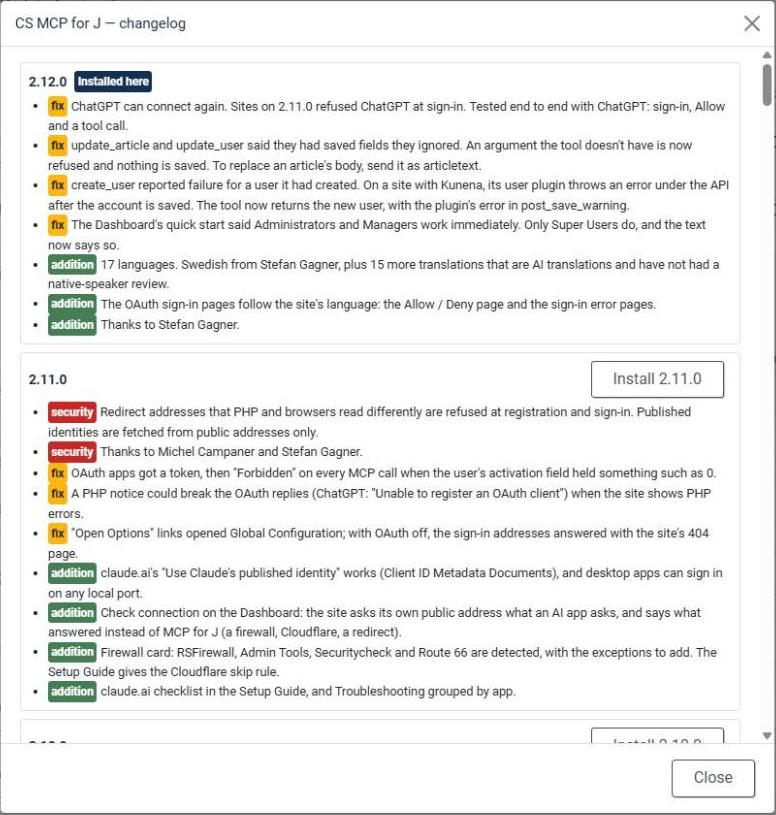
What's new (or Changelog when you're up to date) under More opens the release notes, with everything newer than the installed version highlighted. If an update causes trouble, use the Install x.y.z button next to an older release in the changelog, or More → Install another version…, to go back to it.
 ⤢ Click to enlarge
Switching parts on and off, uninstalling
Open a package's row to see each component, module and plugin in it, each with an on/off switch. Hover a switch to see what a click will do; the result shows right beside it, without reloading the page. More → Uninstall removes an extension. If installed add-ons depend on it (uninstalling MCP for J, for example), you're told which ones will stop working and asked to confirm first.
Pro extensions
Free extensions install without an account. For Pro extensions, the site needs your Cybersalt download ID. There are three ways to give it one:
- Link this site from the account card on the dashboard with the email address of your cybersalt.com account. This sends the site's domain and your email address to cybersalt.com, which emails you to confirm.
- If MCP for J is already activated with a Pro membership on this site, its activation is used automatically, so the site isn't registered twice. (You can turn this off under Options → Account.)
- Paste a download ID under Options → Account → Download ID, if Cybersalt gave you one for this site. It takes priority over the other two.
The download ID is also written onto every Cybersalt update site, so Joomla's own System → Update → Extensions screen and remote managers such as mySites.guru can download Pro updates too. If the update sites are rebuilt, the installer plugin adds it back to the download.
Health Check
The Health Check finds the things that quietly stop updates from arriving, and fixes most of them with one click. It looks for:
- an extension with no update site, or one that's switched off, points somewhere other than cybersalt.com, or has duplicates;
- update sites left behind by extensions that are no longer installed;
- a Pro extension whose update site doesn't carry your download ID;
- a package that's only half installed, or parts of a package installed without the package (they never get updates);
- parts that are switched off;
- MCP add-ons without MCP for J, or for an extension that isn't on the site (these have an Uninstall button);
- updates Joomla still lists after you've installed them;
- a lapsed membership, or cybersalt.com not answering.
Each finding is a Problem, a Warning or Good to know, with a button to fix it where there is one. Fix all repairs the update sites and download IDs in one go; installing and switching things on are left for you to choose one by one.
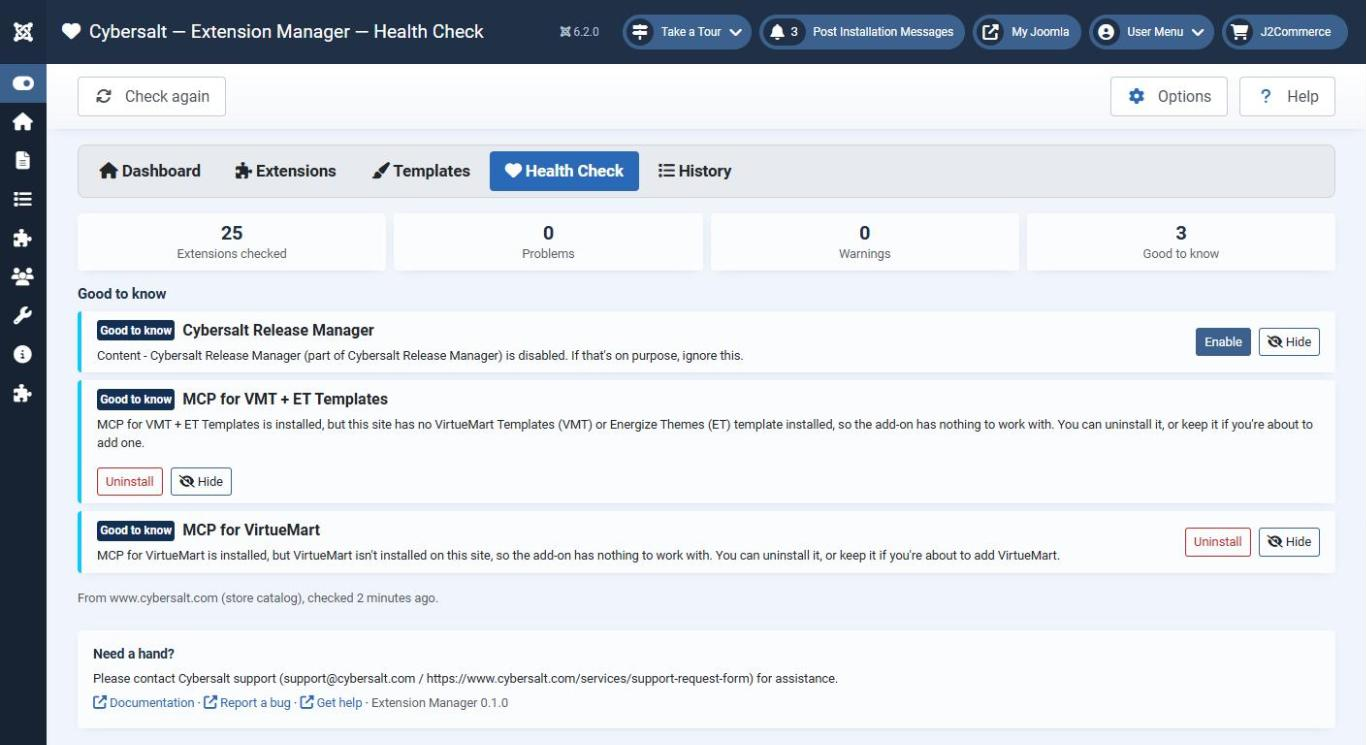 ⤢ Click to enlarge
Hiding a note
Some Good to know notes are things you meant to do, such as a part you switched off on purpose or an add-on you're keeping for later. Click Hide on the note. Hidden notes are left out of every count and out of Fix all, and are listed under N hidden notes at the bottom of the Health Check. Open that section and click Show again on a note (or Show all again) to bring it back. Warnings and problems can't be hidden.
Templates
The Templates screen shows the Joomla templates from Energize Themes and VirtueMart Templates: a thumbnail, who each one is for, the Joomla versions and shop extension it supports, a Live demo and its Details page. Each site has a See plans button.
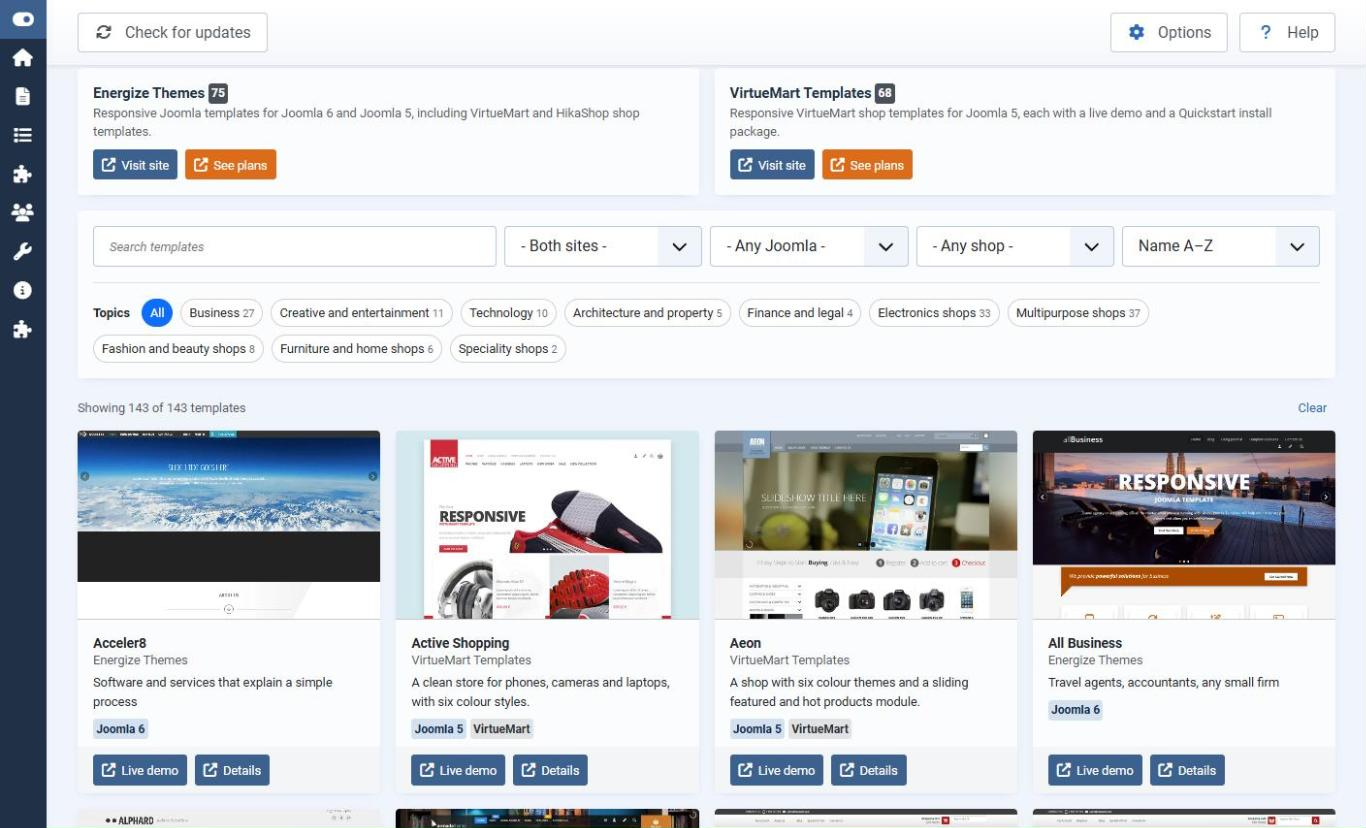 ⤢ Click to enlarge
- Click a type (Business, Technology, Electronics shops and so on: the same types the two template sites use) to narrow the list. The counts follow the other filters.
- Filter by template site, Joomla version and shop, search, and sort by name, site or newest Joomla.
The list comes from cybersalt.com, which rebuilds it every night from both template sites, so a new template appears here without an Extension Manager update. A copy ships with the extension in case cybersalt.com can't be reached; the line under the list says which one you're seeing. Nothing is installed from this screen: the links open the template sites in a new tab.
Release emails and automatic updates
Extension Manager adds a scheduled task, Cybersalt Extension Manager: check for updates, that runs once a day. It's switched off when you install. Click Email me about new releases on the install card or on the dashboard to switch it on; the emails then go to you (or to the addresses under Options → Updates, if you've set any).
To change what the task does, go to System → Scheduled Tasks and open Cybersalt Extension Manager: check for updates:
| Setting | Choices |
|---|---|
| Install updates | No, just let me know (the default); Patch releases only (1.2.3 → 1.2.4, fixes only); Patch and minor releases (1.2.3 → 1.3.0); or All updates, including major releases. |
| Email a summary | When something changed or is newly available (the default), Every run, or Never. |
The task never updates Extension Manager itself (update it from its own screen), skips anything listed under Options → Updates → Never auto-update, and skips updates this site's Joomla or PHP version can't run. Every run is recorded in History.
Joomla runs scheduled tasks when someone visits the site, unless you've set up the web cron or a server cron job under System → Scheduled Tasks → Options. On a quiet site, a real cron job makes the daily check run on time.
History
History lists every install, update, rollback, uninstall, part switched on or off, health fix, update check and email: when, who, which versions, what happened and how long it took. Filter by any column, search, download it as CSV, or click Dump for plain text to paste into a support request. Installs, updates, rollbacks and uninstalls also go to Joomla's own User Actions Log.
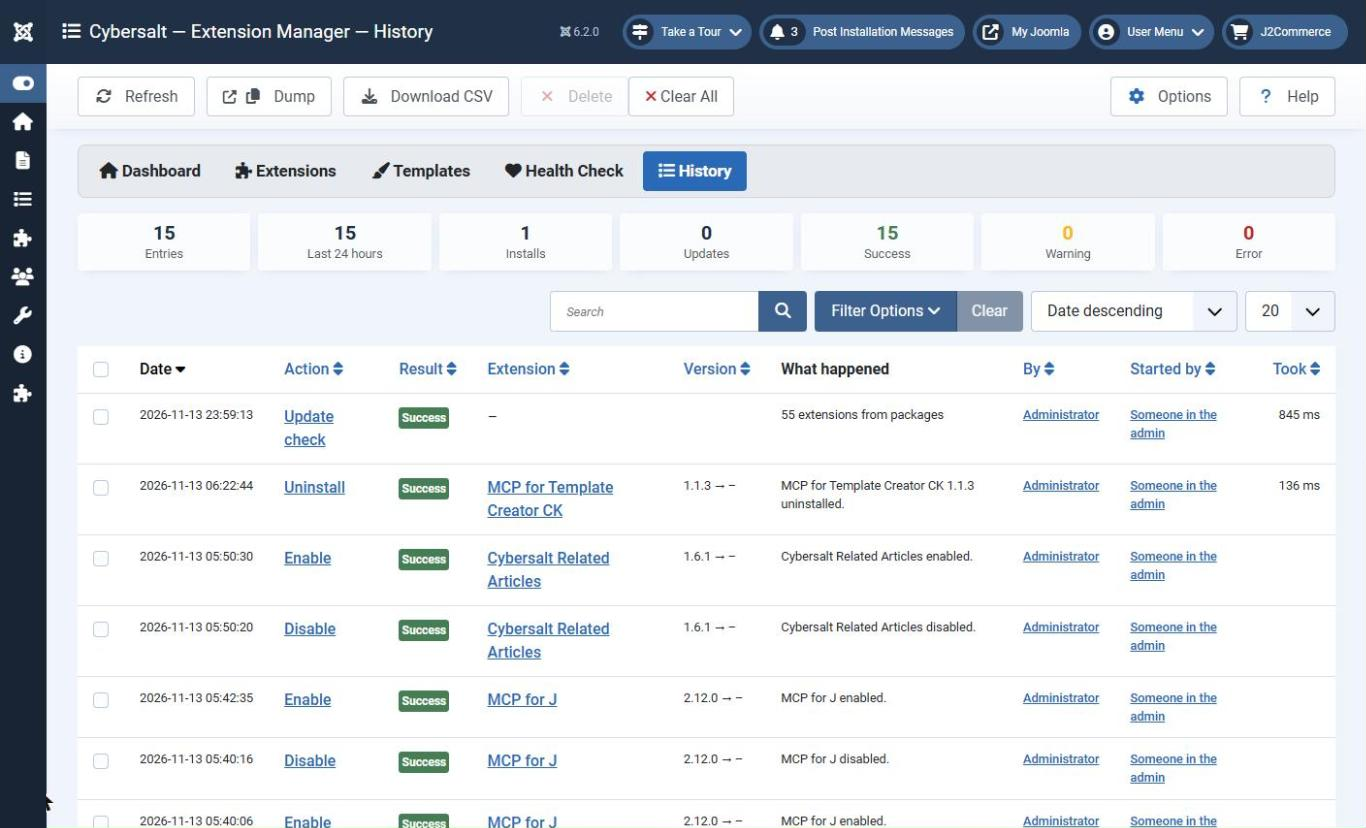 ⤢ Click to enlarge
Options
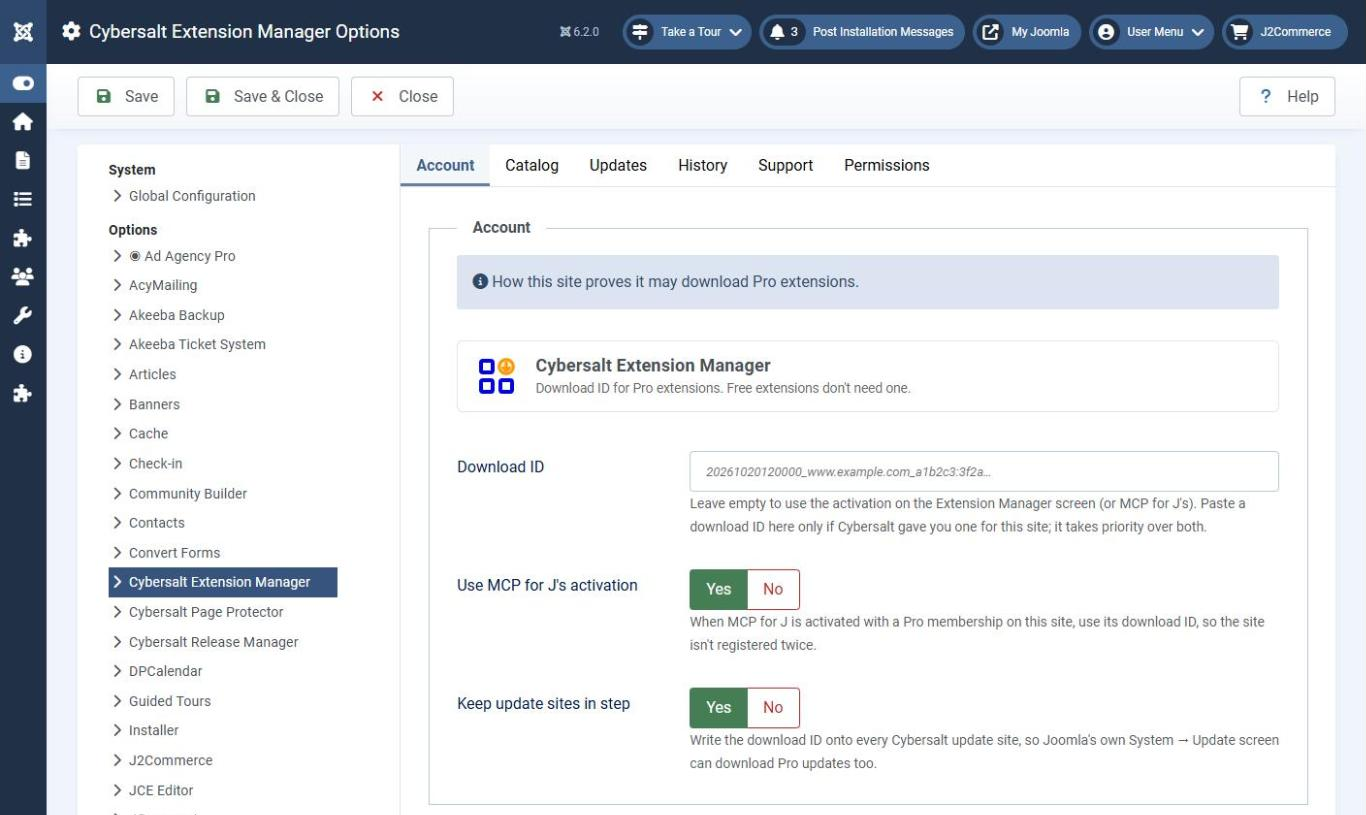 ⤢ Click to enlarge
| Tab | Setting | Default | What it does |
|---|---|---|---|
| Account | Download ID | (empty) | Only if Cybersalt gave you one for this site. Leave empty to use the site's activation. |
| Account | Use MCP for J's activation | Yes | Reuse MCP for J's Pro activation instead of registering the site again. |
| Account | Keep update sites in step | Yes | Write the download ID onto every Cybersalt update site. |
| Catalog | Check for updates every (hours) | 6 | How long the list from cybersalt.com is reused. Check for updates always asks straight away. |
| Catalog | Show MCP for J add-ons | All of them | All, only those for extensions on this site, or none. Installed add-ons are always shown. |
| Catalog | Offer beta releases | No | Count beta releases as updates. Leave off on live sites. |
| Catalog | Connection timeout (seconds) | 10 | How long to wait for cybersalt.com. |
| Updates | Email summaries to | (empty) | One address per line. Empty: every Super User who receives system emails. |
| Updates | Never auto-update | (none) | Extensions the scheduled task leaves alone. They're still listed in the email. |
| History | Keep history for (days) | 365 | Older entries are deleted. 0 keeps everything. |
| History | Also write to User Actions Log | Yes | Record installs, updates, rollbacks and uninstalls in Joomla's User Actions Log. |
| Support | Support name / email / page | Cybersalt support | Who people are pointed at in the help panel and error messages. |
| Permissions | Who may view the Extension Manager, install and update, and apply health fixes. Out of the box, Managers and Administrators can view, and only Super Users can install or fix. Installing also needs access to Joomla's own Extensions Manager. |
Troubleshooting
| Symptom | Cause and fix |
|---|---|
| "Couldn't reach cybersalt.com" or "Couldn't check the latest release" | The site can't make outgoing https requests to www.cybersalt.com. Ask your host to
allow it, or raise Connection timeout under Options → Catalog if the connection
is slow. |
| A Pro extension says you don't have access | Link the site (or check the email you linked with is the one on your cybersalt.com account), then click Check for updates. The account card shows whether the membership is active or lapsed. |
| An update isn't offered | The row's details say when the latest release needs a newer Joomla or PHP than this site has. Beta releases are only offered with Offer beta releases on. |
| Joomla's Update screen doesn't show Cybersalt updates | Run the Health Check: a missing, switched-off or duplicate update site is the usual cause. |
| The Health Check count doesn't go away | If the remaining findings are notes about something you did on purpose, hide them (see Hiding a note). |
| No release emails | Check that the scheduled task is enabled, that it has run (System → Scheduled Tasks shows the last run), and that the site can send email (System → Global Configuration → Server → Send Test Mail). |
Getting help
Questions and bug reports are welcome through the Cybersalt support form.
You'll get the quickest answer if you include your Joomla and PHP versions, the Extension Manager version, the extension involved and, for install or update problems, the text from History → Dump.
Cybersalt Extension Manager is developed by Cybersalt Consulting Ltd. and released under the GNU General Public License v2 or later.
Extensions screen — click anywhere to closeClose ×
An opened row — click anywhere to closeClose ×
Changelog — click anywhere to closeClose ×
Health Check — click anywhere to closeClose ×
Templates — click anywhere to closeClose ×
History — click anywhere to closeClose ×
Options — click anywhere to closeClose ×