Cybersalt Remove Sample Data
Cybersalt Remove Sample Data takes Joomla's sample data back out of your site. When you click Install next to Blog Sample Data or Multilingual Sample Data on the Home Dashboard, Joomla adds articles, categories, tags, menus, modules, a custom field and an editorial workflow. Joomla has no button to remove them again. This component finds those items, shows you the list, and deletes the ones you tick.
New to Remove Sample Data? This page is the reference manual. For an overview of what Cybersalt Remove Sample Data does, with the download, see its page on cybersalt.com.
Back up your site before you remove anything. Removal deletes rows from your database straight away. There is no undo and nothing goes to the trash. Take a full backup of files and database (Akeeba Backup or your host's backup) and check that it finished before you click Remove. If you remove something by mistake, restoring that backup is the only way to get it back.
Release history. This page documents the current release. For what changed in each version, see the changelog.
Requirements. Joomla 5.0 or newer (it runs natively on Joomla 5 and Joomla 6), PHP 8.1 or newer, and a MySQL or MariaDB database.
Cybersalt Remove Sample Data is free and open source, available from cybersalt.com.
 ⤢ Click to enlarge
Installing
- Download the zip (
com_removesampledata_v*.zip) from cybersalt.com. - In your Joomla admin go to System → Install → Extensions and upload the zip.
- Open it from Components → Cybersalt Remove Sample Data, or with the button on the installation message.
The component registers Cybersalt's update server, so new versions show up under System → Update → Extensions like any other extension.
Removing the sample data
- Back up the site (see the warning above).
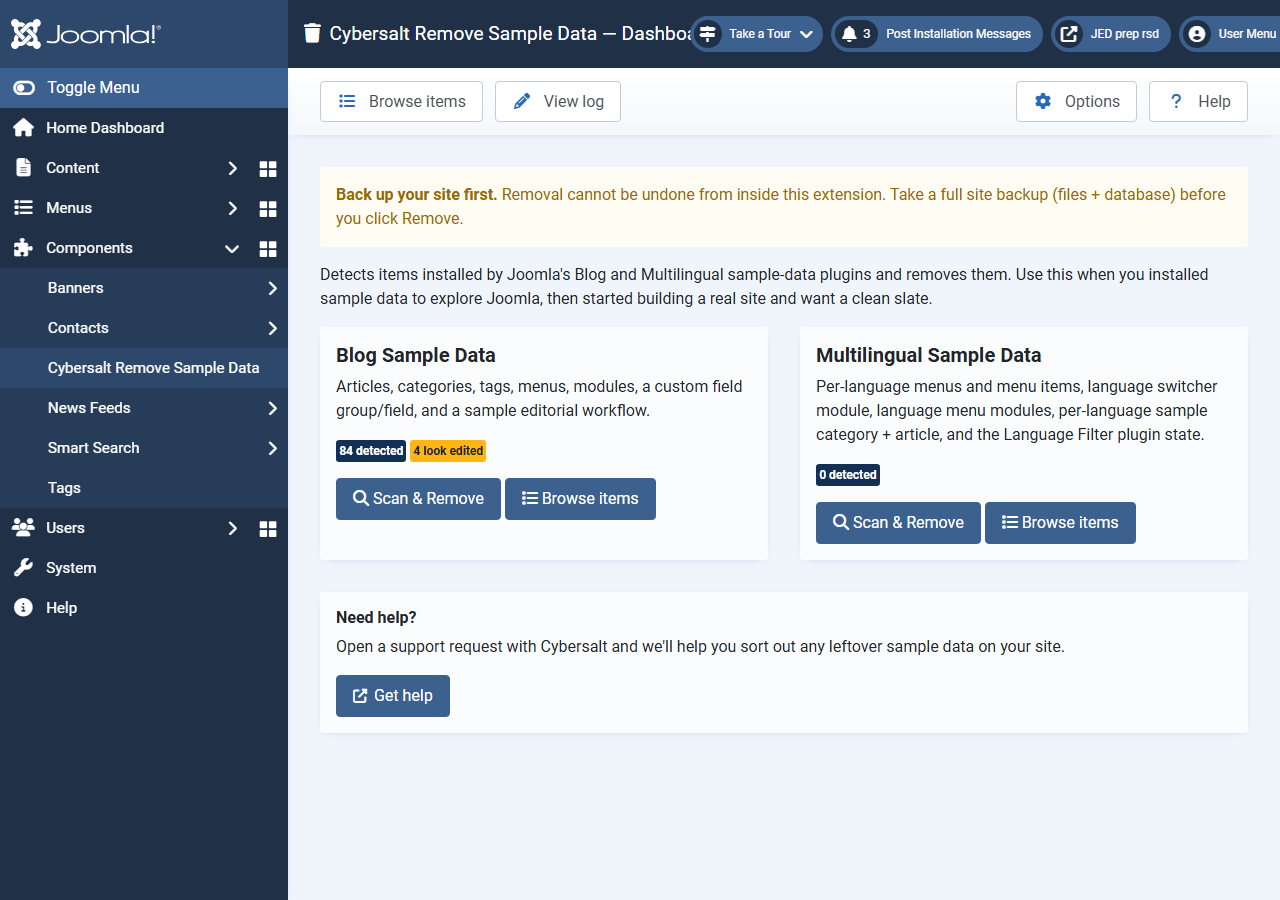
- Open Components → Cybersalt Remove Sample Data. Each card shows how many items were found and how many look edited.
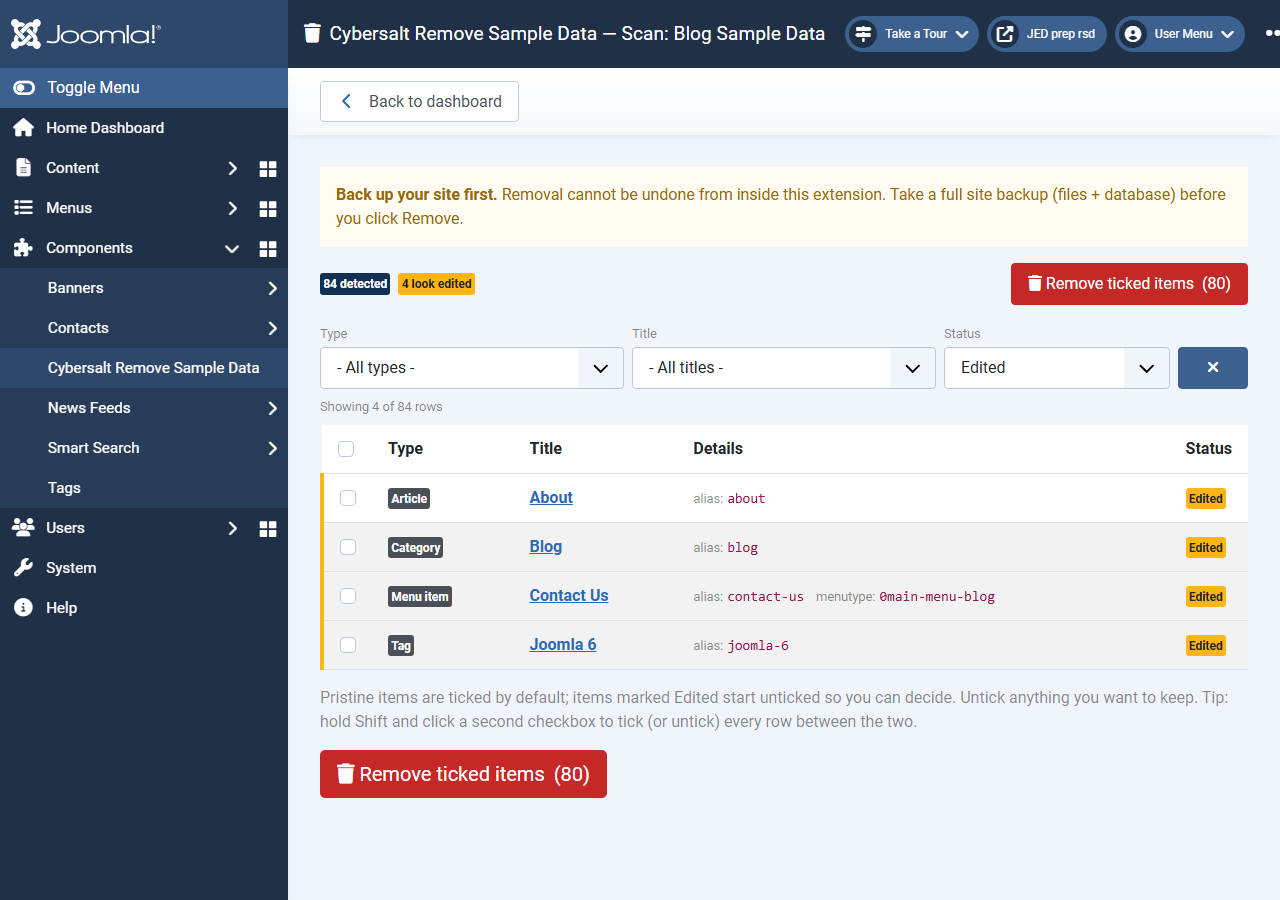
- Click Scan & Remove on the Blog or Multilingual card. You get one table of every item found, with its type, title, details (alias, menu, module type, position) and a status: Pristine or Edited.
- Pristine items are ticked. Edited items start unticked; hover the Edited badge to see why the item was flagged, and tick it only if you want it gone. Click a title to open that item in Joomla's own editor if you want to look at it first.
- Use the Type, Title and Status filters to narrow the list. The header checkbox ticks or unticks every visible row; hold Shift and click a second checkbox to tick or untick every row between the two.
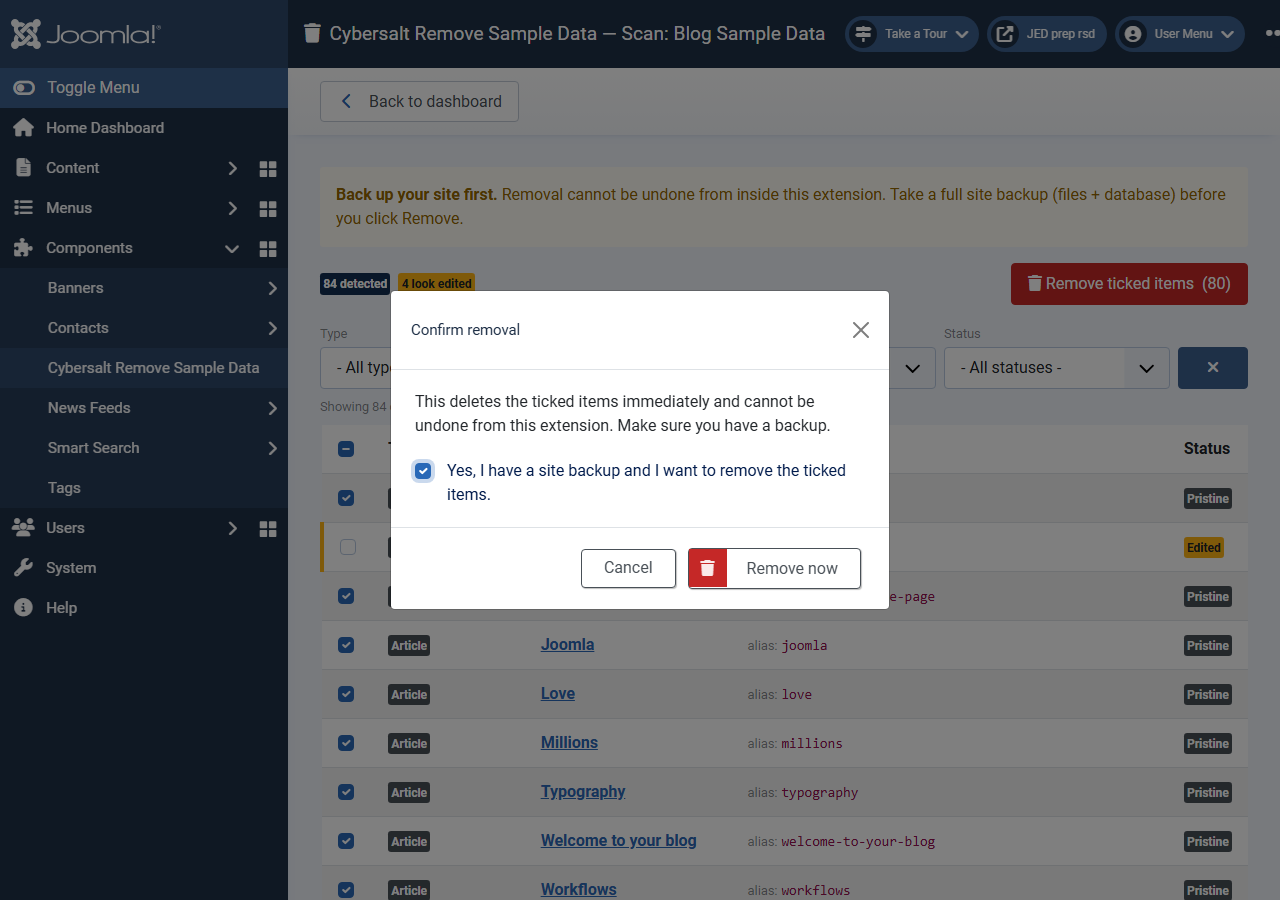
- Click Remove ticked items. In the dialog, tick Yes, I have a site backup and I want to remove the ticked items; the Remove now button stays disabled until you do. If any ticked item is marked Edited, the dialog says how many.
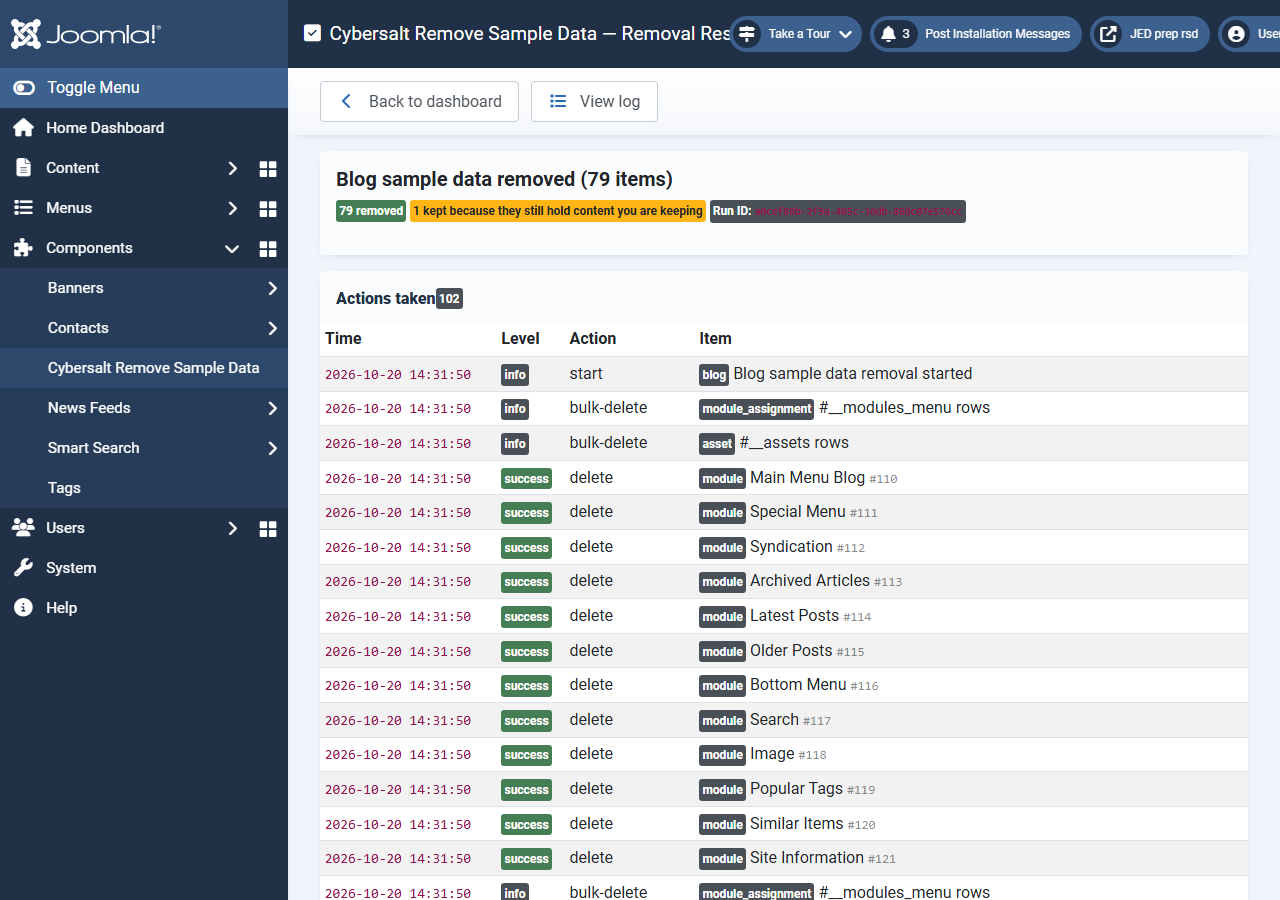
- The page locks while the removal runs, then shows the result: how many items were removed, how many were kept because they still hold your content, and every action taken.
 ⤢ Click to enlarge
 ⤢ Click to enlarge
 ⤢ Click to enlarge
What gets deleted
Blog sample data
| Item | Found by | Deleted along with it |
|---|---|---|
| Articles (11: About, Working on Your Site, Welcome to your blog, About your home page, Your Modules, Your Template, Millions, Love, Joomla, Workflows, Typography) | Sample title or alias, and the article sits in one of the sample categories | Its custom-field values (article fields only), featured flag, workflow association, tag links, content-history index row (UCM), language associations and permission (asset) row |
| Categories (4: Blog, Help, Joomla, Typography) | Sample title or alias, top-level article categories | Its tag links, language associations and permission row. A category that still holds articles or sub-categories you are keeping is not deleted |
| Tags (4: Millions, Worldwide, Love, Joomla 6) | Sample title or alias | Every link between the tag and any content |
| Menus (3: Main Menu Blog, Special Menu, Bottom Menu) | Sample title and the sample menu type (it starts with 0, 1 or 2, such as
0main-menu-blog) |
Only deleted once it has no menu items left |
| Menu items (every item in those three menus) | Being in one of the sample menus | Module assignments to that page and its language associations |
| Modules (12: Main Menu Blog, Special Menu, Syndication, Archived Articles, Latest Posts, Older Posts, Bottom Menu, Search, Image, Popular Tags, Similar Items, and the administrator module Site Information) | Sample title and the sample module type (for example Search must be a Smart Search module, Image a Custom module) | Its page assignments and permission row |
| Custom field "About the Author" and field group "The Author" | Sample title, article fields only | Every value stored for the field, and their permission rows |
| Workflow "Blog Workflow" with its 9 stages and 12 transitions | Sample title, article workflows only | Permission rows. Articles you keep that sit in one of its stages are first moved to the default stage of your default workflow, and categories set to use it go back to inheriting their workflow |
Afterwards the category, menu and tag trees are rebuilt, the same as Joomla's Rebuild button does.
Multilingual sample data
The Multilingual card only finds anything when the site has at least one menu with the menu type
mainmenu-xx-xx (for example mainmenu-fr-fr), which the multilingual
sample data creates for each language.
| Item | Found by |
|---|---|
| Per-language main menus "Main Menu (xx-XX)" | Menu type mainmenu-xx-xx |
| Their menu items (Home and Categories for each language) | Being in one of those menus |
| Language Switcher module | A Language Switcher module set to all languages; marked Edited unless it still has the title "Language Switcher" |
| "Main menu xx-XX" modules | A menu module for one language that shows one of the
mainmenu-xx-xx menus |
| Per-language category "Category (xx-xx)" and article "Article (xx-xx)" | Language set, alias ending in -xx-xx and title ending in (xx-xx);
the article must sit in one of those categories |
Two settings are changed as well:
- Language Filter plugin. The scan page has a Disable on removal switch for it, ticked when the plugin is enabled. Untick it to leave the plugin on.
- Main Menu module. The multilingual sample data unpublishes the site's Main Menu module. With Options → Republish the main menu module on (the default), it is published again.
Content languages and installed language packs are not touched.
What it leaves alone
A matching title is not enough on its own, because "About", "Help", "Search" and "Image" are common on real sites. Items that fail one of the checks above, or were changed after the sample data was installed, are marked Edited and start unticked:
- a sample-titled article outside the sample categories;
- a sample category that also holds your own articles or sub-categories;
- a sample tag you have also used on your own content;
- a menu with a sample title but a different menu type;
- a sample menu module that now shows a different menu;
- a menu item you added to one of the sample menus;
- an article whose title you changed, or that was edited more than two minutes after it was created.
Even if you tick them, a category that still holds articles or sub-categories, and a menu that still holds menu items, are kept at removal time and reported as kept in the result.
Tested on a real mix. On a test site with the Blog sample data plus the site's own "About" article, a Custom module titled "Search", a menu item added to Main Menu Blog, an article in the Blog category and an article tagged "Joomla 6", a run with the default ticks removed only the sample data and kept all five.
Browse items and the log
Browse items lists everything both detectors found in one sortable list with search and Source, Type and Status filters. The numbers on the dashboard cards link straight into it.
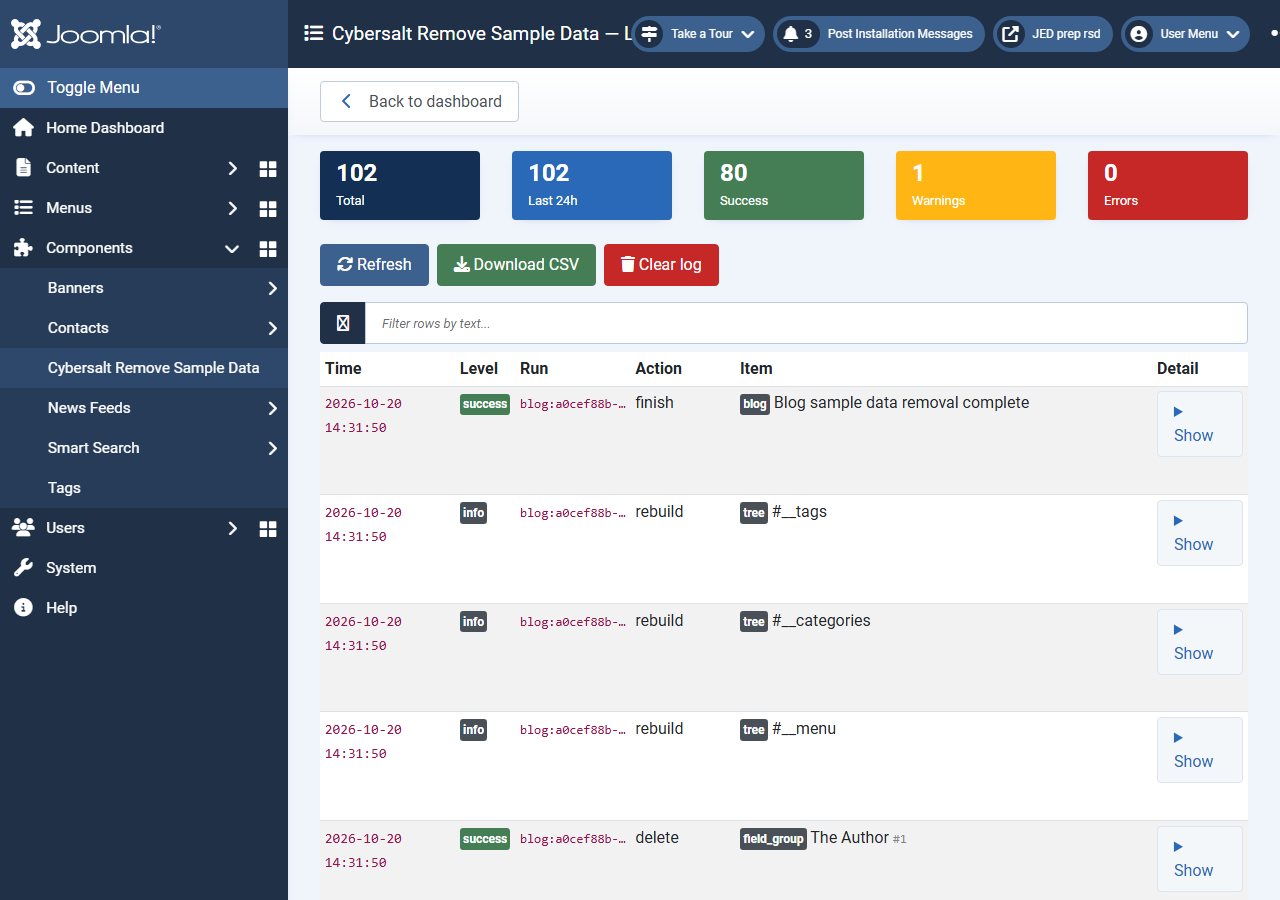
View log shows every action from every run, newest first: deletions, rows removed alongside them, skipped items and settings changed. Use Download CSV to keep a copy and Clear log to empty it. Entries older than the Log retention period in Options are deleted at the start of each removal run.
 ⤢ Click to enlarge
Options
| Setting | What it does |
|---|---|
| Log retention | How many days log entries are kept (default 90). Older entries are deleted when the next removal runs. |
| Republish the main menu module | After a multilingual removal, publish the Main Menu module the multilingual sample data unpublished. On by default. |
| Permissions | Who may open the component, scan, and remove. Removing needs the Remove permission. |
Troubleshooting
| What you see | What to do |
|---|---|
| The Blog card says 0 detected, but sample items are still there | The detector looks for the titles and aliases the sample data was created with. If you renamed the items, they no longer look like sample data; delete them in Joomla's own managers. |
| Something you wanted removed is marked Edited | Hover the badge to see why, then tick it yourself. |
| The result says items were kept | A category still held articles, or a menu still held menu items, that you didn't remove. Move or delete that content, then run the scan again. |
| An "invalid security token" message and you are back on the dashboard | Your session expired while the page was open. Reload the scan page and try again. |
| You removed something you needed | Restore the backup you took before the run. The log shows exactly what was deleted. |
Questions people ask
Can I install the sample data again afterwards? Yes. Once the sample items are gone, their aliases are free again, so Joomla's sample-data installer no longer stops with "another item has the same alias".
Does it work on a site in another language? Yes. It reads the sample-data language file of every installed administrator language and works out the titles and aliases the same way the sample-data plugin did.
Will it touch anything I created myself? Not unless you tick it. Your own items only appear in the list when they look like sample data, and then they are marked Edited and start unticked. Read the list before you remove, and keep a backup.
Should I uninstall it afterwards? You can. Uninstalling also drops its log table.
Getting help
Questions and bug reports are welcome through the Cybersalt support form or GitHub.
You'll get the quickest answer if you include your Joomla and PHP versions, the component version (System → Manage → Extensions), which sample data you installed, and the CSV download of the log for the run in question.
Cybersalt Remove Sample Data is developed by Cybersalt Consulting Ltd. and released under the GNU General Public License v2 or later.
Scan view — click anywhere to closeClose ×
Confirmation dialog — click anywhere to closeClose ×
Result — click anywhere to closeClose ×
Activity log — click anywhere to closeClose ×