Cybersalt Release Manager
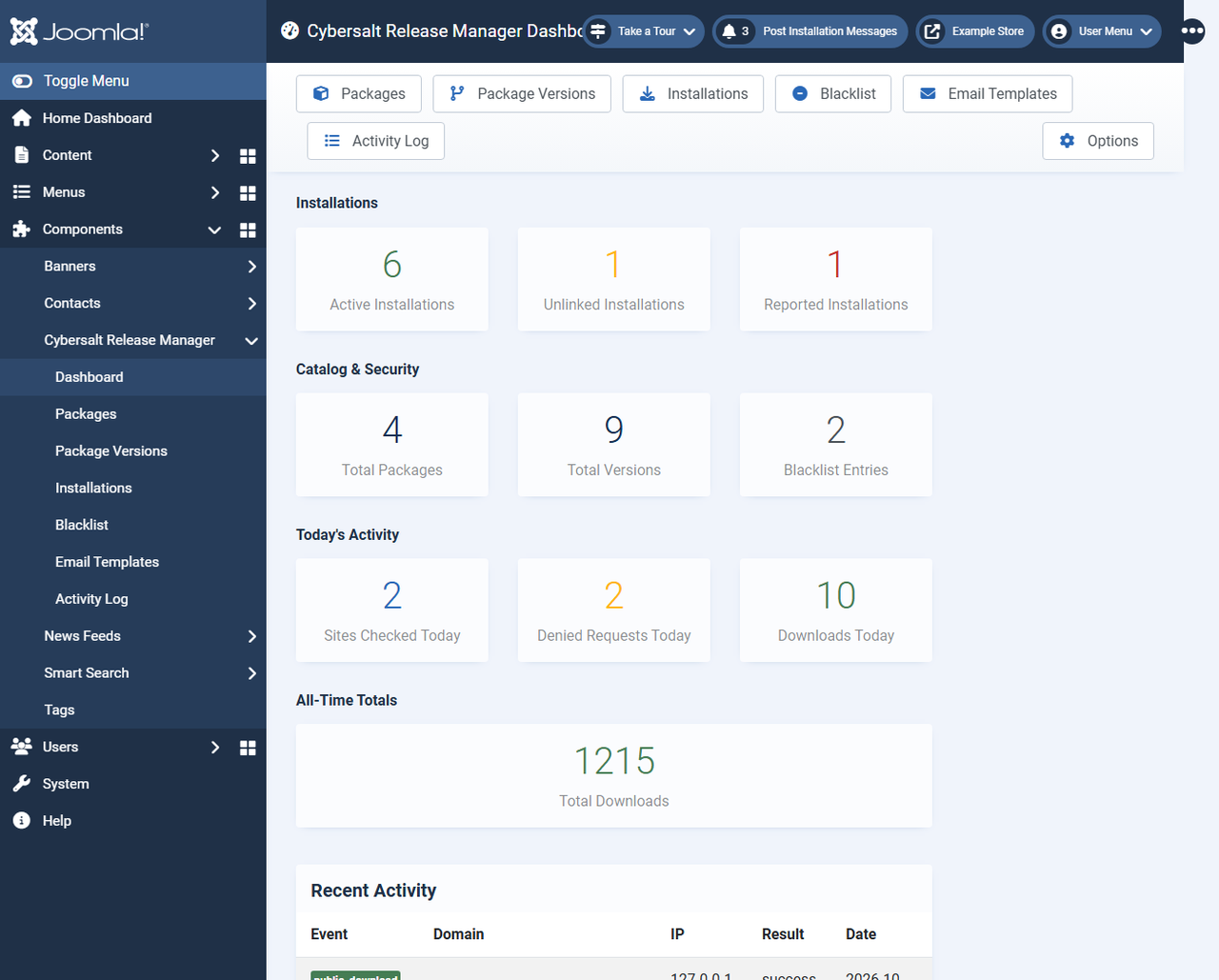
Cybersalt Release Manager turns a Joomla site into the store and update server for the extensions you make. You upload each release as a zip, and Release Manager answers Joomla's update checks with standard update XML, serves the downloads, and keeps a list of every site that has the extension installed.
Downloads can be free for anyone, or limited to members of the Joomla user groups you choose. Release Manager doesn't take payments itself: whatever sells your memberships (Membership Pro, a subscription extension, or you adding people to a group by hand) puts customers into a user group, and Release Manager lets that group download and update. Customers' sites prove who they are with a download ID, so paid updates work from Joomla's own Update screen and from remote site managers.
Release history. This page documents the current release. For what changed in each version, see the changelog.
Requirements. Joomla 5 or 6, PHP 8.2 or newer, and a MySQL or MariaDB database. Release Manager is free and open source (GPL-2.0-or-later). Download the latest release from cybersalt.com. It is the software that runs the Cybersalt extension store.
 ⤢ Click to enlarge
How it fits together
| Term | What it is |
|---|---|
| Package | One extension you distribute, identified by its Joomla element
(pkg_example, com_example, mod_example, or a plugin
element plus its group). A package is either free or limited to chosen user groups. |
| Package version | One release of a package: the zip, its version number, release notes and the Joomla and PHP versions it supports. One version per package is marked latest; that is the one the update feed offers. |
| Update feed | The URL you put in your extension's manifest under <updateservers>.
Joomla sites poll it and see new versions under System → Update → Extensions. |
| Installation | A site that has your extension and has registered with Release Manager. Once the site owner enters their email, the installation is linked to that email. |
| Download ID | installation_id:sha256(email). A linked site sends it with update checks and
downloads of paid packages, and Release Manager checks that the email belongs to a user in
an allowed group. |
Installing
- Download
pkg_csreleasemanager_v*.zipfrom cybersalt.com. - In your Joomla admin go to System → Install → Extensions and upload the zip. The package installs the component and two plugins.
- Go to System → Manage → Plugins, search for
Release
      Manager
and enable Content - Cybersalt Release Manager if you want download buttons in articles. Web Services - Cybersalt Release Manager is enabled for you.
Open Components → Cybersalt Release Manager to see the dashboard. Release Manager registers Cybersalt's update server for itself, so its own new versions appear under System → Update → Extensions. Updating keeps your packages, files and settings.
| Extension | Job |
|---|---|
com_csreleasemanager |
The component: packages, versions, installations, blacklist, email templates, activity log, and the public update and download addresses. |
| Content - Cybersalt Release Manager | The {cs-download element="..."} shortcode that puts a download (or buy) button
in an article. |
| Web Services - Cybersalt Release Manager | Joomla API routes for release automation: look up a package and upload a new version from a script. |
Publishing your first extension
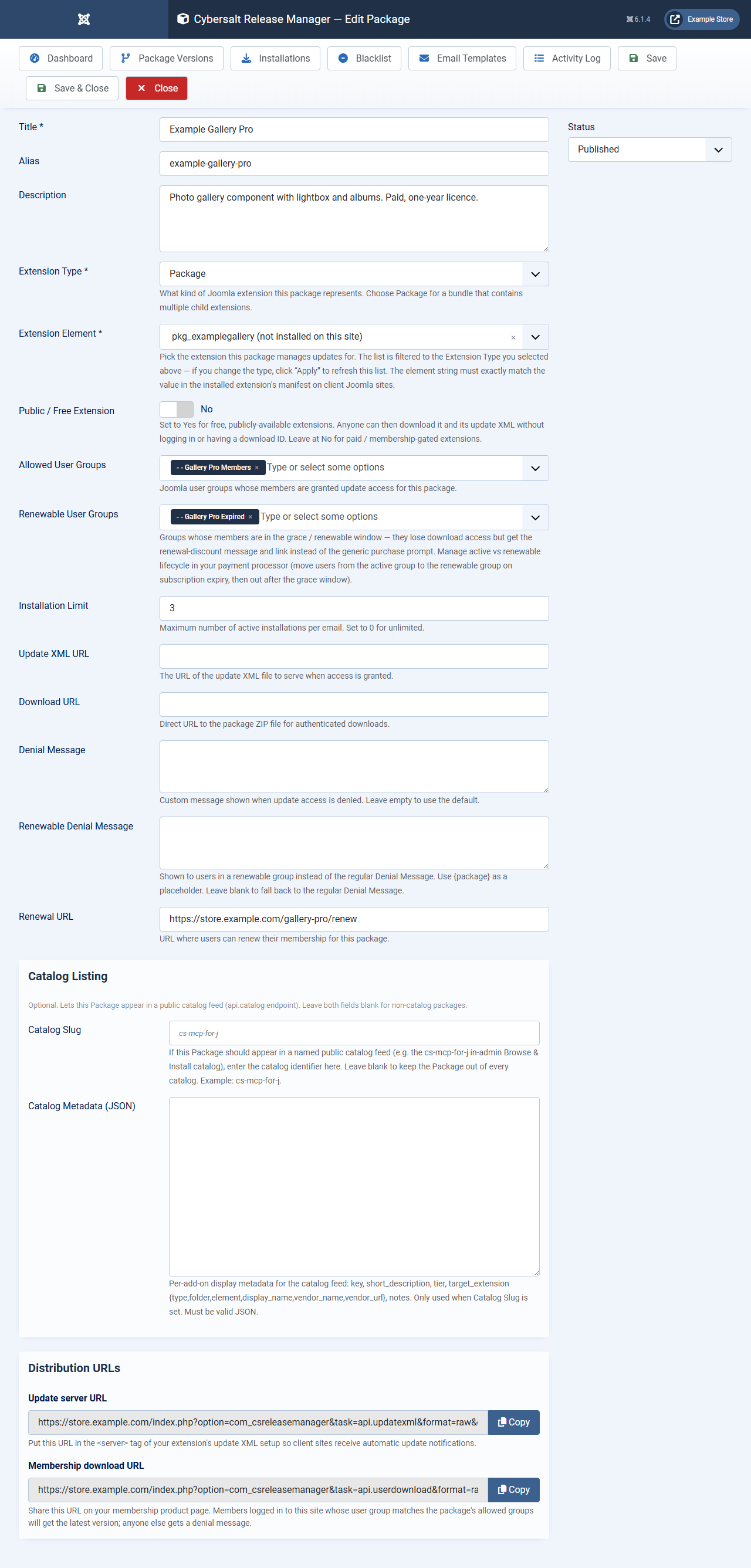
- Create the package. Go to Packages → New. Give it a title, choose the Extension Type, and pick the Extension Element. The element list shows the extensions installed on this site; if your extension isn't installed here, the element of an existing package is still kept. Set Public / Free Extension to Yes for a free download, or leave it at No and choose the Allowed User Groups. Save.
- Copy the update server URL. After saving, the Distribution URLs panel
shows the update server URL. Put it in your extension's manifest:
<updateservers> <server type="extension" name="My Extension">https://your-site.example/index.php?option=com_csreleasemanager&task=api.updatexml&format=raw&element=pkg_myextension</server> </updateservers>
Optionally point<changelogurl>at the same address withtask=api.changelogxml, and Joomla's Changelog buttons will show your release notes. - Upload a version. Go to Package Versions → New, choose the
package, enter the version number, drop the zip on the upload box, set Maximum Joomla
Version to
6if it runs on Joomla 5 and 6, set Is Latest to Yes, and save. Release Manager stores the file and records its SHA-256. - Share the download. Copy the
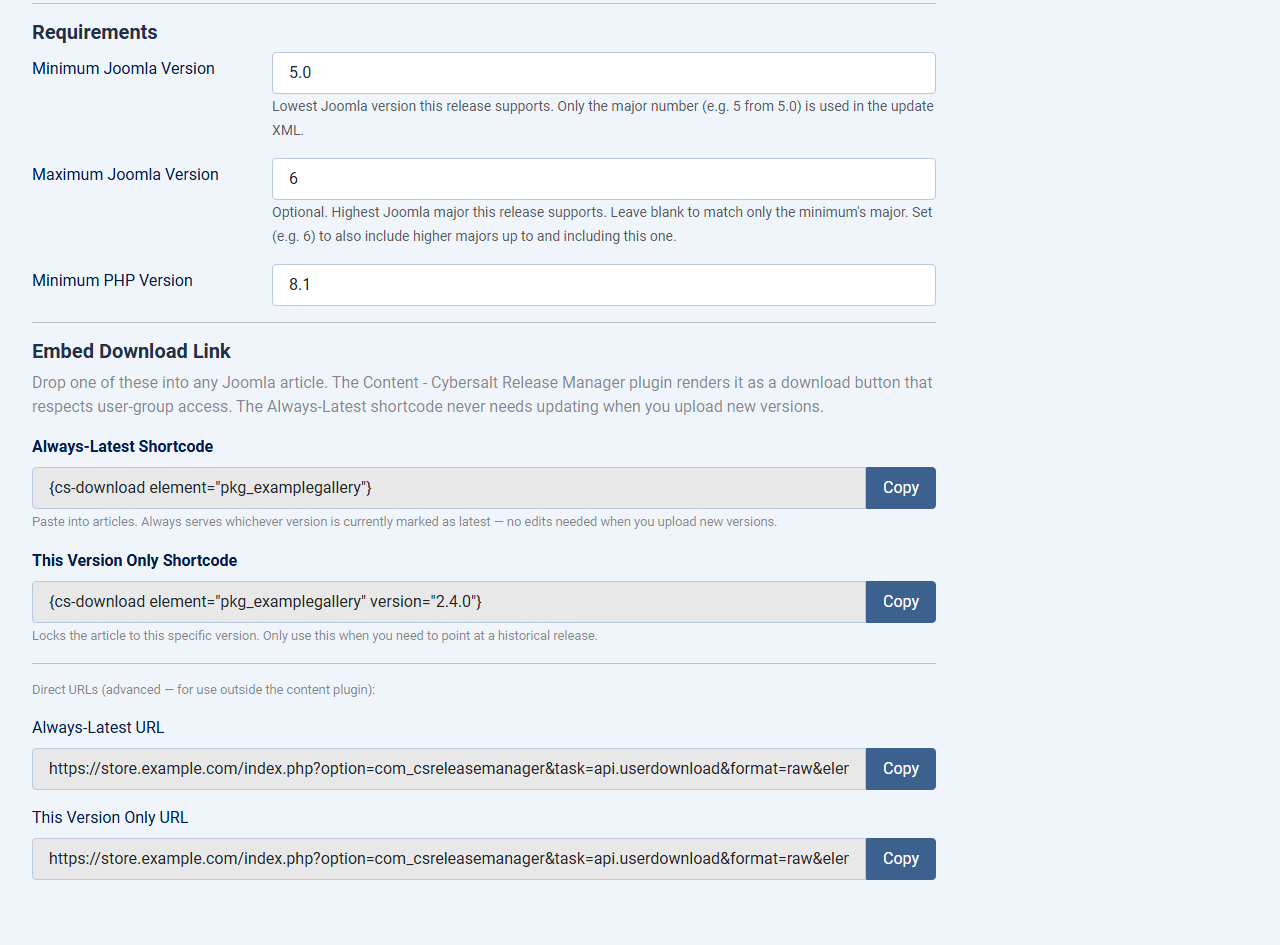
{cs-download element="..."}shortcode from the version's Embed Download Link panel into an article, or use the download URL from the package's Distribution URLs panel.
For each later release, add a new version with Is Latest on. The previous version loses the flag automatically, every site polling the feed is offered the update, and every shortcode shows the new version.
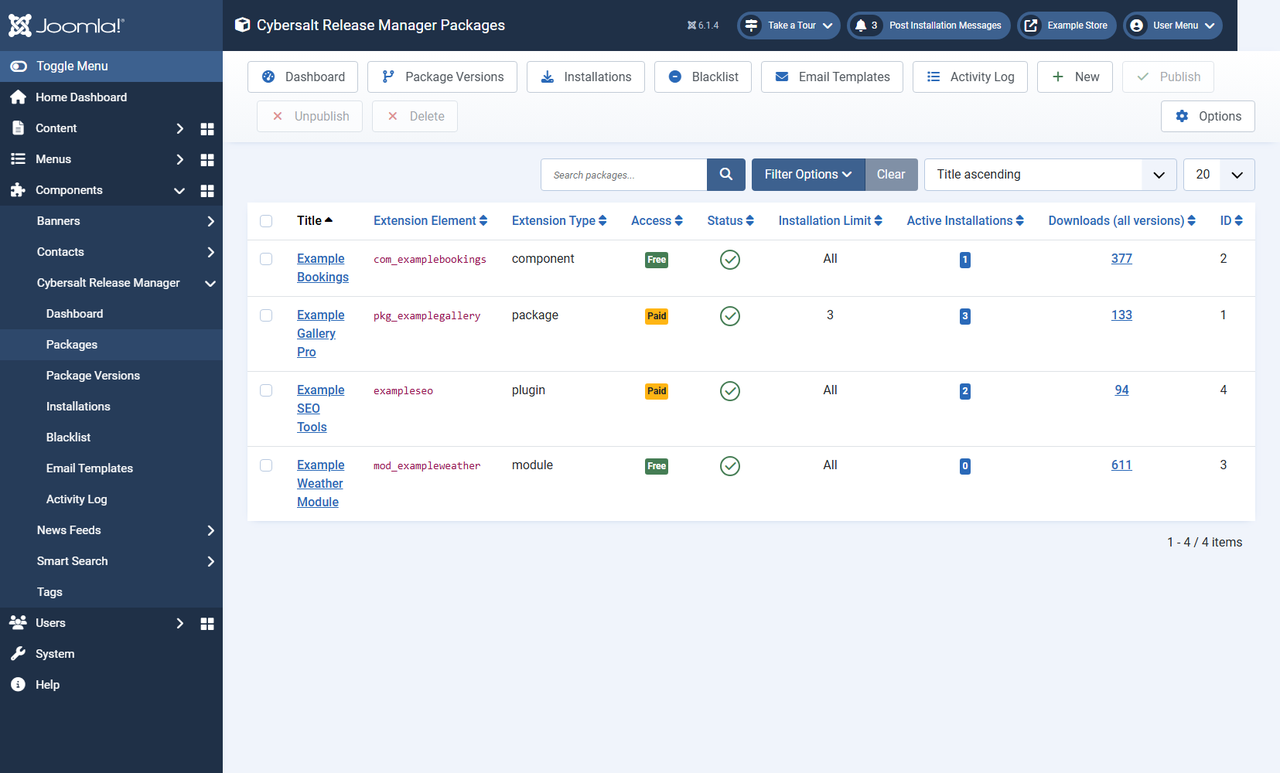
Packages
 ⤢ Click to enlarge
| Setting | What it does |
|---|---|
| Title, Alias, Description | The title is the name in the update feed and on download buttons. The description is for your own reference. |
| Extension Type | Package, Component, Plugin, Module, Library, Template, File or Language. It becomes
<type> in the update feed. If you change it, click Save
to refresh the element list. |
| Extension Element | The element exactly as Joomla stores it on your customers' sites. Joomla matches update feed entries to installed extensions by this value, so it has to be right. Renaming it moves the package's download folder. |
| Plugin Group / Client | The plugin group (plugins only) and Site or Administrator (modules and templates only). Both go into the update feed so Joomla can match the extension. |
| Public / Free Extension | Yes: anyone can download it and see its updates, with no login or download ID. No: the settings below apply. |
| Allowed User Groups | Members of these groups can download the package and receive its updates. |
| Renewable User Groups | Groups for customers whose membership has lapsed but who can still renew. They can't download, but they see the renewal message and a Renew access button instead of a purchase prompt. Moving people between groups is up to your membership extension. |
| Installation Limit | How many sites one email can link to this package (active and unverified installations count). 0 means no limit. |
| Denial Message / Renewable Denial Message | Shown when access is refused. Leave empty for the default from Options. |
| Renewal URL | Where the Purchase access or Renew access button sends people. Without one, the content plugin's Default Purchase URL is used. |
| Update XML URL / Download URL | Only used by the legacy api.checkupdate route kept for old clients. Leave them
empty for new packages. |
| Catalog Slug / Catalog Metadata (JSON) | Optional. Lists the package in a named JSON catalog feed (api.catalog), which
an extension can read to offer its add-ons for one-click install. MCP for Joomla uses this
for its add-on browser. |
 ⤢ Click to enlarge
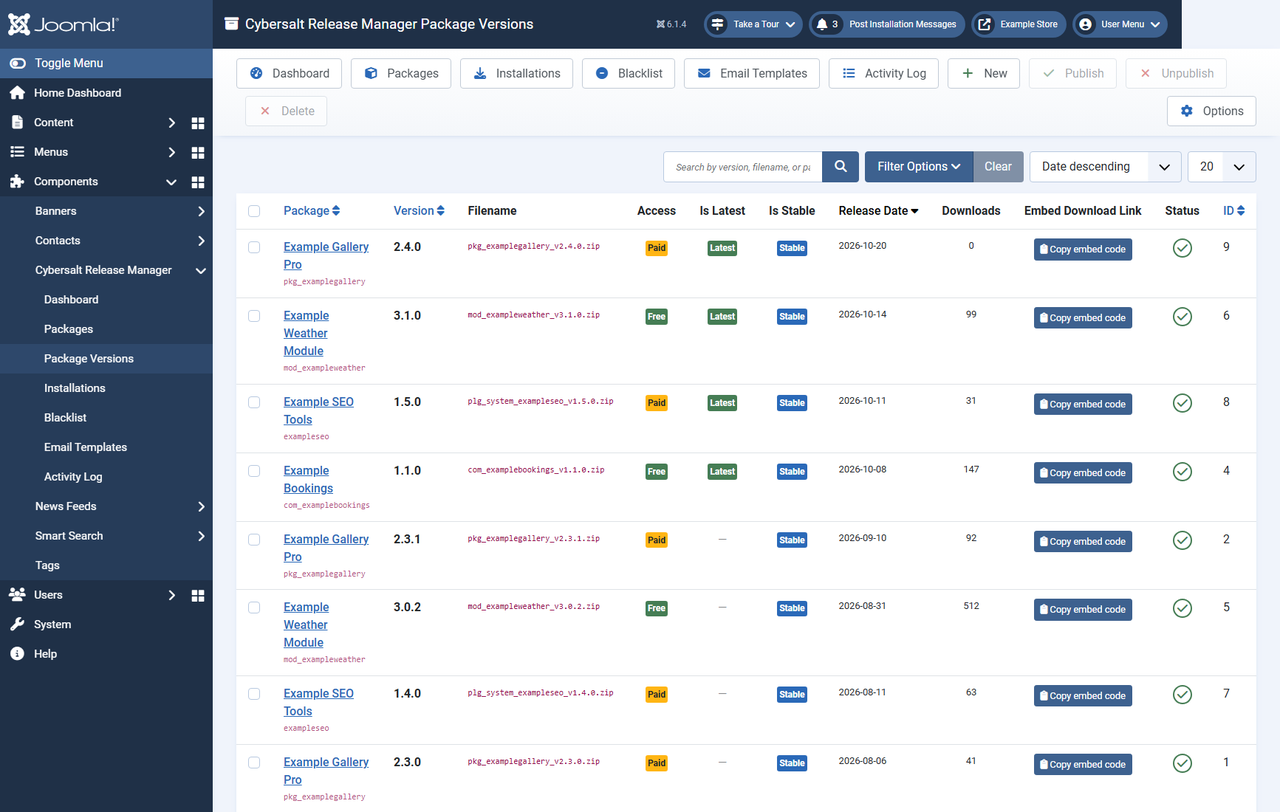
Package versions
 ⤢ Click to enlarge
| Setting | What it does |
|---|---|
| Package, Version | The version number must be unique within the package. Use the same number as the
<version> in your manifest. |
| Upload ZIP File | Drag the zip onto the box or click to choose it. Only .zip files are accepted,
and the file keeps its own name. It is stored in
media/com_csreleasemanager/downloads/<element>/. |
| Use Existing File | Pick a zip that is already in the downloads folder, for example one you uploaded by FTP. A file from another package's folder is copied across. An upload wins if you give both. |
| External Download URL | Optional. A full https:// address of a zip hosted elsewhere, such as a GitHub
release. Release Manager still checks access, logs the download and counts it, then
redirects to that address. When you save, it fetches the file once to work out its
SHA-256. |
| Release Date, Release Notes | The notes feed the changelog XML: each list item or paragraph becomes one entry. |
| Minimum / Maximum Joomla Version | Only the major numbers are used. 5.0 with no maximum gives 5\.[0-9]+; 5.0 with
maximum 6 gives (5|6)\.[0-9]+ in the feed's <targetplatform>.
Set the maximum, or Joomla 6 sites won't be offered the update. |
| Minimum PHP Version | Becomes <php_minimum>. Sites on older PHP aren't offered the update. |
| Is Latest | The version the feed and the shortcode serve. Turning it on clears it from the package's other versions. |
| Is Stable | No tags the release beta in the feed, so only sites that accept
pre-releases are offered it. |
 ⤢ Click to enlarge
Deleting a version deletes its zip. The file is removed from the downloads folder even if another version row uses the same file. Unpublish a version instead if you only want to hide it.
Free and paid downloads
For a free package, the update feed and the download need nothing: anyone can fetch them. For a paid package there are two ways in:
- From a browser. A visitor logged in to your site, in one of the package's allowed groups (or a child group of one), can download it from the shortcode button or the download URL. Guests get a login prompt; logged-in visitors without access get the denial message.
- From the customer's site. Updates come through the download ID. Your
extension registers the site, the site owner enters their email, and from then on the site
sends
dlid=<installation_id>:<sha256 of email>with its update checks. Release Manager finds the user with that email and checks their groups (directly assigned groups only on this route). When access is granted, the download URL in the feed carries the download ID, so the update installs from Joomla's Update screen and from remote managers such as mySites.guru.
Membership Pro is supported but not required: if a customer types the email they used at checkout instead of their account email, Release Manager finds the account through Membership Pro's subscription records.
Adding download IDs to your own extension
- On first run, make an installation ID in the form
<digits>_<domain>_<random>(for example a timestamp, the site's host name and six random hex characters) and store it. - Register it:
POSTJSON{"installation_id", "package_element", "domain"}toindex.php?option=com_csreleasemanager&task=api.register&format=json. - When the site owner enters their email, lower-case it and
POST{"installation_id", "email_hash", "email"}(the hash is SHA-256 of the email) totask=api.linkemail. The reply says whether the email is entitled. - Add
dlid=<installation_id>:<email_hash>to the update site's extra query, and to the update site location if you want remote managers to work. - Optionally call
task=api.verifyaccess&format=json&dlid=...to show the customer their status (active,lapsed,not_a_memberand so on).
Public addresses
All of these are index.php?option=com_csreleasemanager&task=api.<name>&format=raw
(or format=json for the JSON ones) on your site.
| Task | What it does |
|---|---|
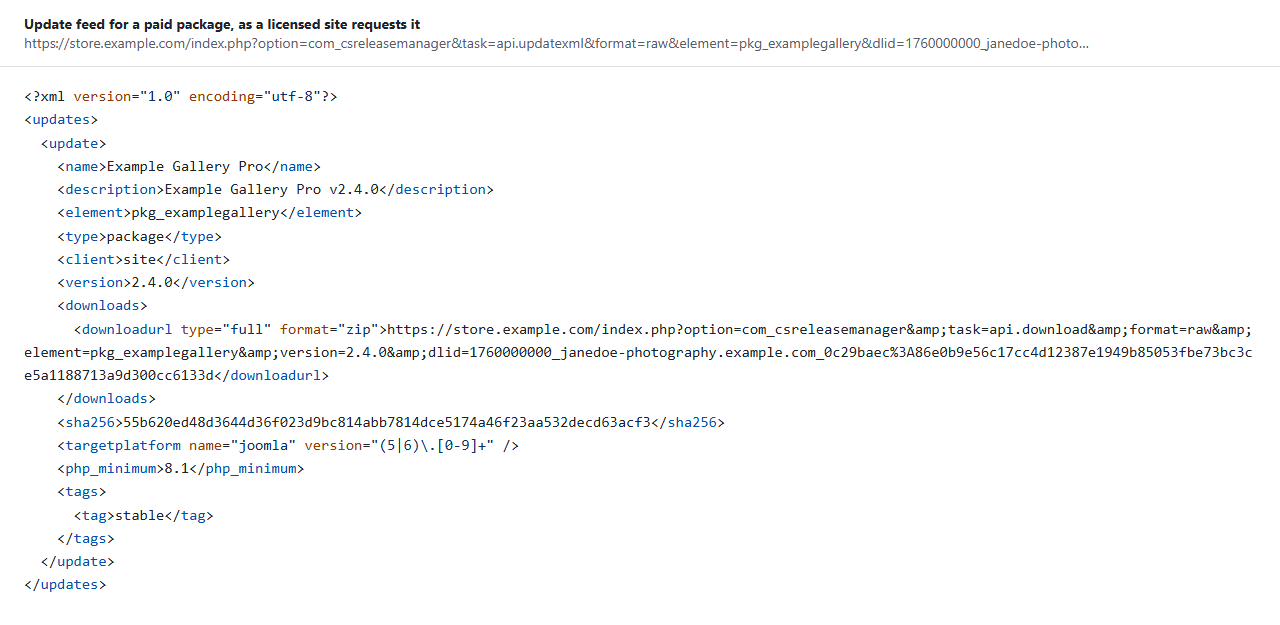
api.updatexml&element= |
The Joomla update feed for one package (the latest version). For a paid package requested
with a granted dlid, the download URL carries the download ID; a refused one
gets a note in the description saying why. |
api.changelogxml&element= |
Joomla changelog XML built from every published version's release notes. |
api.userdownload&element=[&version=] |
Download for free packages, and for logged-in members of a paid package's groups. Without
version, the latest. This is the address to give the JED and your sales
pages. |
api.download&element=&version=&dlid= |
Download with a download ID, used by customers' sites. |
api.register, api.linkemail |
Register an installation and link an email (JSON, POST). Rate limited per IP
address and per email. |
api.verifyaccess&dlid= |
JSON entitlement status for a download ID. |
api.catalog&catalog= |
JSON list of the packages in a named catalog. |
api.checkupdate |
Legacy update check kept for old clients. |
 ⤢ Click to enlarge
<sha256> lets Joomla
check the download.Installations
 ⤢ Click to enlarge
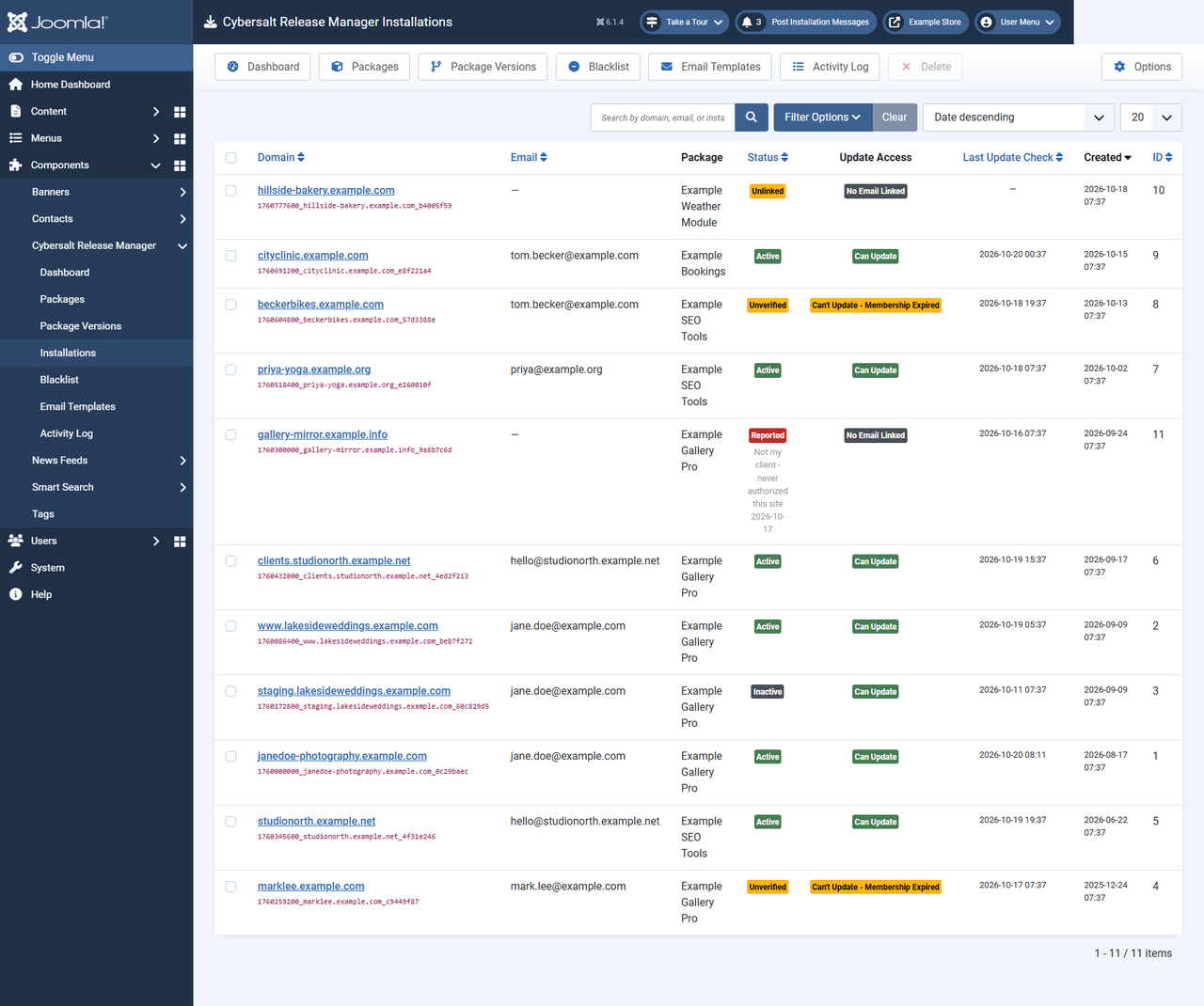
| Status | Meaning |
|---|---|
| Unlinked | Registered, but no email entered yet. |
| Unverified | An email is linked, but it hasn't been confirmed as entitled. It becomes Active the first time an update check or download is granted. |
| Active | Linked and entitled. |
| Inactive | The customer switched it off from their My Installations page. |
| Suspended / Reported | Suspended by you, or reported by the customer as a site they don't recognise. Shown as Reported, with the reason, when the customer reported it. |
The Update Access column checks the linked email against the package right now: Can Update, No Email Linked, User Not in System, or Membership Expired. Free packages always show Can Update. Filter the list by status, package, update access, date created or last check. Opening an installation lets you change its email, package or status; changing the email recalculates its hash, so the customer's site must use the new address too.
The customer's page: My Installations
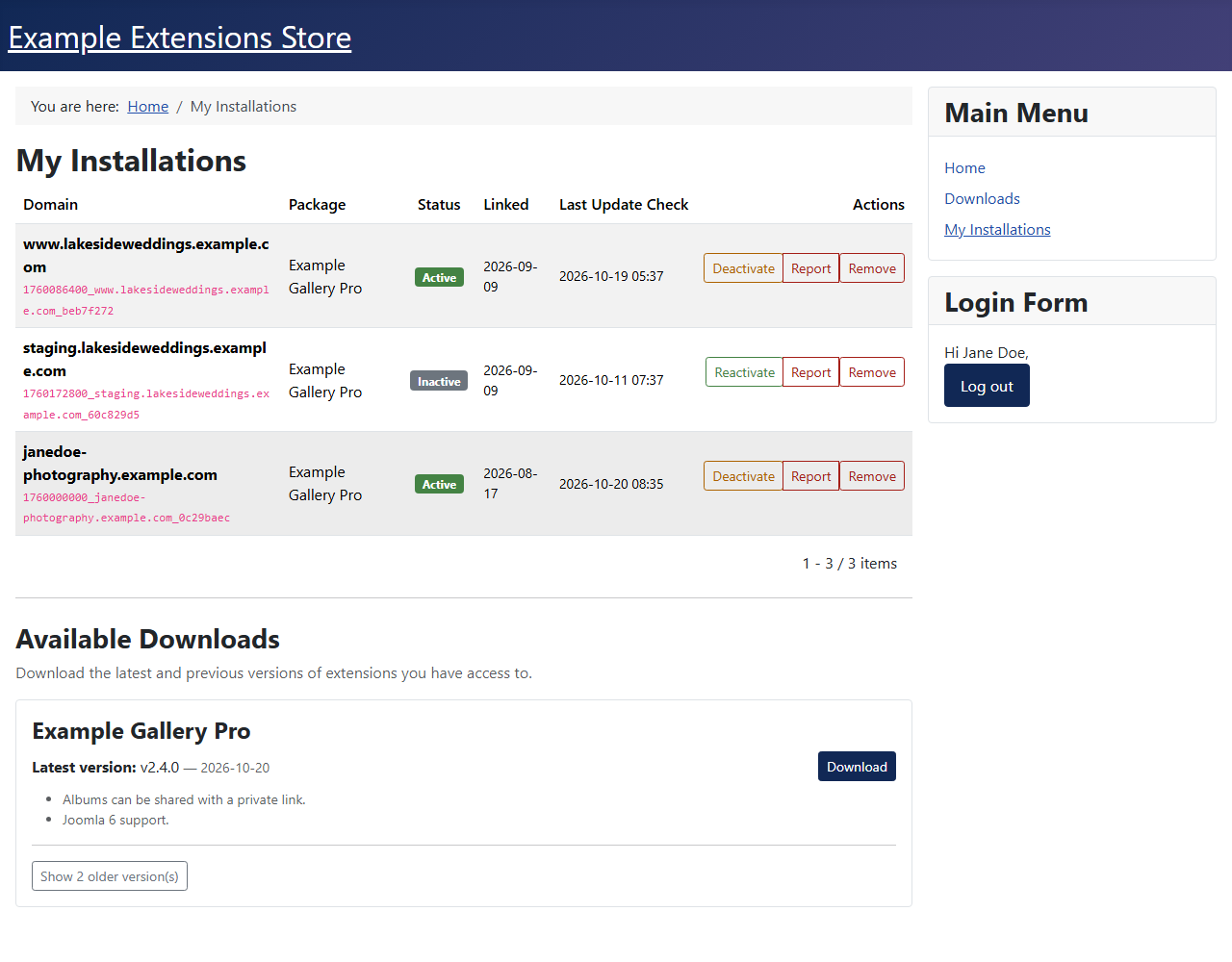
Create a menu item of type Cybersalt Release Manager → My Installations (public access is fine: guests get a login form). Logged-in customers see the sites linked to their email and can:
- Deactivate a site (it stops receiving updates) and Reactivate it later.
- Remove a site from their account. The domain is then blocked from linking to their email again.
- Report a site they don't recognise, with a reason. It is suspended and you get an email (the installation_reported template, sent to the notification From address).
- Review Blocked Domains, and unblock and reconnect one, or permanently disassociate it.
- Download the latest and older versions of the paid packages they have access to (this needs one of their sites to be linked).
 ⤢ Click to enlarge
Download buttons in articles
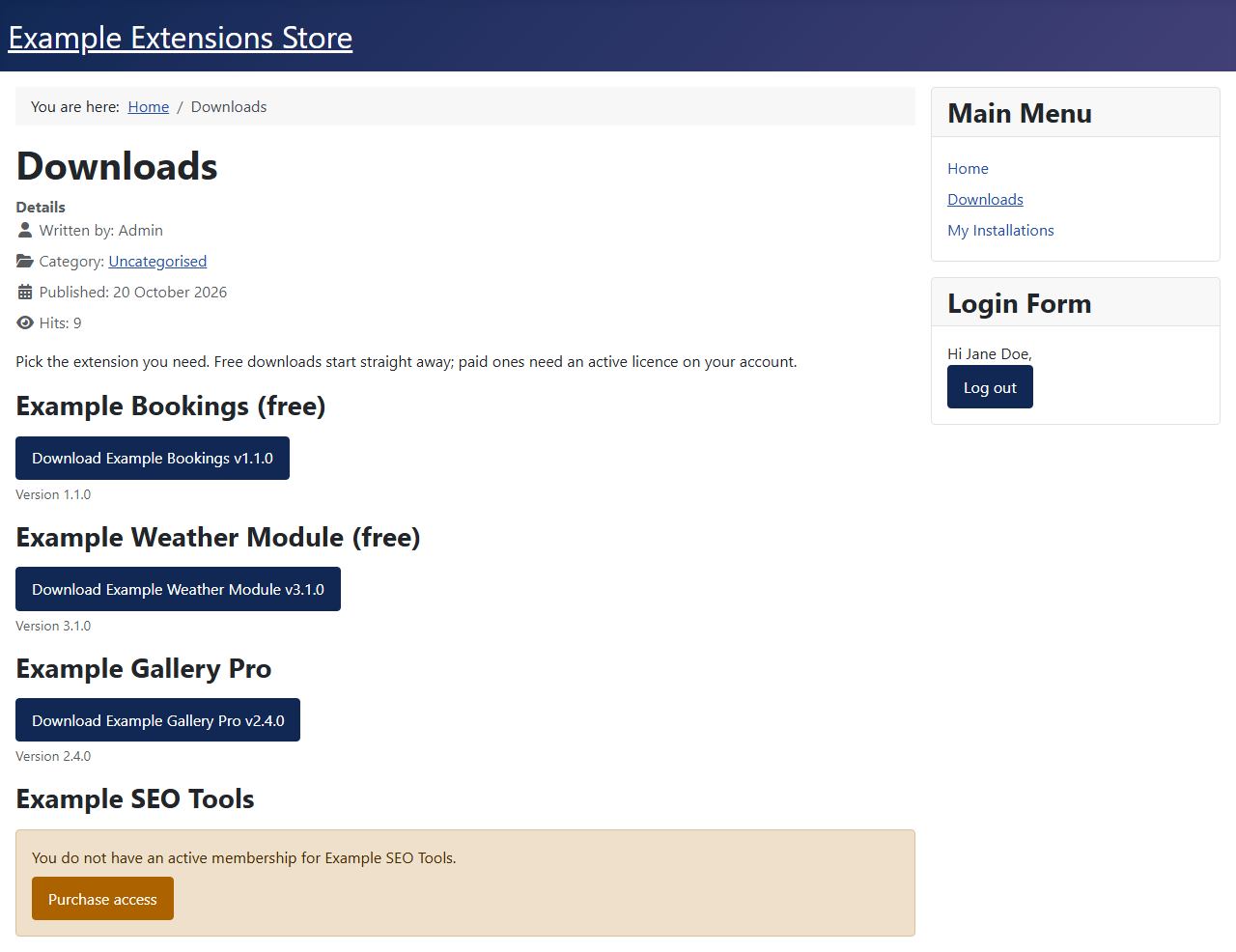
With Content - Cybersalt Release Manager enabled, put this in any article:
{cs-download element="pkg_myextension"}
It always shows the version marked latest, so the article never needs editing for a new
release. Add version="1.2.0" to pin a particular version. What visitors see:
| Package and visitor | Shown |
|---|---|
| Free package, anyone | A Download <title> v<version> button |
| Paid package, member of an allowed group | The same download button |
| Paid package, guest | The login message and a Purchase access button |
| Paid package, logged in without access | The denial message and Purchase access |
| Paid package, in a renewable group | The renewal message and Renew access |
| Unknown element | "Package not found", so a typo is visible |
The purchase button goes to the package's Renewal URL, or the plugin's Default
Purchase URL; with neither set there is no button. The plugin's settings also cover the button
CSS classes, whether to show the version and release date, and the login and no-access messages
({package} is replaced with the package title).
 ⤢ Click to enlarge
Edit articles with shortcodes in code view. Some editors run content plugins in their preview, and saving from the visual view can store the rendered button, frozen at that day's version, instead of the shortcode. Toggle the editor off, or check the source after saving.
Blacklist, email templates and activity log
Blacklist blocks a domain (and all its subdomains) or an IP address from registering and linking installations. It doesn't affect downloads or the update feed.
Email Templates holds the messages Release Manager sends. Three are sent:
new_install_linked and install_linked_unverified go to the customer when a
site is linked to their email (if Notify on New Installation Link is on), and
installation_reported goes to you when a customer reports a site. Placeholders include
{email}, {domain}, {installation_id}, {package_name},
{date} and {renewal_url}. The other three templates
(suspicious_activity, membership_expired,
install_limit_reached) are not sent by the current version.
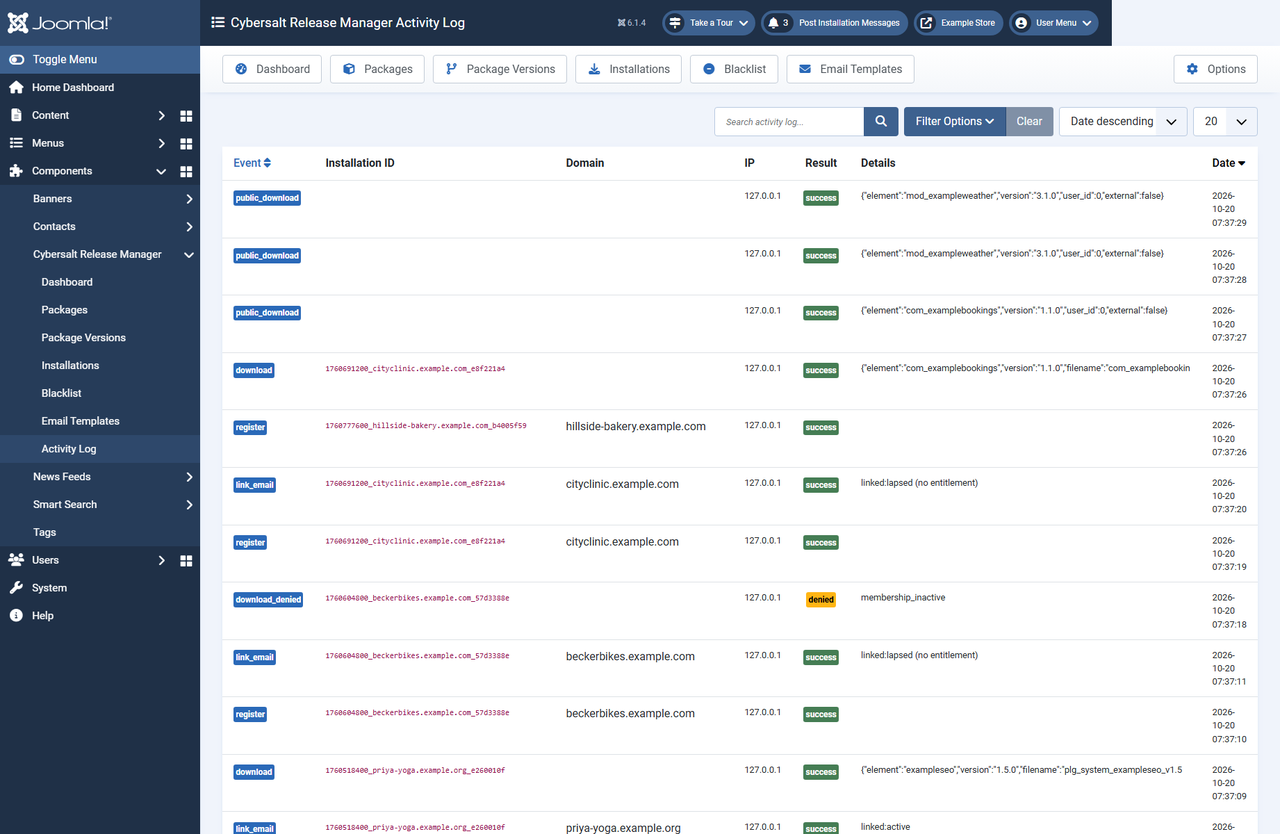
Activity Log records registrations, email links, downloads, refused downloads, access checks, blacklist hits and the customers' own actions, with the IP address and domain. Filter it by event, result, package, domain, IP, installation ID or date. Entries are kept until you delete them from the database; the log stores email hashes, never email addresses.
 ⤢ Click to enlarge
Options
| Tab | Setting | Default | What it does |
|---|---|---|---|
| General | Allowed Extension Authors | (all) | Limits the Extension Element picker to extensions by these authors. |
| General | Default Renewal URL | (empty) | Used when a package has no Renewal URL of its own. |
| General | Default Sign-Up URL | (empty) | Returned by api.verifyaccess and api.linkemail when an email isn't a
member, so your extension can link to your plans page. |
| General | Default Denial Message | "Your membership is not active…" | Used when a package has no Denial Message. |
| General | Catalog Independence Notice URL | (empty) | Optional link included in every catalog feed. |
| Support Contact | Support Email / URL / Label | (empty) / (empty) / our support team | Added to error messages ("please contact …"). |
| Rate Limiting | Max Requests per IP per Hour | 60 | Registrations and email links allowed from one IP address per hour. |
| Rate Limiting | Max Registrations per Email per Hour | 30 | Email links allowed for one email per hour. |
| Notifications | Notify on New Installation Link | Yes | Emails the customer when a site is linked to their email. |
| Notifications | From Email / From Name | (Joomla's) | Sender for notifications. The From Email also receives reported-installation alerts. |
| Permissions | The usual Joomla actions, plus API: List packages and API: Upload package versions for the Web Services routes. |
Automating releases
The Web Services - Cybersalt Release Manager plugin adds two Joomla API routes. Use a Joomla API token for a user whose group has the matching permission (or is a Super User):
| Route | Permission | What it does |
|---|---|---|
GET /api/index.php/v1/csreleasemanager/packages | API: List packages | Lists packages; filter[extension_element]= finds one by element. |
POST /api/index.php/v1/csreleasemanager/packageversions | API: Upload package versions | Uploads a zip and creates the version, or replaces it if that version number exists. |
curl -H "Authorization: Bearer $TOKEN" -H "Accept: application/vnd.api+json" \
  -F element=pkg_myextension -F version=1.2.0 -F is_latest=1 \
  -F min_joomla_version=5.0 -F min_php_version=8.2 \
  -F "release_notes=<notes.html" -F file=@pkg_myextension_v1.2.0.zip \
  https://your-site.example/api/index.php/v1/csreleasemanager/packageversions
The reply includes the version id and the SHA-256 the server calculated; compare it with your
own. The upload route doesn't set the maximum Joomla version, so set it on the version afterwards
if the release supports Joomla 6. (The < in release_notes=<notes.html tells
curl to read the notes from a file.)
The free MCP for Cybersalt Release Manager add-on for MCP for Joomla lets an AI assistant such as Claude manage packages, versions and installations.
Security and hosting notes
- The downloads folder must not be reachable directly. It ships with an
.htaccess(Apache, LiteSpeed) and aweb.config(IIS) that deny access. On nginx, add a rule that denies/media/com_csreleasemanager/downloads/, or paid zips can be fetched by anyone who guesses the file name. - Downloads and the update feed are not rate limited by Release Manager. If you put a CDN in front of the feed, include the full query string in the cache key, because a licensed site's feed contains its download ID.
- Uninstalling removes everything: the tables (packages, versions, installations, log) and the component's media folder, including uploaded zips. Back up first.
Troubleshooting
| Symptom | Cause and fix |
|---|---|
| Sites don't see a new version | Check that the version is published, has a file and is marked latest, then open the update feed URL in a browser. Joomla caches update checks; on a test site use Clear Cache and Check for Updates under System → Update → Extensions. |
| Joomla 6 sites don't see the update | Set Maximum Joomla Version to 6 on the version. |
| The update shows, but installing it fails | For a paid package, the site needs a granted download ID: look at the site in Installations
(Update Access) and in the Activity Log for download_denied. A SHA-256 mismatch
means the file changed after the version was saved; upload it again. |
| The shortcode says "Package not found" | The element in the shortcode doesn't match any published package. |
| A customer says they paid but the site says they're not a member | The email entered on their site must belong to a Joomla user in an allowed group (or, with Membership Pro, be their checkout email). Check the user's groups; groups inherited from a parent don't count for download IDs. |
| Registering fails with 403 or 429 | The domain or IP is on the blacklist (403), or the rate limit was hit (429): wait an hour or raise the limit in Options. |
Known limitations
- Some customer-facing messages from the download-ID routes were written for the Cybersalt store and mention Cybersalt or MCP for Joomla by name.
- The download-ID routes check directly assigned user groups; browser downloads and the shortcode also accept child groups.
- MySQL and MariaDB only.
Getting help
Questions and bug reports are welcome through the Cybersalt support form.
You'll get the quickest answer if you include your Joomla and PHP versions, the Release Manager version (Extensions → Manage), the package element involved and, for update problems, the update feed URL.
Cybersalt Release Manager is developed by Cybersalt Consulting Ltd. and released under the GNU General Public License v2 or later.
Packages — click anywhere to closeClose ×
Editing a package — click anywhere to closeClose ×
Package Versions — click anywhere to closeClose ×
Requirements and embed codes — click anywhere to closeClose ×
Update feed — click anywhere to closeClose ×
Installations — click anywhere to closeClose ×
My Installations — click anywhere to closeClose ×
Download buttons — click anywhere to closeClose ×
Activity Log — click anywhere to closeClose ×