Cybersalt MCP for Joomla
Cybersalt MCP for Joomla lets an AI app work on your Joomla site directly. You connect ChatGPT, Claude, Codex, Cursor, VS Code with GitHub Copilot, Gemini CLI or any other app that speaks MCP (the Model Context Protocol), and it can then read and manage your articles, categories, menus, modules, users, custom fields, templates, extensions and Schema.org data, using the same permissions as the Joomla account it acts for.
The site itself is the MCP server. There's nothing to install on your computer and no service in between: the app talks to your site's own address.
New to MCP for Joomla? This page is the reference manual. For an overview of what Cybersalt MCP for Joomla does, with screenshots and the download, see its page on cybersalt.com.
Release history. This page documents version 2.9.1. For what changed in each version, see the changelog.
Requirements. Joomla 5.0 or newer (it runs natively on Joomla 5 and Joomla 6) and PHP 8.2 or newer. OAuth sign-in and the activity log need MySQL or MariaDB. The installer checks the Joomla and PHP versions and stops with a message if your site is below either.
MCP for Joomla is free and open source, with nothing held back. Optional add-ons for specific third-party extensions are listed in the extension itself; some are free and some are paid. It's available from cybersalt.com.
 ⤢ Click to enlarge
What's in the package
One package installs four parts, and the installer enables all of them.
| Part | Name in your Joomla admin | What it does |
|---|---|---|
| Component | MCP for Joomla | The MCP server itself, its permission checks, the OAuth sign-in server, the activity log, and the admin screens: Dashboard, Browse MCP Add-ons, Setup Guide, Logs and Support. |
| Web Services plugin | Web Services - MCP for Joomla | Creates the endpoint address. It must be enabled, or the address returns "Not found". |
| System plugin | System - MCP for Joomla | Provides the 93 built-in tools and makes the common Authorization: Bearer
header work with Joomla's API tokens. |
| API authentication plugin | API Authentication - MCP for Joomla OAuth | Accepts sign-in tokens from AI apps that connected by logging in. It does nothing while OAuth sign-in is switched off. |
Installing
- Download the package zip (
pkg_csmcpforj_v*.zip) from cybersalt.com. - In your Joomla admin go to System → Install → Extensions and upload the zip.
- Open Components → MCP for Joomla.
The package registers Cybersalt's update server, so new versions show up under System → Update → Extensions. Updating keeps your settings.
On cPanel and other PHP-FPM hosts the web server drops the Authorization header
before Joomla sees it. To stop that, the installer adds a three-line rule to
api/.htaccess. Uninstalling removes it again.
Connecting an AI app
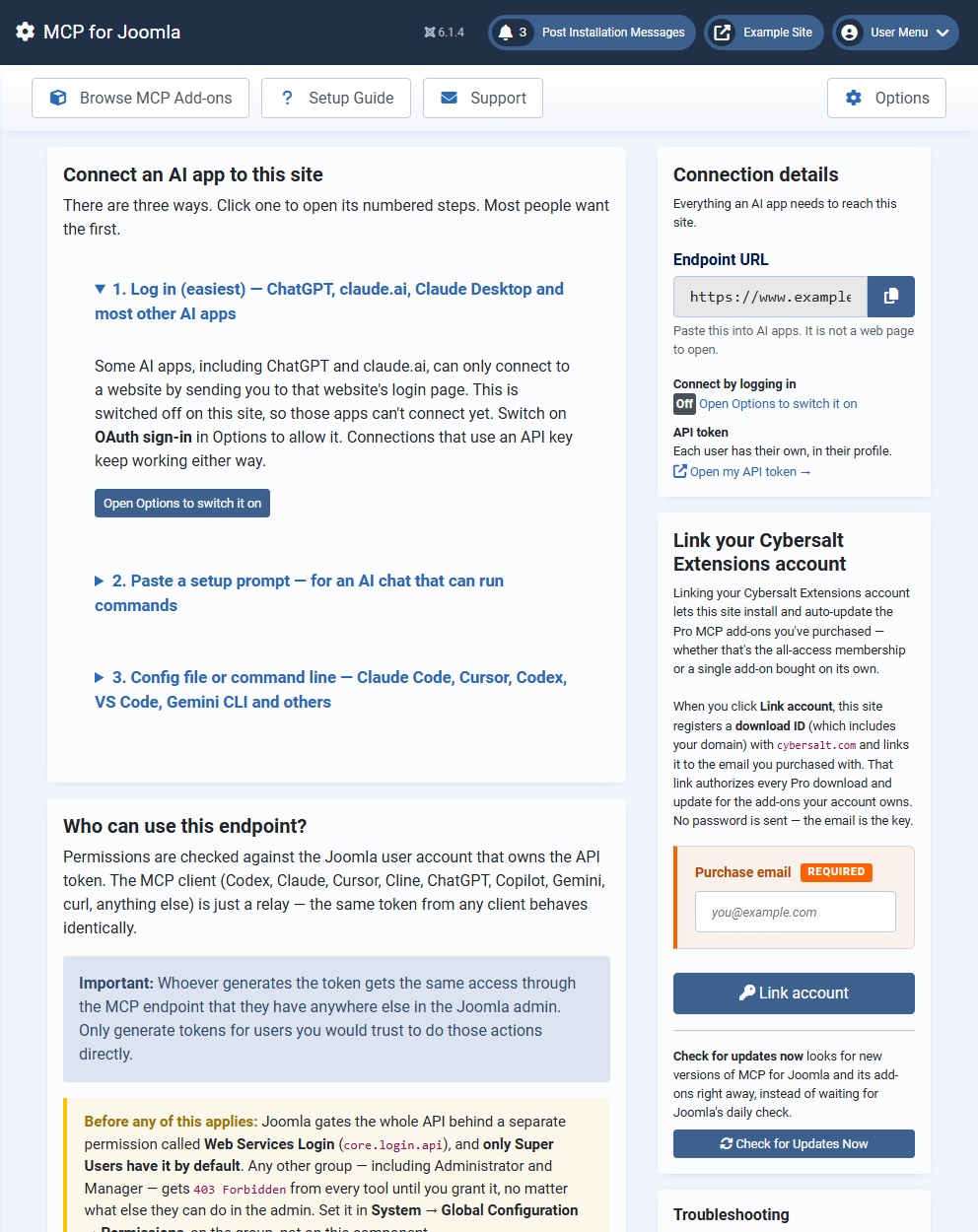
Copy your site's Endpoint URL from the Dashboard's Connection details
card. It ends in /api/index.php/v1/mcp. It's an address for AI apps, not a web page to
open. Then pick one of the three ways on the Connect an AI app to this site card.
1. Log in (easiest)
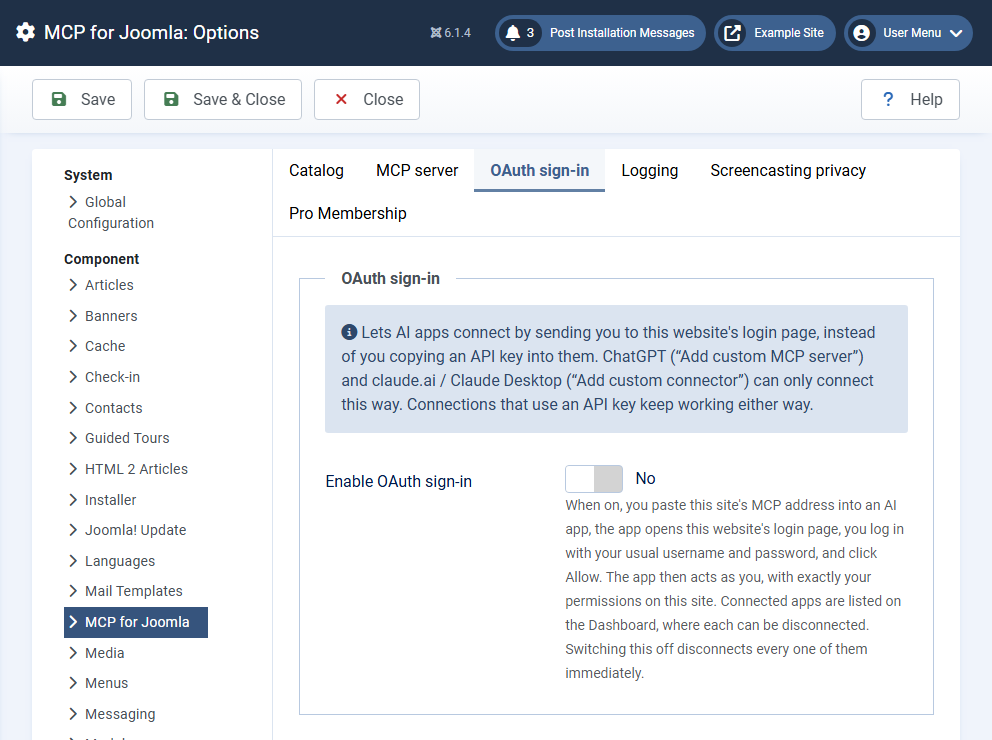
With OAuth sign-in switched on, an AI app connects the way you'd sign in to any website. You paste the Endpoint URL into the app, it opens your site's normal login page, you log in and click Allow. You never copy a key, and your site's two-factor authentication applies. Some apps, including ChatGPT and claude.ai, can only connect this way.
A Super User switches it on in Options → OAuth sign-in. The Dashboard then shows a Ready check and lists every connected app, each with a Disconnect button. Switching OAuth off disconnects them all at once.
 ⤢ Click to enlarge
| App | How to add the site |
|---|---|
| ChatGPT | Plugins in the left sidebar → Add (top right) → Add custom MCP server. Give it a name, paste the Endpoint URL, leave Authentication on OAuth, tick the box, click Create as a plugin, then Connect. Needs a paid plan; Plus works. |
| claude.ai and Claude Desktop | Settings → Connectors → Add custom connector. Paste the Endpoint URL, leave the OAuth Client ID and Secret empty, click Add, then Connect. |
| Claude Code | claude mcp add --transport http joomla <Endpoint URL>, then type
/mcp, pick the server and choose Authenticate. |
| Codex | codex mcp add joomla --url <Endpoint URL>. Codex opens the login page itself
(if it doesn't, run codex mcp login joomla). Click Allow within a few minutes, in a
browser on the same computer. |
| VS Code + GitHub Copilot | Command Palette → MCP: Add Server → HTTP → paste the Endpoint URL. VS Code asks you to log in. |
| Cursor | Add {"url": "<Endpoint URL>"} under mcpServers in
mcp.json, then click Login next to the server in Settings →
MCP. |
| Gemini CLI | Add "httpUrl": "<Endpoint URL>" for the server in settings.json,
then run /mcp auth <name>. |
| Cline | MCP Servers → Remote Servers → Streamable HTTP, paste the Endpoint URL, then click Authenticate. |
Your site must be reachable from the internet over HTTPS for ChatGPT and claude.ai,
because they connect from their own servers. They also look for your sign-in details at
/.well-known/oauth-authorization-server, which Joomla only answers when
Use URL Rewriting is on in Global Configuration and the site's
.htaccess is in place. If the Dashboard says Not ready, that's usually why. A
firewall must also let through /api/index.php/v1/mcp, both /.well-known/
addresses and index.php?csmcpforj_oauth=….
2. Paste a setup prompt
For AI apps that can run commands: Codex, Claude Code, Cursor, Cline, Copilot agent mode and similar. Click Get my API token, paste the token into the field on the Dashboard, click Copy the prompt and paste it into a new conversation. The AI tests the connection itself and offers to save it. This doesn't work in web-only chats such as claude.ai or chatgpt.com.
3. Config file or command line
For apps you set up once in a settings file. Paste your token, click Copy the configuration, and paste it into the app's MCP settings. The copied configuration looks like this:
{
  "mcpServers": {
    "joomla-yoursite": {
      "type": "http",
      "url": "https://yoursite.com/api/index.php/v1/mcp",
      "headers": { "Authorization": "Bearer YOUR_JOOMLA_API_TOKEN" }
    }
  }
}
If an app can't send an Authorization header, use
"X-Joomla-Token": "YOUR_JOOMLA_API_TOKEN" instead. The Setup Guide has
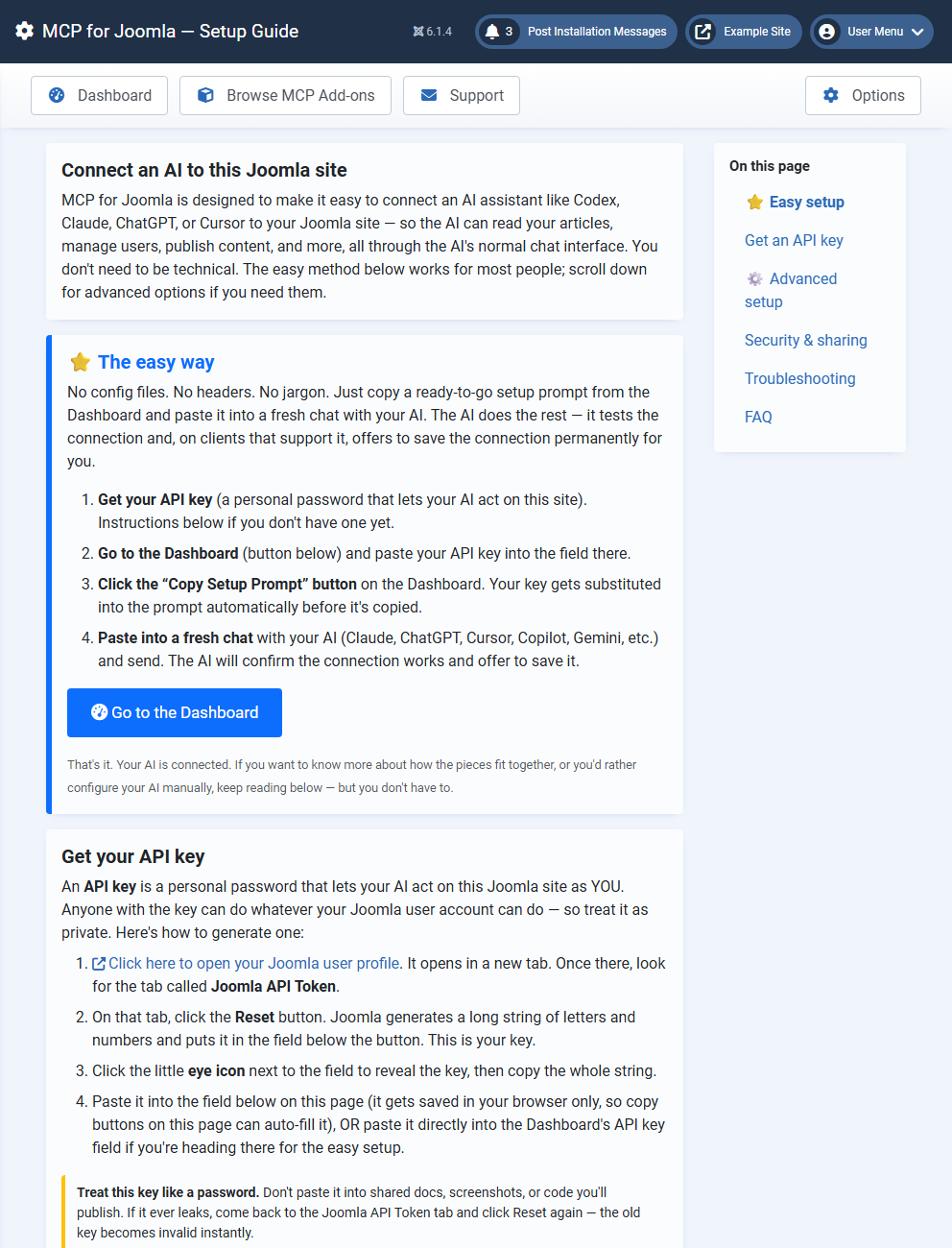
step-by-step instructions for Codex, Claude Desktop, Claude Code, Cursor and Gemini CLI. Claude
Desktop on Windows needs a small wrapper file, which the guide creates for you.
 ⤢ Click to enlarge
Getting an API token
Each Joomla user has their own token. Open your profile (the Dashboard's Open my API token link takes you there), go to the Joomla API Token tab, click Reset, then the eye icon, and copy the whole value. Treat it like a password: whoever has it can do everything that user can do. Clicking Reset again makes the old token stop working immediately.
Who can use it
Every tool call runs as the Joomla user who owns the token (or who logged in). MCP for Joomla never lets an AI do something that user couldn't do in the Joomla admin. Two separate permissions decide who gets in:
- Web Services Login is Joomla's own switch for its whole API. Only Super Users have it by default. Grant it to a group in System → Global Configuration → Permissions, on the group.
- Use MCP endpoint allows the read tools, and Write through MCP endpoint allows the tools that change things. Set them in Components → MCP for Joomla → Options → Permissions. A group that can manage the component passes both.
| Group | Works out of the box? | What it needs |
|---|---|---|
| Super Users | Yes | Nothing. |
| Administrator | Almost | Web Services Login. Joomla's defaults already let Administrators manage the component, which covers both MCP permissions. |
| Manager | No | Web Services Login, plus Use MCP endpoint (and Write through MCP endpoint for changes). |
| Other groups | No | The same as Managers. |
Five tools are for Super Users only, whatever the permissions say, because they
can change who has power over the site: install_extension,
set_component_permission, apply_joomla_update,
set_extension_enabled and set_plugin_params. The tools that manage other
users' API tokens also refuse to act on anyone whose group is equal to or above yours.
Read-only connections
Options → MCP server → Read-only mode makes the endpoint offer and
accept only tools that read: the ones whose names start with list_, get_,
read_, check_, validate_ or fetch_, plus
joomla_update_healthcheck. An app can also add ?read_only=1 to the endpoint
address to make one connection read-only, but it can't switch writes back on for a site set to
read-only. To limit a connection to some tool groups, add ?categories=articles,menus
(group names are listed below).
The tools
The 93 built-in tools are grouped below. Every tool describes itself to the AI app (its inputs and whether it reads, changes or deletes), so the app discovers them on its own. The full list with a line on each is in the README.
Group (?categories= name) | Tools | What the AI can do |
|---|---|---|
Articles (articles) | 6 | List, read, create, update and delete articles, with tags. |
Categories (categories) | 5 | Manage the category tree of any extension. |
Tags (tags) | 5 | Manage Joomla tags. |
Menus (menus) | 7 | List menus and menu item types; create, update and delete menu items. |
Modules (modules) | 7 | List positions and module types; create, update and delete modules, including menu assignment. |
Custom fields (fields) | 11 | Manage fields and field groups, and set a field's value on an item. |
Users (users) | 14 | Manage users and user groups, list access levels, and manage per-user API tokens. |
Permissions (permissions) | 2 | Read the permission settings of any component, and change one (Super Users only). |
Extensions (extensions) | 6 | List extensions and plugins and read plugin settings; enable or disable extensions, change plugin settings and install extensions (Super Users only). |
Templates (templates) | 7 | Read and change template styles, set the default style, and read or write the template's CSS, JavaScript, image and font files (never PHP). |
Languages (languages) | 2 | List installed and content languages. |
Schema.org / SEO (schema_org) | 10 | Article Schema.org data through Joomla's Schema.org plugin, custom JSON-LD, and the site profile. |
System (system) | 6 | Joomla version and site information, clear the cache, list pending extension updates, list scheduled tasks, and fetch a page of the site to check the result. |
Joomla update (joomla_update) | 3 | Check for a Joomla update, run a pre-update health check, and apply the update (Super Users only, with explicit confirmation). |
Admin menu (admin_menu) | 2 | Read the preset files behind the admin sidebar, to diagnose a missing menu entry. |
Add-ons
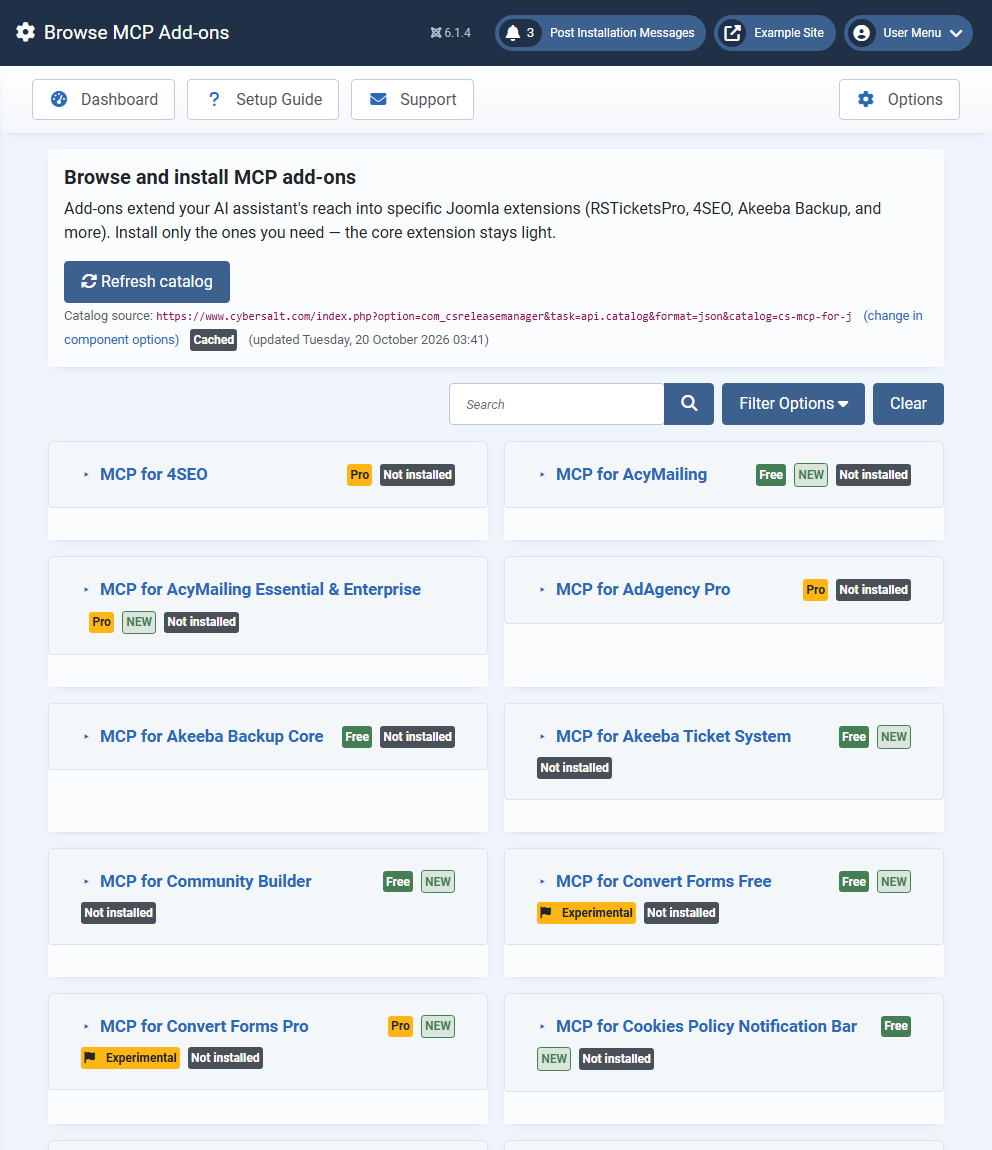
Browse MCP Add-ons lists optional add-ons that give the AI tools for specific third-party extensions, such as AcyMailing, Akeeba Backup, Akeeba Ticket System, Community Builder, Convert Forms, DPCalendar, J2Commerce, JCE, Maximenu CK, Page Builder CK and VirtueMart. Each one is a separate plugin, so you install only what you use. You need the third-party extension itself, from its own vendor; the add-ons are built independently by Cybersalt.
- Free add-ons install with one click.
- Pro add-ons, for commercial extensions, are sold separately at cybersalt.com. Link your Cybersalt account once on the Dashboard and they install and update from the same screen.
 ⤢ Click to enlarge
When your site contacts cybersalt.com. Opening Browse MCP Add-ons fetches the add-on list (kept for 24 hours; a copy ships with the extension for when cybersalt.com can't be reached). If you link a Cybersalt account, your site registers an installation ID with your domain and email address and re-checks your membership about once a day. Updates come through Joomla's normal update server. The MCP endpoint itself never contacts cybersalt.com.
Activity log
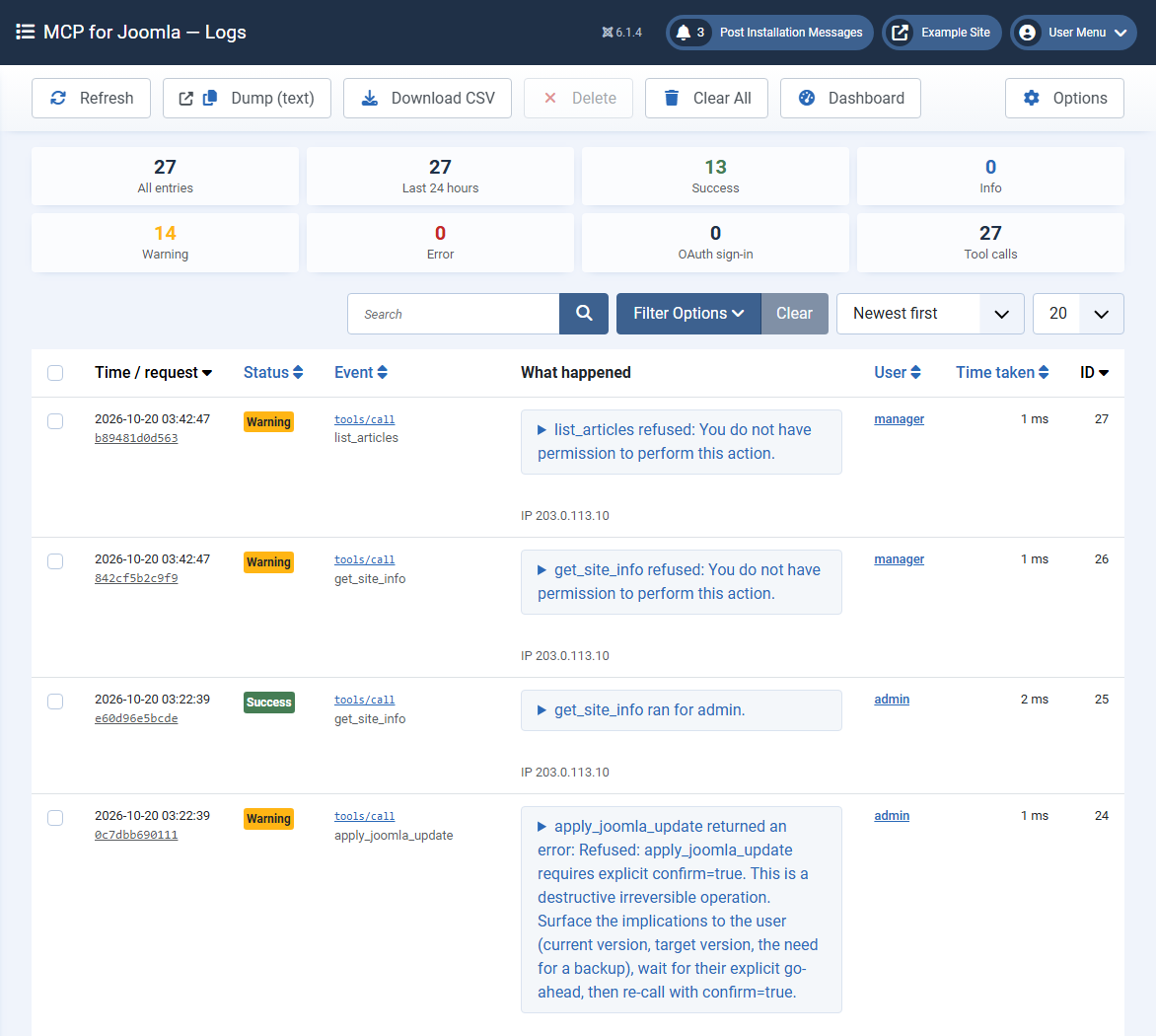
Components → MCP for Joomla → Logs shows what MCP for Joomla did: each app that connected, every tool call with its arguments and how long it took, anything that was refused and why, and every step of an OAuth sign-in. You can filter by status, source, event, time, user or request, sort, search, and download the log as CSV.
 ⤢ Click to enlarge
Entries are kept for 30 days by default (Options → Logging), and never more than the newest 20,000. API tokens, sign-in codes, client secrets and password-like arguments are never written to the log.
Options
| Tab | Setting | Default | What it does |
|---|---|---|---|
| Catalog | Catalog endpoint URL | cybersalt.com | Where the add-on list comes from. Leave it unless you run a private mirror. |
| Catalog | Catalog cache TTL (hours) | 24 | How long the add-on list is kept. The Refresh catalog button skips the wait. |
| Catalog | Show unavailable Pro add-ons | Yes | Whether Pro add-ons this site isn't licensed for are listed. |
| Catalog | Re-check membership every (seconds) | 86400 | How often a linked site re-checks its Cybersalt membership. |
| MCP server | Read-only mode | No | Only read tools are offered and accepted. See Who can use it. |
| OAuth sign-in | Enable OAuth sign-in | No | Lets AI apps connect by logging in. See Connecting an AI app. |
| OAuth sign-in | Access token lifetime (seconds) | 3600 | How long each sign-in token lasts before the app renews it, silently. |
| OAuth sign-in | Stay signed in for (days) | 30 | How long an app may keep renewing without the user logging in again. |
| Logging | What to log | Everything | Everything, warnings and errors only, or nothing. |
| Logging | Keep entries for (days) | 30 | Older log entries are deleted automatically. |
| Screencasting privacy | Hover-to-reveal delay / Auto-hide | 3 s / 8 s | API tokens and your membership email are blurred on screen until you hover over them, so they don't leak into a screen recording or a live stream. |
| Pro Membership | (read-only) | Shows the linked Cybersalt account and its status. | |
| Permissions | Who may use the endpoint and write through it, plus the standard Joomla permissions. |
Safety features
- When an app connects, the site tells it to treat everything it reads as untrusted, never to follow instructions found inside your content, and to ask before changing anything.
- Deletes go to the trash by default. Permanently deleting an article or module only works once it's in the trash. Deleting a custom field and applying a Joomla update need an explicit confirmation.
- Template file tools can only reach the template's own media folder and can't write PHP.
- The page-fetching tool only fetches pages from your own site.
- A tool call that contains the connection's own token is refused, because that's a common sign of a prompt-injection attempt.
- If one add-on breaks, only its tools are dropped; everything else keeps working, and the Logs name the add-on.
Troubleshooting
| Symptom | Cause and fix |
|---|---|
| 401 "Unauthorized" or "Authentication failed" | The token isn't right. It may have been Reset since you copied it, copied with a character
missing or an extra space, or (in a config file) be missing the word Bearer and a
space in front of it. On cPanel hosts, also try the X-Joomla-Token header. |
| 403 "Forbidden" on every tool | The user's group doesn't have Web Services Login. See Who can use it. |
| 403 "Forbidden" or "Malware detected" from a security extension | A firewall such as RSFirewall, Admin Tools or Securitycheck is blocking the request. Allow
/api/index.php/v1/mcp (in RSFirewall, add it to Skip Filtering). |
| 404 "Not found" | Check the address ends with /api/index.php/v1/mcp, and that Web Services -
MCP for Joomla is enabled in System → Manage → Plugins. |
| Connected, but no tools show up | The user's group is missing Web Services Login or the MCP permissions, or the app cached an empty list. Fix the permissions, then disconnect and reconnect the server in the app. |
| "You do not have permission to perform this action." | The user can connect but isn't allowed that tool: grant Write through MCP endpoint for changes, or use a Super User for the five Super-User-only tools. |
| ChatGPT's or Claude's dialog has no field for the API key | Those dialogs only connect by logging in. Switch on OAuth sign-in in Options. |
| The Dashboard's sign-in check says Not ready | Turn on Use URL Rewriting in Global Configuration and make sure the site's .htaccess
is in place (rename htaccess.txt). |
| Sign-in works on your computer but not from ChatGPT or claude.ai | The site must be reachable on public HTTPS, and a firewall may be blocking those apps' servers. Allow the addresses listed under Log in. |
| Signing in from a server with no browser | Desktop apps open a browser on the same machine for sign-in. On a headless server, use an API token instead. |
Uninstalling
Uninstall the Cybersalt MCP for Joomla package in System → Manage
→ Extensions. That removes all four parts, the OAuth and log tables, and the
api/.htaccess rule. Add-ons are separate extensions; uninstall them on their own.
Getting help
Use the Support screen inside the extension (it attaches your versions and, if you like, recent warnings from the log), the Cybersalt support form, or GitHub.
Cybersalt MCP for Joomla is developed by Cybersalt Consulting Ltd. and released under the GNU General Public License v2 or later. It's an independent, clean-room implementation of the Model Context Protocol for Joomla.
OAuth sign-in option — click anywhere to closeClose ×
The Setup Guide — click anywhere to closeClose ×
Browse MCP Add-ons — click anywhere to closeClose ×
The activity log — click anywhere to closeClose ×