Cybersalt 0-9 and A-Z Menu
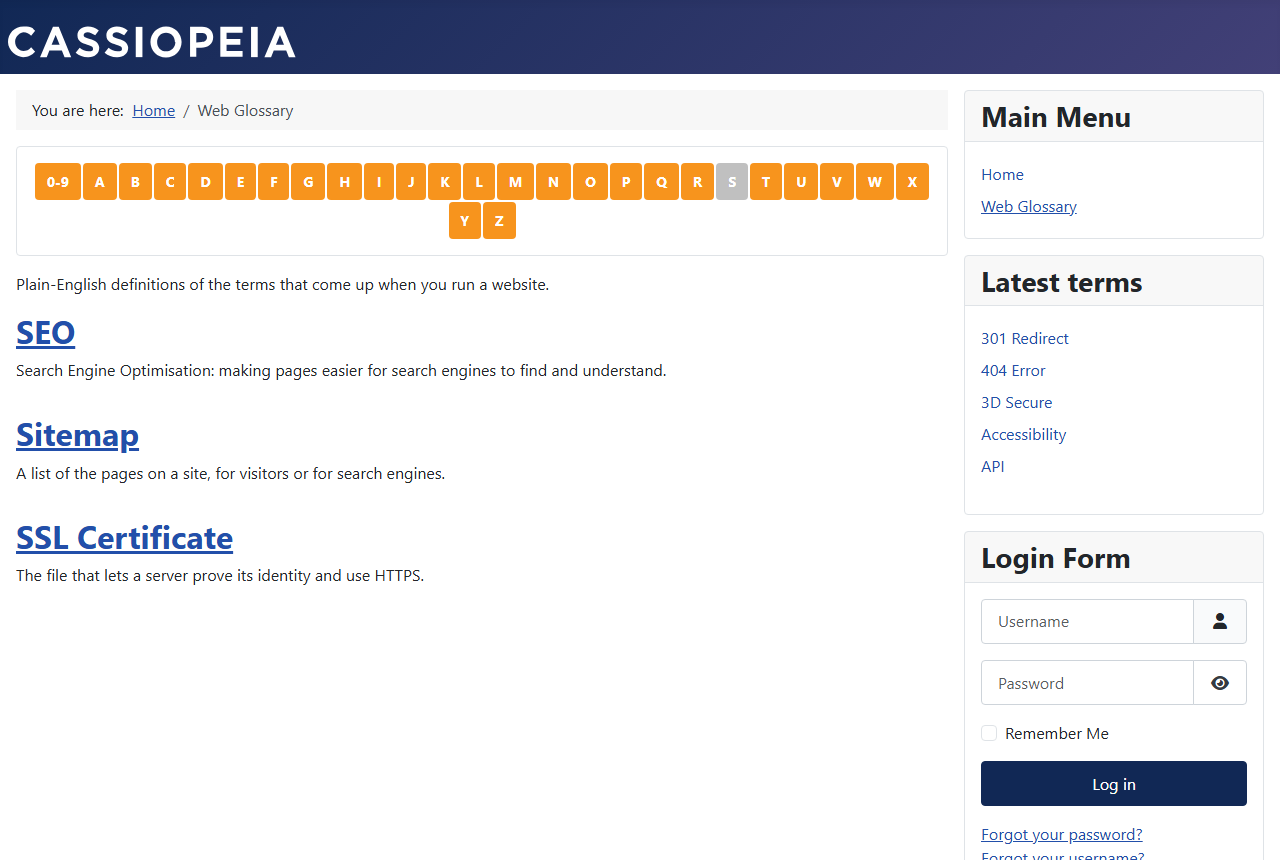
Cybersalt 0-9 and A-Z Menu adds a row of letter and number buttons to your Joomla category pages. A visitor clicks B and the page shows only the articles whose titles start with B. It turns a long category, like a directory of artists or a big recipe collection, into something people can browse in a couple of clicks instead of paging through it.
The filtering happens inside Joomla's own article query, so everything else about the page stays the way you set it up: the layout, the article order, the number of articles per page, pagination and who is allowed to see what.
Release history. This page documents the current release. For what changed in each version, see the changelog.
Requirements. Joomla 5.0 or newer (it runs natively on Joomla 5 and Joomla 6) and PHP 8.1 or newer. The installer checks both and stops with a message if your site is below either one. The admin screens are translated into 17 languages and follow each administrator's own language setting.
Cybersalt 0-9 and A-Z Menu is a paid extension, available from cybersalt.com.
 ⤢ Click to enlarge
What's in the package
The extension comes in two parts, installed together from one package.
| Part | Name in your Joomla admin | What it does |
|---|---|---|
| Site module | Cybersalt 0-9 and A-Z Menu | Shows the row of buttons. All the look-and-feel settings live here. |
| System plugin | System - Cybersalt 0-9 and A-Z Menu Filter | Does the filtering when a visitor clicks a button. It is switched on for you when you first install the package. It holds the URL Parameter setting and the Pro Activation tab. |
In System → Manage → Extensions the package itself is listed as Cybersalt 0-9 and A-Z Menu. The module and plugin can't be uninstalled on their own, because the package would be left half-installed. To remove the extension, uninstall the package and both parts go with it.
Installing
- Get the package zip (
pkg_cs-09azmenu_v*.zip) from cybersalt.com. - In your Joomla admin go to System → Install → Extensions and upload the zip. Install the package zip itself, not the module or plugin zips inside it.
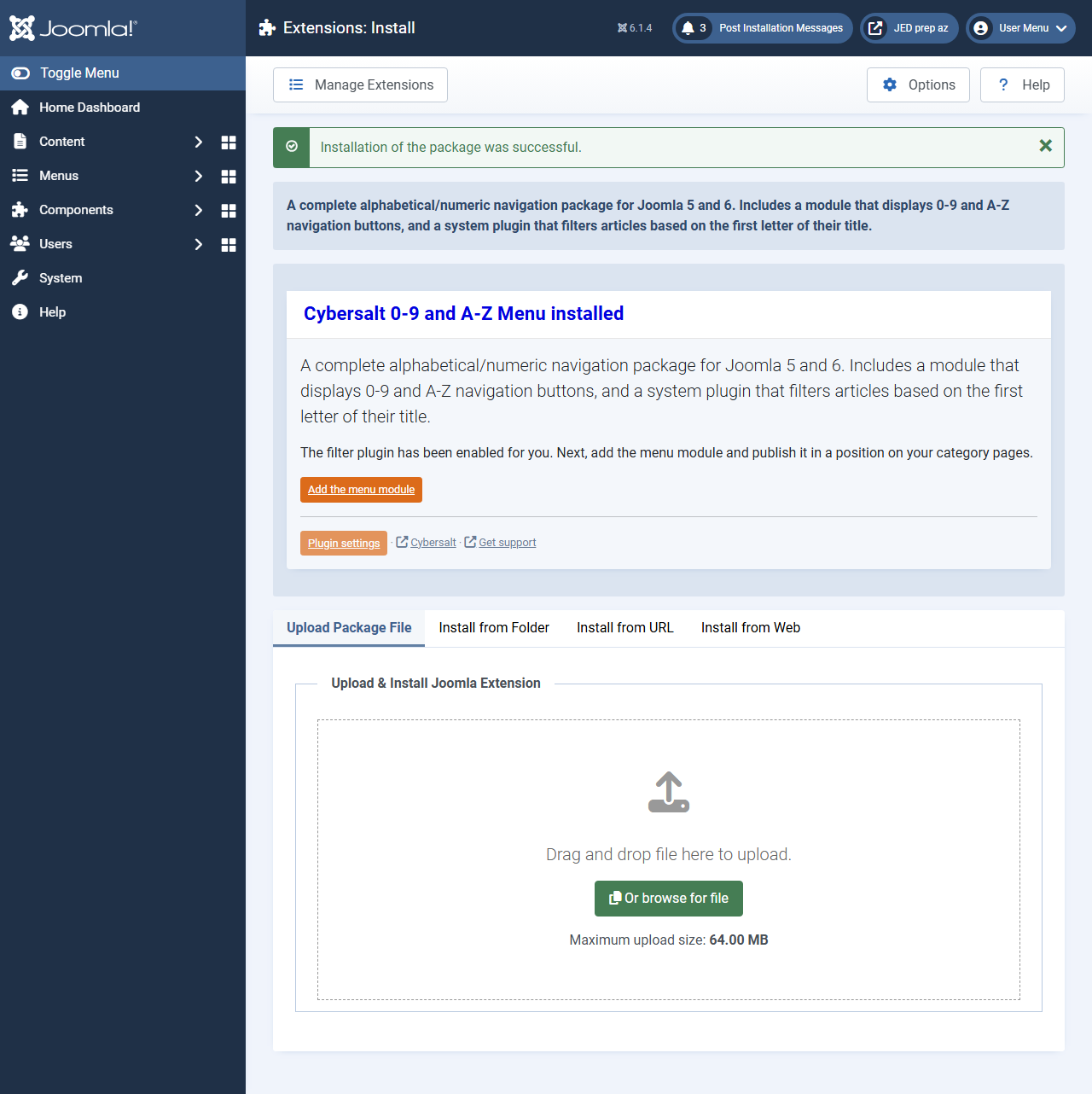
- A Cybersalt card appears with what to do next. On a fresh install the plugin System - Cybersalt 0-9 and A-Z Menu Filter is switched on for you, and the card says so. Its Add the menu module button opens a new module of the right type, and Plugin settings opens the Plugins list filtered to this plugin.
- For updates, enter your cybersalt.com account email on the plugin's Pro Activation tab.
 ⤢ Click to enlarge
The plugin has to stay enabled. Without it, the buttons still appear on
your category pages, but clicking one just reloads the page with every article still listed.
Updating the package never switches the plugin back on if you turned it off yourself, and the
card shows a warning when it is off. To turn it on, go to System → Manage
→ Plugins, search for 0-9 and click the status icon beside
System - Cybersalt 0-9 and A-Z Menu Filter so it turns green.
The package registers Cybersalt's update server, so new versions show up under System → Update → Extensions like any other extension once the site is activated (see Pro Activation). Updating keeps your module and plugin settings.
Quick start
- Go to Content → Site Modules and click New.
- Choose Cybersalt 0-9 and A-Z Menu from the list of module types. The install card's Add the menu module button does these first two steps for you.
- Give the module a title. Most sites set Title to Hide, since the buttons explain themselves.
- Pick a Position. A position just above the main content works best,
so the buttons sit right over the article list. Position names depend on your
template; in Cassiopeia it's
main-top. - On the Menu Assignment tab, leave it on On all pages. The module only ever shows itself on category pages (see below), so this is safe, and you won't have to update the assignment every time you add a category.
- Click Save & Close, then open one of your category pages on the site.
That's everything the default orange buttons need. The rest of this page goes through the settings, in the same order as the tabs on the module's edit screen.
Where the menu appears
The menu appears only on article category pages, which are the pages Joomla builds for a Category Blog or Category List menu item. It stays hidden everywhere else, including single articles, the Featured page and search results, whatever the module's menu assignment says. If your home page is a Category Blog, the menu shows there too.
You can narrow it down further with Limit to Categories and Show in Child Categories on the Module tab.
Module settings
Module tab
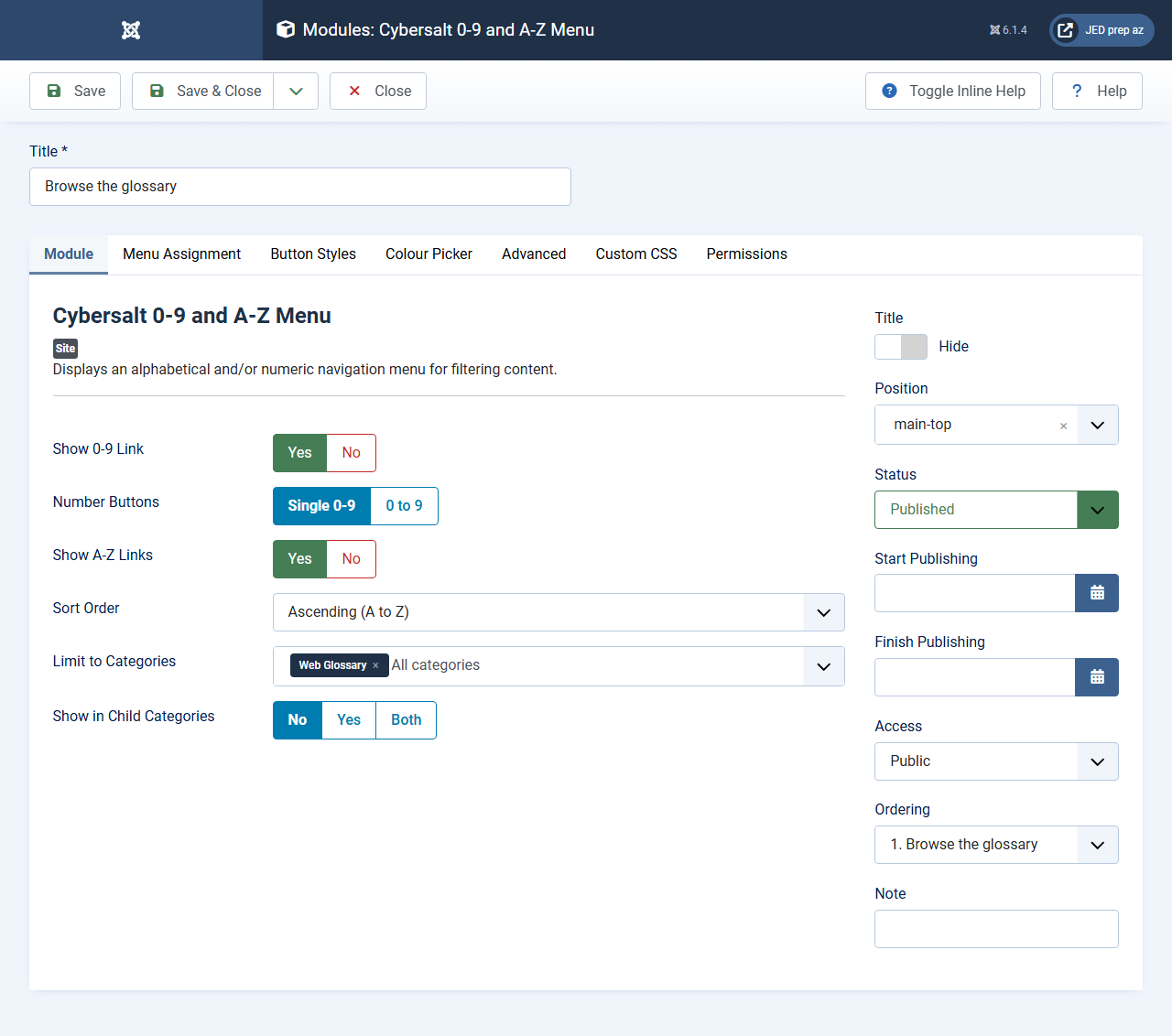 ⤢ Click to enlarge
| Setting | Default | What it does |
|---|---|---|
| Show 0-9 Link | Yes | Shows the button, or buttons, for titles that start with a number. Set it to No if none of your titles start with a digit. |
| Number Buttons | Single 0-9 | Only shown when Show 0-9 Link is Yes. Single 0-9: one button labelled 0-9. It lists every article whose title starts with any digit. 0 to 9: ten separate buttons, 0, 1, 2 and so on up to 9. Each one lists only the articles whose title starts with that digit. |
| Show A-Z Links | Yes | Shows the 26 letter buttons, A through Z. |
| Sort Order | Ascending (A to Z) | The order of the buttons. Descending (Z to A) runs the letters from Z back to A, and with 0 to 9 buttons it runs the digits from 9 down to 0. It doesn't change the order of the articles. That comes from the ordering settings on your category menu item. |
| Limit to Categories | All categories | Optional. Select the categories the menu should appear on. Leave it empty to show the menu on every category page. |
| Show in Child Categories | No | Whether the menu also appears on the categories underneath the ones you picked in Limit to Categories. See below. |
Show in Child Categories
This decides whether the menu also appears in the categories that sit underneath the ones you picked in Limit to Categories.
- No: the menu appears only on the categories you picked. Their child categories don't get it.
- Yes: the menu appears only on the child categories of the ones you picked, at any depth (children, grandchildren and so on). The categories you picked don't get it themselves. Use this when a parent category is just a landing page for its subcategories.
- Both: the menu appears on the categories you picked and on every category underneath them.
Example. You pick Entertainment, which has a child category Clean Jokes. No shows the menu on Entertainment only. Yes shows it on Clean Jokes only. Both shows it on both.
This setting does nothing when Limit to Categories is empty, because the menu then appears on every category page anyway.
Button Styles tab
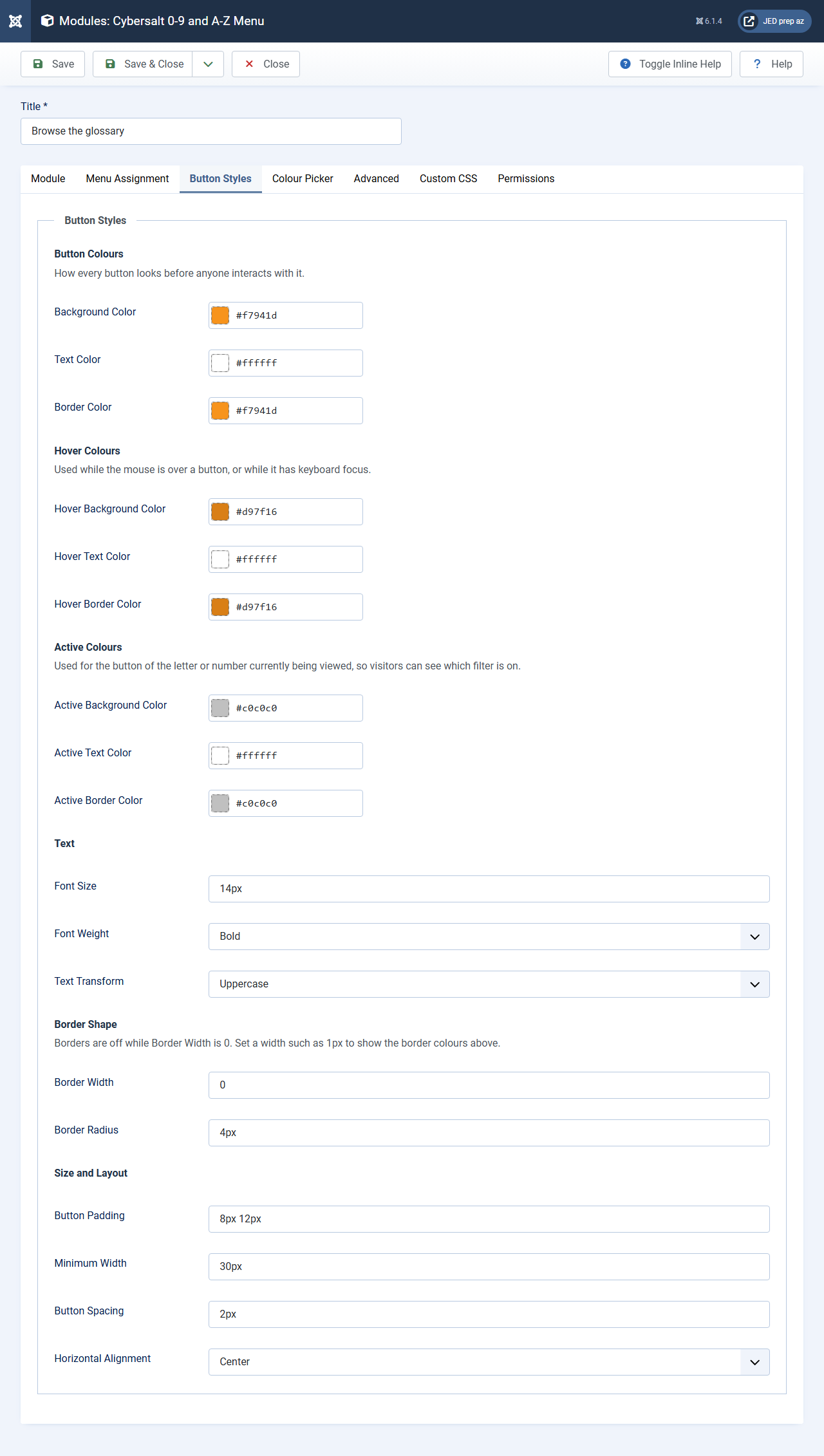
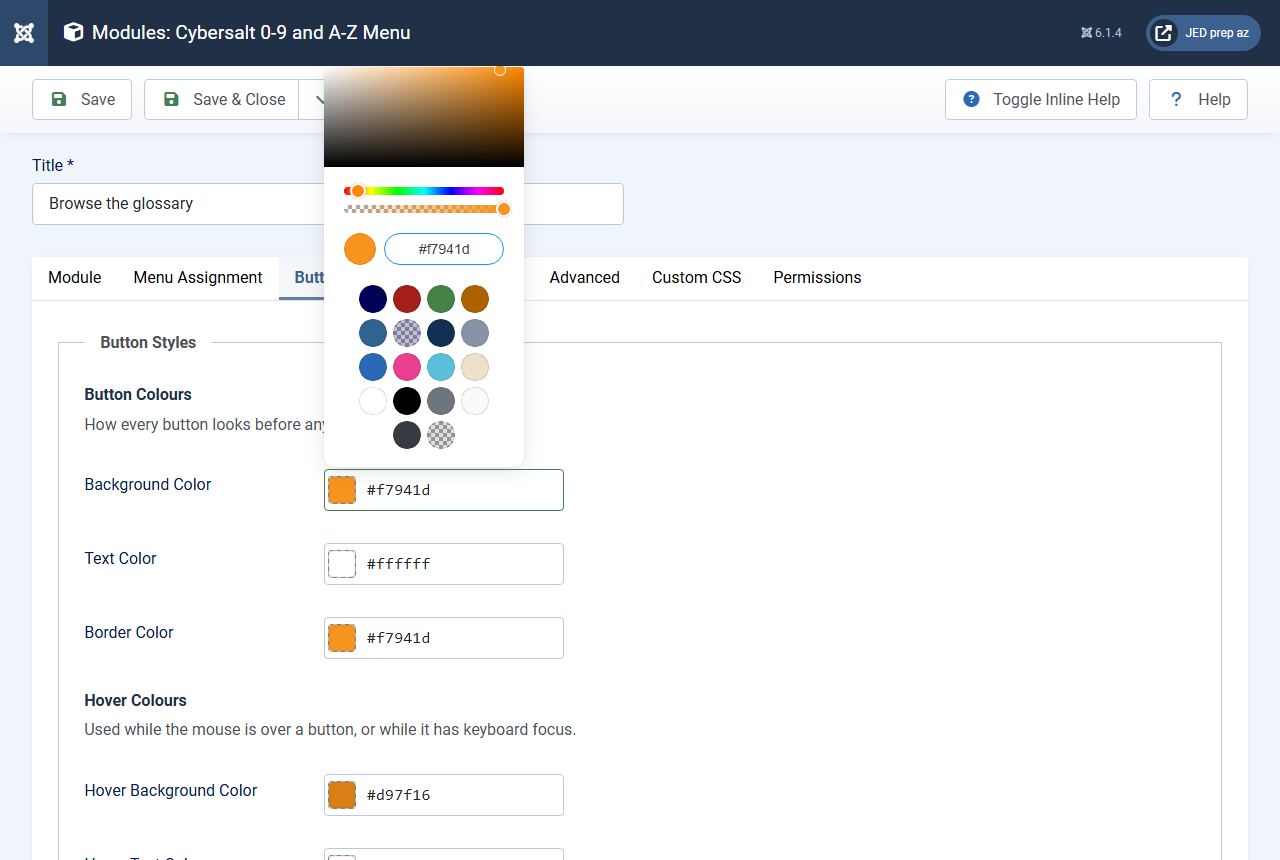
This tab controls how the buttons look. Every colour setting opens a colour picker (see
Colour Picker tab below). Size settings take ordinary CSS values
such as 14px, 1rem or 8px 12px.
 ⤢ Click to enlarge
| Setting | Default | What it does |
|---|---|---|
| Button Colours: how every button looks before anyone interacts with it | ||
| Background Color | #f7941d (orange) |
The background colour of the menu buttons. |
| Text Color | #ffffff (white) |
The text colour of the menu buttons. |
| Border Color | #f7941d |
The border colour of the buttons. |
| Hover Colours: used while the mouse is over a button, or while it has keyboard focus | ||
| Hover Background Color | #d97f16 (darker orange) |
The background colour when hovering over a button. |
| Hover Text Color | #ffffff |
The text colour when hovering over a button. |
| Hover Border Color | #d97f16 |
The border colour when hovering over a button. Only visible when Border Width is more than 0. |
| Active Colours: used for the button of the letter or number currently being viewed | ||
| Active Background Color | #c0c0c0 (grey) |
The background colour of the selected button, so visitors can see which filter is on. |
| Active Text Color | #ffffff |
The text colour of the selected button. |
| Active Border Color | #c0c0c0 |
The border colour of the selected button. Only visible when Border Width is more than 0. |
| Text | ||
| Font Size | 14px |
The size of the button text, for example 14px or 1rem. |
| Font Weight | Bold | How heavy the button text is: Normal, Bold, or a number from 100 (thin) to 900 (heaviest). The numbers only make a difference if your template's font comes in those weights. |
| Text Transform | Uppercase | Whether button labels are shown as None (as typed), Uppercase, Lowercase or Capitalize. |
| Border Shape: borders are off while Border Width is 0 | ||
| Border Width | 0 |
The border width of the buttons, for example 1px. Set a width to show
the border colours above. |
| Border Radius | 4px |
How rounded the corners are. Use 0 for square corners, or a large value
such as 50% for round buttons. |
| Size and Layout | ||
| Button Padding | 8px 12px |
The space inside each button. The first value is top and bottom, the second is left and right. |
| Minimum Width | 30px |
The narrowest a button can be. It keeps thin letters like I from getting a skinny button. |
| Button Spacing | 2px |
The space between buttons, for example 2px or 0.5rem. |
| Horizontal Alignment | Center | How the row of buttons lines up in its position: Left, Center, Right, Space Between, Space Around or Space Evenly. The buttons wrap onto more lines on narrow screens. |
Plain values only. For safety, a value containing brackets or semicolons,
such as calc(...) or rgba(...), isn't accepted, and the module uses
that setting's default instead. For colours, including see-through ones, use the colour
picker. It saves every colour as a hex code, which is always accepted. If you need something
more elaborate, put it on the Custom CSS tab.
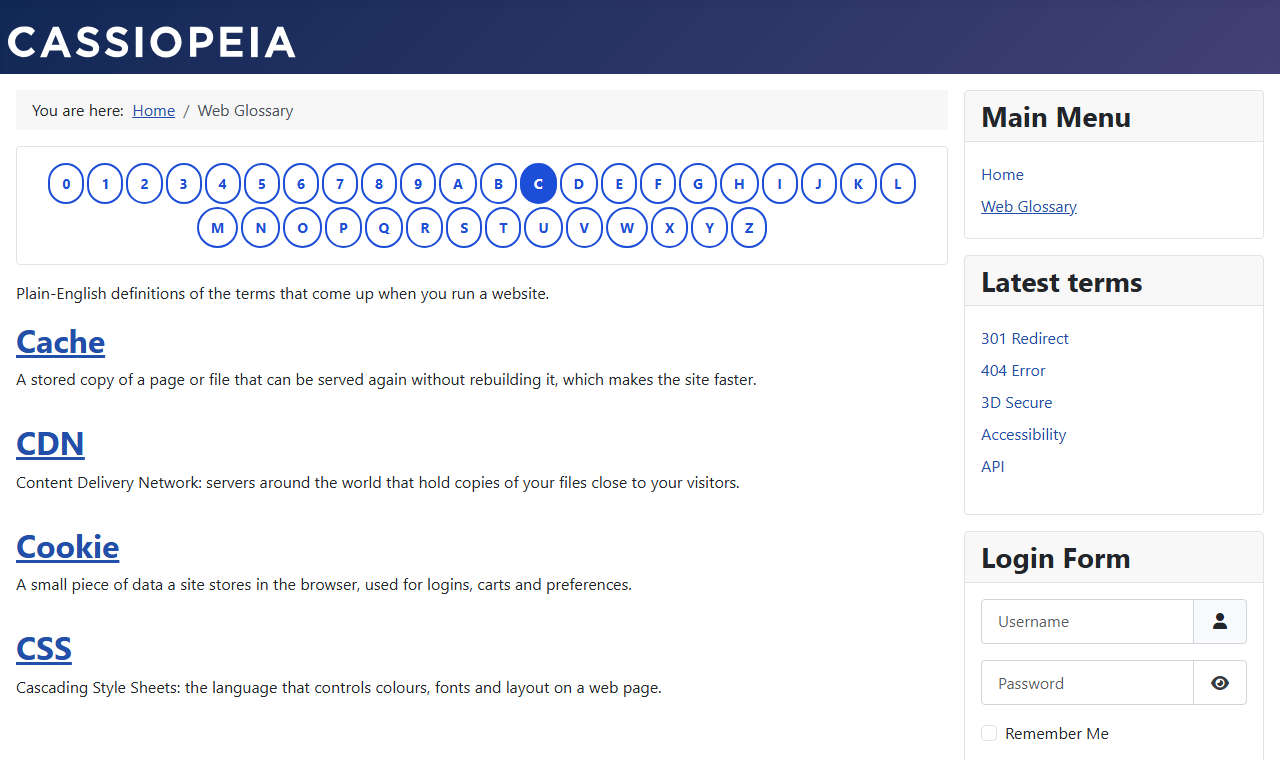 ⤢ Click to enlarge
Colour Picker tab
Clicking any colour field on the Button Styles tab opens a colour picker with a row of quick-pick swatches, an opacity slider, and a box where you can type or paste a hex code. It follows your admin's light or dark mode.
The swatches are taken from your site's default template, so the colours you already use
are one click away. The picker looks at the colour settings in the template style first,
then the template's custom.css or user.css, then its main
stylesheet, and offers the most-used colours first. About two-thirds of the swatches are
colours and the rest are whites, greys and black. If the template has no colours to offer,
you get a standard palette instead.
 ⤢ Click to enlarge
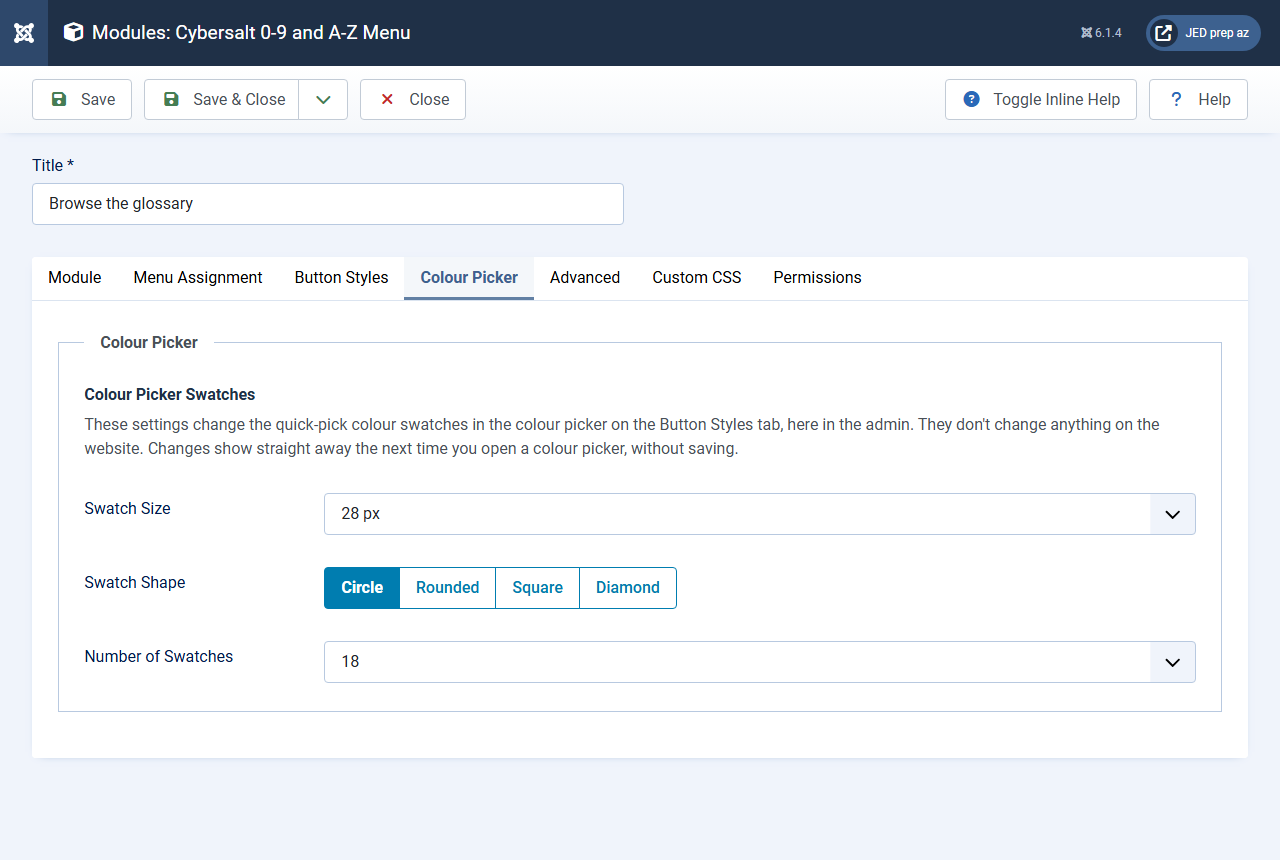
The Colour Picker tab adjusts those swatches. These settings only change the colour picker here in the admin. They don't change anything on the website, and changes show the next time you open a colour picker, without saving.
| Setting | Default | What it does |
|---|---|---|
| Swatch Size | 28 px | How big each quick-pick swatch is, from 20 px (small) to 40 px (large). Swatches are always square, so this sets both the width and the height. Bigger swatches are easier to click and wrap onto more rows. |
| Swatch Shape | Circle | Circle: round dots. Rounded: squares with softened corners. Square: sharp-cornered squares, which show the most colour for their size. Diamond: squares turned on their point. |
| Number of Swatches | 18 | How many quick-pick colours to offer: 12, 18, 24, 30 or 36. If the template has fewer colours than this, you get fewer swatches. |
 ⤢ Click to enlarge
Custom CSS tab
Use this for any styling the Button Styles tab doesn't cover, such as a shadow or a
different font. Enter plain CSS, without <style> tags. It is
added to every page the menu appears on.
The module's own styles are tied to its ID, so start your rules with the same ID to make sure yours win. You'll find the module's ID in the ID column of Content → Site Modules. For a module with ID 123:
#mod-cs09azmenu-123 .mod-cs09azmenu__link {
  box-shadow: 0 1px 3px rgba(0, 0, 0, 0.25);
  font-family: Georgia, serif;
}| Selector | What it targets |
|---|---|
#mod-cs09azmenu-123 | The whole menu for module 123. |
.mod-cs09azmenu__list | The row that holds the buttons. |
.mod-cs09azmenu__item | Each button's container. The selected one
also has .mod-cs09azmenu__item--active. |
.mod-cs09azmenu__link | The button itself. The selected one also
has .active. |
The one character this field won't pass through is <, which is converted
for safety. Normal CSS never needs it.
Advanced tab
Layout and Module Class work the same as on any Joomla module.
You won't find any caching options here. That's deliberate: the menu is never cached, because what it shows depends on the category and the letter in the page address, and Joomla's module cache can't tell those apart. Building the menu takes at most one small database lookup, so nothing is lost. Modules first saved under version 1.1.0 or earlier are switched to no caching automatically.
The plugin settings
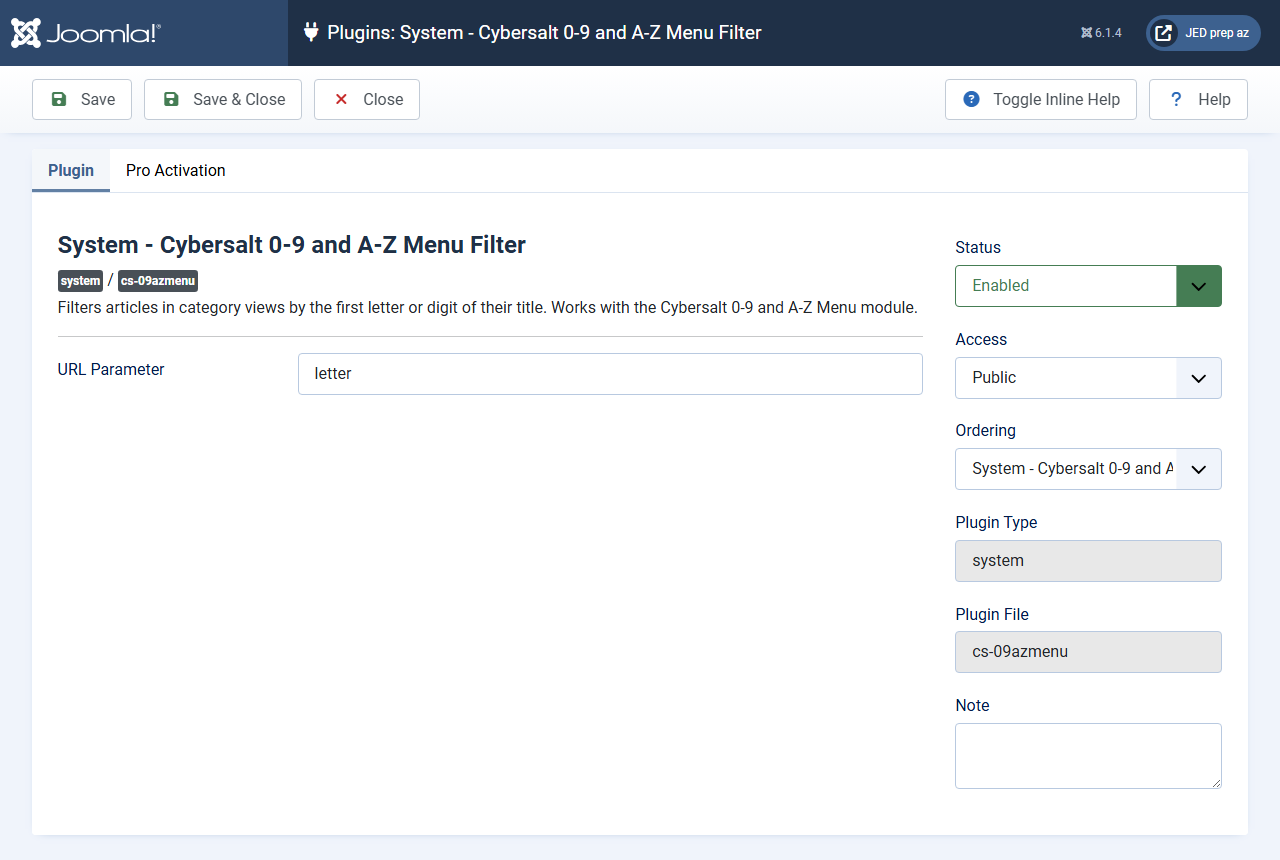
The plugin, System - Cybersalt 0-9 and A-Z Menu Filter, has two tabs: the Plugin tab with the URL Parameter, and the Pro Activation tab. Open it from System → Manage → Plugins, or with the install card's Plugin settings button.
URL Parameter
 ⤢ Click to enlarge
| Setting | Default | What it does |
|---|---|---|
| URL Parameter | letter |
The name of the URL parameter that carries the chosen letter or number, for example
letter in ?letter=B. The module reads this setting
automatically, so this is the only place to change it. |
Most sites leave it alone. You might change it if another extension on your site already
uses letter, or if you'd like the address in your own language, such as
?lettre=B or ?buchstabe=B.
The name can use letters, digits, hyphens and underscores, must start with a letter, and
can be up to 32 characters long. Names Joomla uses for its own addresses, such as
id, option, view, catid,
Itemid, layout, limit, limitstart,
start, format, tmpl, lang and
task, aren't allowed. If the name breaks any of these rules, the plugin quietly
uses letter instead.
Changing the name changes your filtered page addresses. Bookmarks and links elsewhere that still use the old name will open the category unfiltered.
Pro Activation
This tab links the site to the cybersalt.com account you bought the extension with, so new versions arrive through Joomla's own System → Update → Extensions screen. The menu works the same with or without activation. Only the update stream depends on it.
- Open the plugin and click the Pro Activation tab.
- Enter the email address of your cybersalt.com account in cybersalt.com Account Email.
- Click Save. The site checks your membership with cybersalt.com straight away and shows the result at the top of the tab.
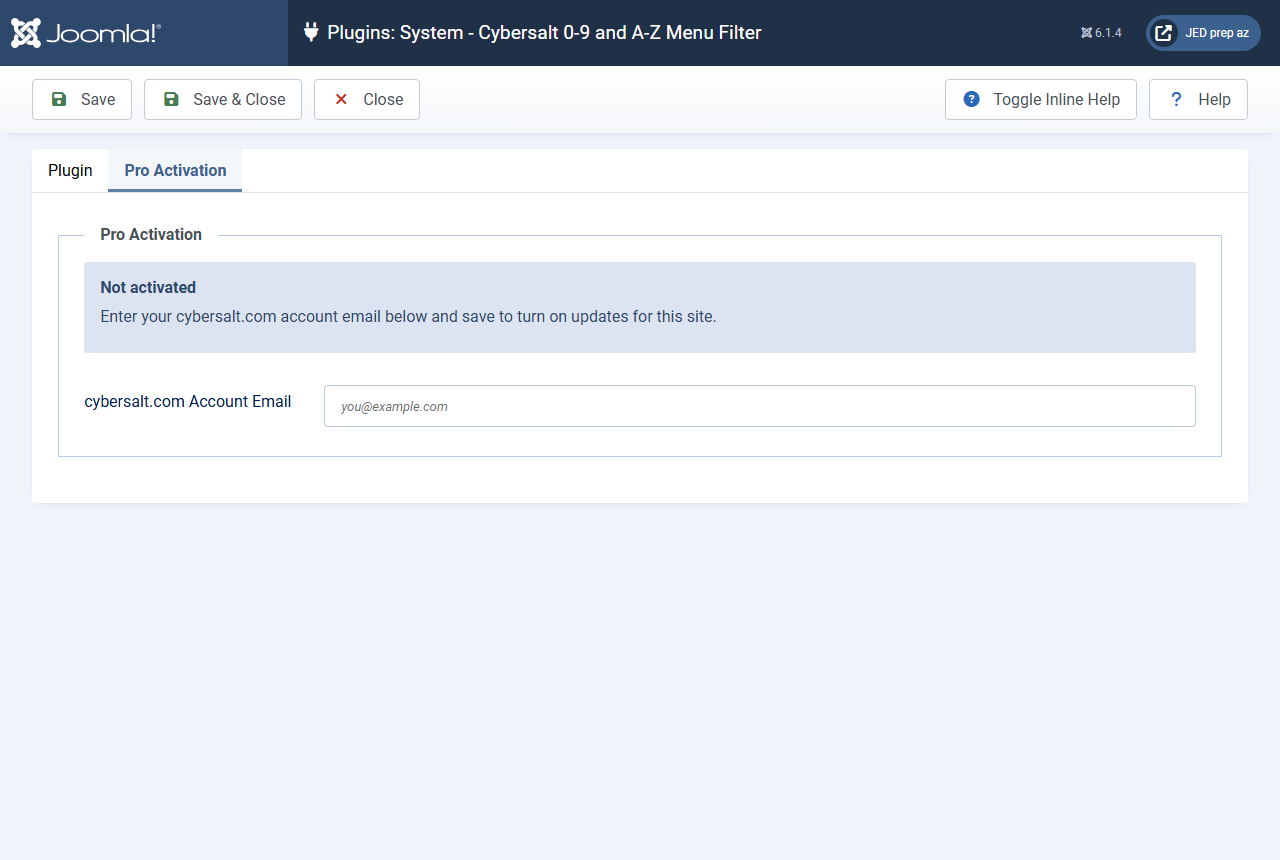 ⤢ Click to enlarge
| Status | What it means |
|---|---|
| Not activated | No email has been saved yet. The menu works; updates aren't delivered. |
| Active | Your membership is current. The site receives updates. |
| Membership expired | The membership has run out. The menu keeps working, but updates pause until you renew. The tab shows a Renew your membership button. After renewing, save the tab again to re-check. |
| No membership found | That account doesn't have a membership that includes this extension. Check that the email matches the account you bought it with. |
| Blocked | cybersalt.com has blocked updates for this account or site. Contact Cybersalt support. |
| Activation failed | cybersalt.com couldn't confirm the site. Check the email and save again. If it keeps happening, contact support with the installation ID shown on the tab (the copy button next to it puts it on your clipboard). |
Good to know:
- Saving the tab again with the same email re-checks the membership immediately. The site also re-checks by itself once a day, when someone is working in the administrator.
- To deactivate, clear the email and save. The site stops receiving updates; your menu and its settings aren't touched.
- What is sent to cybersalt.com: the email you enter, a SHA-256 hash of it, your site's domain name and a random installation ID the plugin creates. Nothing about your articles or visitors is sent.
- Activation only changes this package's own update entry in Joomla. Other extensions' update servers are left alone.
How filtering works on your site
When a visitor clicks B, the same category page reloads with the letter added to
the address, for example https://example.com/artists?letter=B. It works the same
with Joomla's search-engine-friendly URLs switched on or off. The button for the letter being
viewed shows in the Active colours.
| Question | Answer |
|---|---|
| What decides which button an article is under? | The first character of its title. Upper and lower case count the same. Joomla doesn't skip small words, so The Beatles is under T, not B. |
| What about pages 2, 3 and so on? | If a letter has more articles than fit on one page, Joomla's page links keep the letter, so page 2 is still page 2 of the B list. |
| Does it change the order or layout? | No. The article order, articles per page and layout all come from your category menu item, exactly as before. |
| Can it show articles a visitor shouldn't see? | No. It can only narrow the list Joomla was already going to show. Access levels, unpublished articles and publishing dates are all respected. |
| Are other modules on the page filtered? | No. Modules such as Latest Articles or Most Read keep showing what they always show. |
| How do visitors get back to the full list? | Through the normal link to the category, such as its menu item or breadcrumb. The menu doesn't have a separate All button. |
| Does it work with Joomla's caching? | Yes. Each letter is cached as its own page, so a visitor never gets another letter's list. |
| Can I use more than one menu module? | Yes. For example, you could give different categories different button colours by creating a module for each, with its own Limit to Categories. All of them use the plugin's URL Parameter. |
Troubleshooting
| Symptom | Cause and fix |
|---|---|
| The menu doesn't appear at all | Check these in order. Are you on a category page, not a single article or the Featured page? Is the module published, assigned to the page, and in a position your template actually displays? Does Limit to Categories include this category, or is it empty? If Show in Child Categories is Yes, the categories you picked don't get the menu themselves, only the categories below them. |
| The buttons show, but clicking one doesn't filter anything | The plugin isn't enabled. Go to System → Manage → Plugins,
search for 0-9 and enable System - Cybersalt 0-9 and A-Z Menu
Filter. |
| An old link or bookmark shows the whole category | The link uses a URL Parameter name that has since been changed in the plugin. The plugin only listens for the current name, so update the link. |
| Some articles never appear under any button | Their titles start with a character outside A to Z and 0 to 9, such as a quotation mark. See Known limitations. |
| An article is under an unexpected letter | Only the first character of the title counts. The Beatles is under T and A Tale of Two Cities is under A. |
| A colour or size I entered is ignored | The value contained brackets or a semicolon, so the default was used. Use the colour
picker for colours and plain values like 12px for sizes. If your
template's styles are winning, add a rule on the Custom CSS tab that starts with the
module's ID. |
| The border colours don't show | Border Width is 0, which turns borders off. Set it to 1px or more. |
| Page 2 of a filtered list shows every article | This was fixed in version 1.2.0. Update the extension under System → Update → Extensions. |
| The wrong button is highlighted, or the menu vanishes until the cache is cleared | Module caching caused this in version 1.1.0 and earlier. Update to 1.2.0 or newer, then clear the cache once under System → Clear Cache. |
| No updates show up for the extension | Check the plugin's Pro Activation tab. It needs to say Active. If it says Membership expired or No membership found, follow the advice on the tab, then save it again. Then run Check for Updates under System → Update → Extensions. |
| The installer refuses to install | The site is running PHP older than 8.1 or Joomla older than 5.0. The message tells you which. Your host can usually switch the PHP version for you. |
Known limitations
- Only A to Z and 0 to 9 have buttons. A title that starts with anything else, such as a quotation mark or other punctuation, or a letter outside the English alphabet like Æ, Ø or Å, usually won't appear under any button. Accented letters such as É are often grouped with their plain letter, but that depends on how your site's database is set up. If this affects you, the simplest fix is to adjust those titles so they start with a plain letter.
- It filters by title only. It doesn't filter by author, tag, custom field or article text.
- It works on Joomla article categories only. Contacts, other components' category pages and third-party content types aren't covered.
Questions people ask
Does it change the order of my articles? No. Sort Order only changes the order of the buttons. Article order is set on your category menu item, the same as without the extension.
Will it slow my site down? Not noticeably. The filter adds one condition to the article query Joomla already runs, and the menu itself needs at most one small category lookup.
Does it work on Joomla 6? Yes. It runs natively on Joomla 5 and Joomla 6.
Does it work with my template? It should. The buttons are a plain list of links styled by the module's own settings, so they fit into any template position. If your template's styles override the buttons, use the Custom CSS tab.
Which languages is the admin available in? English, Dutch, German, Spanish, French, Italian, Brazilian Portuguese, Russian, Polish, Japanese, Simplified Chinese, Turkish, Greek, Czech, Swedish, and Norwegian (Bokmål and Nynorsk). Each administrator sees their own language.
Getting help
Questions, bug reports and ideas are welcome through the Cybersalt support request form.
You'll get the quickest answer if you include your Joomla and PHP versions, the extension version (shown in System → Manage → Extensions; search for 0-9), the address of a category page where the problem shows, and what you expected to happen compared with what actually happened.
Cybersalt 0-9 and A-Z Menu is developed by Cybersalt Consulting Ltd. and released under the GNU General Public License v2 or later.
The install card — click anywhere to closeClose ×
Module tab — click anywhere to closeClose ×
Button Styles tab — click anywhere to closeClose ×
The colour picker — click anywhere to closeClose ×
Colour Picker tab — click anywhere to closeClose ×
Plugin settings — click anywhere to closeClose ×
A restyled menu — click anywhere to closeClose ×
Pro Activation tab — click anywhere to closeClose ×
Subcategories
Changelog
Release history for Cybersalt 0-9 and A-Z Menu.